Dual Wielding
Dual wielding equips two Character Items as one Item Set while allowing the right and left items to animate, use, reload, and render together or independently. The examples use the common convention of slot 0 for the right hand and slot 1 for the left hand; use different IDs if the character’s Item Slots use a different mapping.
Before you begin
Prepare the character and data before building either item:
- Add matching first- and third-person Character Item Slots for the two hands. The right-hand first- and third-person slots must share one ID, and the left-hand slots must share the other.
- Assign an Inventory, an Item Set Manager, and an Item Collection. The Item Set Group’s Item Category must contain the definitions that will be equipped.
- Decide whether the pair uses one Item Type with two slot-specific Character Item prefabs or two separate Item Types.
- Decide whether one input operates both hands or each hand has its own Use and Reload abilities.
- Prepare Animator states for the pair. The supplied controller includes Dual Pistols and Sword/Shield examples, but not a complete two-sword animation set.
For reusable pairs, build prefabs with Character empty in Tools > Opsive > Ultimate Character Controller > Item Manager. This lets Inventory choose the slot-specific prefab at runtime and supports characters that switch models.
Choose one or two Item Types
| Data setup | Use it when | Inventory amount | Item Set Rule |
|---|---|---|---|
| One Item Type with right- and left-slot prefabs | The two swords or firearms are the same owned item | 2 of that Item Type |
Put the same Item Type in slots 0 and 1 |
| Separate right and left Item Types | Each hand needs different statistics, pickups, icons, actions, or restrictions | 1 of each |
Put the right definition in slot 0 and the left definition in slot 1 |
With one Item Type, its Prefabs list must contain one Character Item with Slot ID 0 and another with Slot ID 1. Inventory uses the slot to choose between them. Do not create two identical prefabs for the same definition and slot.
A Category Item Set Rule can permit flexible combinations, such as any one-handed melee item in each hand. Start with an explicit Item Type Item Set Rule for a known pair; category rules can generate more combinations than expected and should use exceptions where needed.
Build the two Character Item prefabs
- Build the right-hand item with Slot ID 0, the intended Item Definition, and Add Item Prefab to Item Definition enabled.
- Enable every perspective that must render the item. Assign a right-hand first-person visible object and a right-hand third-person object.
- Add the primary action. A sword normally starts with Melee and a firearm with Shootable. The first generated action has action ID
0. - Set Animator Item ID to the value implemented by the character’s controller.
- Save the prefab, then repeat the build for the left hand with Slot ID 1 and left-hand visible objects.
- Open both saved prefabs and configure their action modules, equip timing, local spawn transforms, hitboxes or muzzle origins, and drop settings independently.
The two Character Items may use the same Animator Item ID. Slot parameters keep the values separate: a pair of supplied swords would report Slot0ItemID = 22 and Slot1ItemID = 22, while supplied pistols use 2 in both slots. Setting these numbers does not create the paired animation states.
Two-sword variant
- Give the right and left prefabs Melee action ID
0and separate hitboxes on their own visible models. - Use Animator Item ID 22 only when retaining the supplied Sword item mapping. Add a custom
DualSwordsstate and transitions that recognize both slot values. - Use separate first-person base objects for independent attacks: the Demo convention is base ID
2for the right arm and1for the left arm. - For alternating attacks, configure two Use abilities, one per slot. For a simultaneous strike, use one all-slot Use ability and provide animation and collision timing for both actions.
The Version 3 Demo does not supply a finished DualSwords controller branch. The Inventory and Item Set can equip two swords, but a convincing result still requires project-specific left-hand clips, substates, hitboxes, and transitions.
Two-firearm variant
- Give both prefabs Shootable action ID
0; configure each weapon’s clip, muzzle, projectile or hitscan origin, effects, and reload modules separately. - Use Animator Item ID 2 when retaining the supplied Pistol mapping.
- Use first-person base ID
2for the right pistol and1for the left pistol in the Demo hierarchy. - Use one all-slot Use ability to fire both eligible pistols together, or two slot-specific Use abilities for independent triggers. Apply the same choice to Reload.
Reserve ammunition remains an Inventory definition separate from the count of owned pistols. A rule that requires two Pistol Character Items still needs an owned Pistol amount of at least two.
Create the dual Item Set Rule
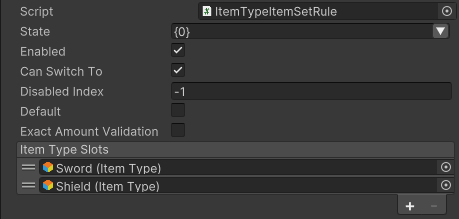
- In the Project window choose Assets > Create > Opsive > Ultimate Character Controller > Inventory > Item Type Item Set Rule.
- Give State an explicit name such as
DualSwordsorDualPistols. A{0}placeholder concatenates definition names in slot order, but an explicit name is easier to reuse in State System presets and Animator transition setup. - Keep Enabled and Can Switch To enabled. Mark Default only when this pair should be the group’s fallback Item Set.
- Set Item Type Slots element 0 to the right-hand Item Type and element 1 to the left-hand Item Type. Repeat the same Item Type in both elements for two identical items.
- Enable Exact Amount Validation only when the Inventory must contain exactly the number used by the set. For one repeated Item Type, a two-slot set is invalid when the owned amount is anything other than
2; leave it disabled when extra copies are allowed. - Add the rule under Item Set Manager > Item Set Groups > Item Set Rules for the matching Item Category.

The rule generates slot combinations from matching Character Items. Inventory amount is checked separately when determining whether a generated set is valid to equip, so a dual set can exist while invalid. For example, one owned Pistol can spawn both slot-specific prefabs and generate their dual set, but that repeated-Pistol set needs an owned amount of at least two to be valid. Add separate single-item rules if the character should equip one hand before acquiring the second item.
Configure first-person hand ownership
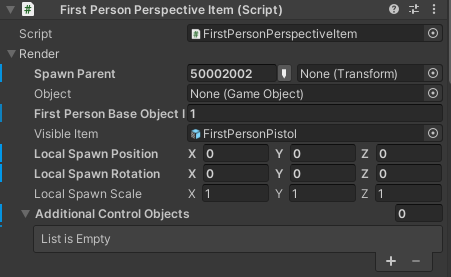
Each First Person Perspective Item resolves a First Person Base Object ID. Items that resolve different objects are independent; items that resolve the same object share its first-person motion and activation.
The supplied Demo uses these IDs:
0: both arms1: left arm2: right arm
For independent two-sword or two-firearm control, set the right item to 2 and the left item to 1. Configure the value on First Person Perspective Item > Render > First Person Base Object ID after building the prefabs.


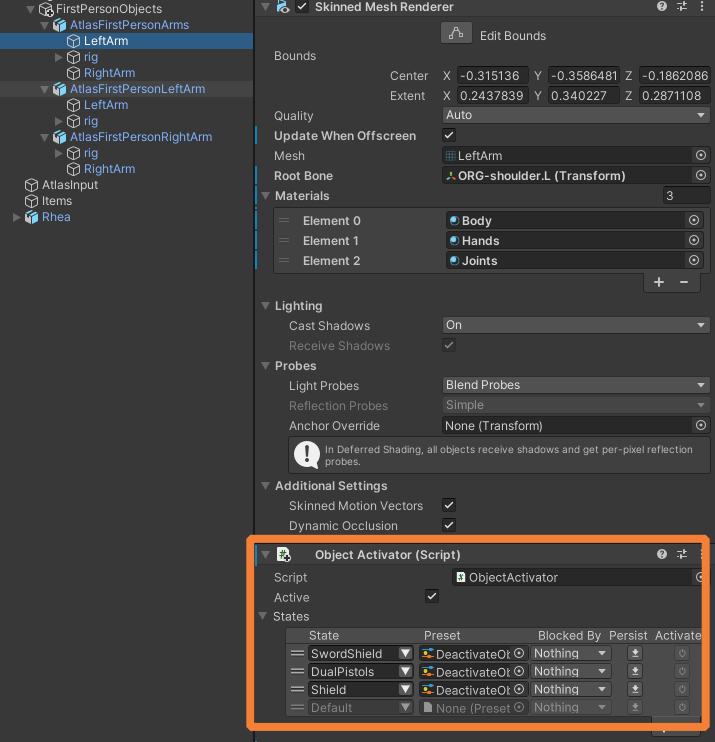
The right-pistol example also adds base ID 0 under Additional Control Objects so the shared arms remain controlled when only the right pistol is equipped. When the dual set is active, deactivate duplicate renderers on that shared base so the separate left and right arm meshes are not drawn twice.
Use the current Game Object Activator component on each duplicate renderer GameObject. Add DualPistols, DualSwords, or another Item Set State and assign a preset with Active disabled. The older screenshots on this page used the retired Object Activator label, so those images are no longer shown.
Shared-base alternative
A paired animation can intentionally use the shared base ID 0 for its main item and a separate base ID 1 for the offhand. The legacy Sword/Shield fixture demonstrates this layout:


This is appropriate when one animation set coordinates both arms. For two items that must attack, recoil, or reload independently, prefer separate right- and left-arm bases.
Third-person objects do not use First Person Base Object IDs. Each visible object resolves the Character Item Slot matching its Character Item’s Slot ID, so verify that the right model reaches the right-hand slot and the left model reaches the left-hand slot.
Choose simultaneous or independent controls
| Desired behavior | Use ability setup | Reload ability setup |
|---|---|---|
| Both hands together | One ability with Slot ID -1 and the shared Action ID | One ability with Slot ID -1 reloads every eligible equipped action |
| Separate hand inputs | Duplicate Use abilities: right Slot ID 0, left Slot ID 1, each with its own input | Duplicate Reload abilities for slots 0 and 1, or keep one all-slot reload input |
| One primary hand, passive offhand | Use only the primary slot; drive the offhand through its Shield, state, or project-specific behavior | Configure only actions that implement reload |
Slot ID -1 means all Inventory slots, not “always both.” Use and Reload still ask each action whether it can start. If one pistol is empty, blocked, or already complete, the other can fire or reload alone. Enforce strict synchronization in the action modules or a project-specific ability when both hands must succeed or fail as one operation.
Use has priority over Reload for the same Character Item. Starting Use can stop that item’s reload; test this separately for each slot.
Coordinate Item Set State and Animator values
Three layers of runtime state have different owners:
- The active Item Set turns on its State name, such as
DualPistolsorDualSwords. Use that State for presets on Character Items, perspective items, Use abilities, and Game Object Activators. Slot0ItemIDandSlot1ItemIDidentify which Character Item mapping is equipped in each hand.- The active item ability owns
ItemStateIndex: the released defaults are Use2, Reload3, Equip4, and Unequip5. Each Character Item action or equip/unequip state set supplies the per-slotItemSubstateIndex.
The Equip Unequip ability transitions every changed slot in the chosen Item Set and remains active until all equip and unequip checkpoints finish. A missing animation event or duration on either Character Item can therefore hold the whole transition open.
Configure the loadout and pickups
- For one repeated Item Type, add an amount of
2to Inventory > Default Loadout or grant2from an Item Pickup. For separate definitions, add or grant one of each. - To begin with the pair equipped, set Inventory > Loadout Equip to Item Set Name and enter the rule’s State, such as
DualPistols. - When items are collected separately, keep single-hand rules if the first item should be usable before the pair is complete.
- Configure each Character Item’s Drop Prefab. Decide whether dropping one hand removes one amount or whether a project-specific action should drop the pair.
Editor checkpoint
Before entering Play Mode, confirm:
- Both perspectives have matching Character Item Slots for IDs 0 and 1.
- Inventory can resolve one Character Item prefab for each required definition and slot.
- The dual Item Set Rule appears in the correct Item Set Group and its two slot entries are ordered correctly.
- Both Character Items use the expected Animator Item ID and action ID.
- Independent first-person items resolve different base objects; duplicate shared-arm renderers have Game Object Activator states.
- The Animator Controller contains pair-specific transitions, ability state indices, and per-slot substates.
Verify in Play Mode
- Inspect Inventory and confirm the expected amount: two of a shared definition or one of each separate definition.
- Inspect Item Set Manager and confirm the
DualSwordsorDualPistolsset is valid with the right item in slot 0 and the left item in slot 1. - Equip the set. Confirm both Character Items complete their equip events and
Slot0ItemIDandSlot1ItemIDshow the intended values. - Test the right and left inputs separately. Confirm only the selected action, first-person base, hitbox or muzzle, and substate react.
- Test the simultaneous input. Confirm every eligible action starts and that an ineligible hand produces the intended fallback.
- For firearms, reload with one clip partly full and the other empty, then test Use during reload.
- Switch perspective or observe the character remotely. Confirm both third-person models occupy the correct hands and no first-person arm mesh is duplicated.
- Remove or drop one owned item. Confirm the dual set becomes invalid and the intended single-hand or empty set takes over.
Troubleshoot dual wielding
| Symptom | Check | Fix |
|---|---|---|
| The dual Item Set never appears | Check Inventory amounts, Item Type prefab entries, slot IDs, the Item Set Group category, and Exact Amount Validation | Supply the second Character Item, correct the slot/category, or disable exact validation when extra copies are valid. |
| Both models appear in one hand | Check the Character Item Slot ID and matching first- and third-person Character Item Slots | Rebuild or edit the left prefab for slot 1 and confirm both perspective hierarchies use the same mapping. |
| One first-person item moves both hands | Both items resolve the same First Person Base Object ID | Use separate right- and left-arm base IDs for independent motion. |
| Arms or weapons are drawn twice | A shared base and separate hand bases are active together | Add current Game Object Activator states that disable only the duplicate renderers while the dual Item Set State is active. |
| One input fires both items unexpectedly | The Use ability has Slot ID -1 | Use duplicate slot-specific abilities and distinct inputs. |
| Only one item fires from an all-slot input | The other action cannot start, has a different action ID, or has no usable ammunition | Match Action ID, configure both actions, and decide whether partial success is acceptable. |
| Reload never finishes or Use interrupts it | Check each action’s reload events and remember that Use has priority over Reload | Supply valid events or durations, then test each slot before testing all-slot reload. |
| Equip Unequip remains active | One Character Item has not reached an equip or unequip completion checkpoint | Correct that item’s animation event or duration; the ability waits for every changed slot. |
| The items equip but animation remains single-wield | The pair-specific Animator transitions or Item Set State are missing | Add transitions for both SlotXItemID values and the required ability state/substate combinations. |
Related tasks
- Item Creation builds and validates each slot-specific Character Item.
- Item Slots explains the first- and third-person slot mapping.
- Item Set and Rules covers groups, rule order, category matching, and runtime sets.
- First Person Perspective Item documents base-object IDs and additional control objects.
- Use and Reload configure slot and action targeting.
- Inventory covers Default Loadout, Loadout Equip, pickup, and amount ownership.
- Default Animator Values lists the supplied item IDs.
- State System explains the presets driven by the active Item Set State.
Developer notes
ItemTypeItemSetRule matches a Character Item by its slot and Item Type. With Exact Amount Validation enabled, it counts each identifier used by the generated set and requires Inventory to hold exactly that amount. ItemSetGroup activates the new Item Set State and deactivates the previous one when the active set changes.
FirstPersonPerspectiveItem considers items independent when their resolved Object references differ. Additional Control Objects are resolved by First Person Base Object ID and follow the main first-person object. Use and Reload iterate all Inventory slots when Slot ID is -1; duplicate abilities target one slot when given 0 or 1. EquipUnequip tracks equip and unequip work per slot and stops only after every pending Character Item completes.