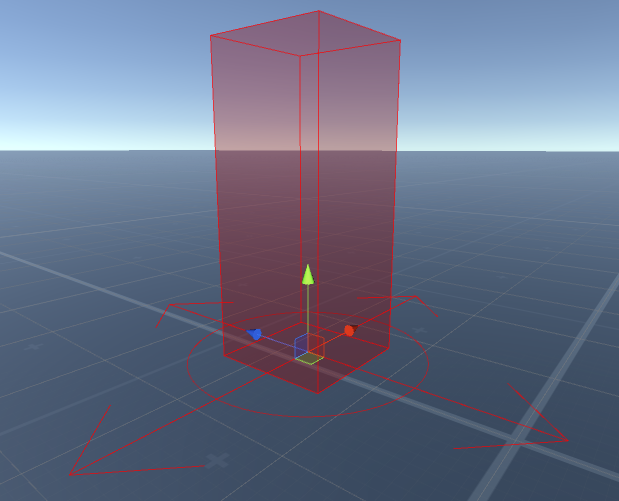
Spawn Points give a Respawner one or more scene locations to try. Use them for team starts, checkpoints, arena returns, and other cases where the destination should come from the scene instead of the object’s current or original transform.

Before you begin

  • A Spawn Point chooses a position and rotation. It does not create an object, schedule a return, reset Health, or synchronize a player.
  • Add a Respawner to the character or object that should return, then select Spawn Point as its Positioning Mode.
  • Decide which points belong to each team, checkpoint, or other pool. Respawner and Spawn Point must use exactly the same Grouping value.
  • Use one active Spawn Point Manager in the scene. The runtime can create a fallback manager, but an explicit manager exposes the selection setting and gives the scene a clear owner.

Add the manager and scene points

  1. Open Tools > Opsive > Ultimate Character Controller > Setup Manager.
  2. Select the Scene tab and, under Manager Setup, select Add Managers.
  3. Select the scene’s Game GameObject and confirm it has Spawn Point Manager. First Spawn Preferred starts disabled.
  4. Create an empty GameObject at an allowed destination and add Spawn Point.
  5. Place the GameObject at the center of the location. Its rotation supplies the normal spawn facing direction. Keep its Transform scale at (1, 1, 1) and use Size to change the area.
  6. Set Grouping to the exact pool that should use this point. Keep the default -1 on both the point and Respawner for one ungrouped pool, or use deliberate values such as 0 and 1 for two teams.
  7. Duplicate and place as many points as the group needs. Enabled points register with Spawn Point Manager; disabling a point removes it from selection until it is enabled again.

Spawn Point Inspector showing placement area, facing, and obstruction settings

Configure the placement area

Field Version 3.2.0 default What it controls
Grouping -1 Selects one exact manager group. In released Version 3, -1 is a real group value; it does not mean every group.
Shape Point Point uses the GameObject’s position. Sphere and Box can define a horizontal area for retry candidates.
Size 0 For Sphere, this is the maximum horizontal sample radius and the gizmo radius. For Box, it is the full local X/Z width and depth; samples range from -Size / 2 to Size / 2.
Random Shape Spawn Enabled Allows later obstruction retries to sample another position. The first candidate is still the center, and this setting has no effect unless the center fails an obstruction test.
Ground Snap Height 0 When positive, casts downward from above the accepted candidate and moves it to a hit on Obstruction Layers. No hit leaves the candidate unchanged. For Box, this value is also the obstruction volume’s height.
Random Direction Disabled Disabled uses the Spawn Point Transform rotation. Enabled gives an upright point a random yaw.
Check For Obstruction Disabled Tests the candidate with the point’s configured volume before accepting it. Point bypasses this test and succeeds when at least one placement attempt is allowed.
Max Collision Count 20 Sets the fixed Collider result-buffer capacity used by the Spawn Point obstruction query.
Obstruction Layers Most project layers Supplies both the obstruction query and ground-snap ray. The default excludes Default, Ignore Raycast, Transparent FX, Water, UI, SubCharacter, Overlay, and Visual Effect. Review the mask for the scene.
Placement Attempts 10 Sets the maximum candidates tested within this point. Keep it at least 1; the center is the first attempt.
Gizmo Color Red at 30% opacity Controls the Scene view area visualization only.

The Spawn Point obstruction volume is not derived from the spawning object’s Colliders. A Sphere point checks a sphere of Size / 2 around the candidate; a Box point checks Size / 2 in local X/Z and Ground Snap Height / 2 vertically. For a UCC character, enable Check For Obstruction on Character Respawner as well for an additional character-level check. In the current release, Sphere and Box character queries use the root destination without authored center or child-transform offsets; validate those actual centers in project code when the layout requires them.

Ground snapping happens after the Spawn Point obstruction test. Place the Spawn Point near the intended surface, give Ground Snap Height enough reach, and include the ground layer in Obstruction Layers. A failed ray does not make the placement fail.

Choose grouping and selection behavior

Goal Configuration
One shared pool Leave Respawner and all eligible points at Grouping -1. This is an exact default group, not a wildcard.
Team starts Give each team a distinct value, such as 0 and 1, and apply the matching group to its Respawner.
Fixed checkpoint Keep one enabled point in the current checkpoint group, or change the Respawner group when the next checkpoint is earned.
Several eligible locations Keep First Spawn Preferred disabled. Spawn Point Manager shuffles the group’s registered list, then uses the first point that returns a valid placement.
Preferred location with fallbacks Enable First Spawn Preferred. The first registered point in the group is tried before the group is shuffled; if it fails, it may be tried again as part of the shuffled fallback list.
Sequential or round-robin locations Version 3 has no sequential selection mode. Enable one checkpoint point at a time or implement a project-owned selection policy.

“First” means the first point currently registered for that group, not the first alphabetically named point. Disabling that point promotes the first remaining list entry; re-enabling it appends it again. When preference order matters, establish the registration order deliberately and verify it in Play Mode.

The released-Version-3 shuffle is not a statistically uniform picker. With two always-valid points, its in-place shuffle swaps their order on every request, so the selected location alternates. Use the built-in behavior for variety, not for weighted probability or a guaranteed random distribution.

Connect a character or object

  1. On Respawner or Character Respawner, set Positioning Mode to Spawn Point.
  2. Set Grouping to the exact value used by the eligible points.
  3. Configure Min Respawn Time, Max Respawn Time, and the intended death, disable, or manual scheduling owner on Respawner.
  4. For a character, keep the character root active through death and enable Character Respawner Check For Obstruction when the final character shape must fit.
  5. For an ordinary object, decide whether the Spawn Point’s Size-based test is enough. Supply a project-specific final-volume test when the object shape is materially different.
  6. Keep scene points enabled only while they should participate. Enabling or disabling a checkpoint point updates the manager automatically.

How placement runs

  1. Each enabled Spawn Point registers itself in the manager dictionary under its exact Grouping value.
  2. A Respawner requests a placement for its group. A missing group logs an error and fails the request.
  3. With First Spawn Preferred enabled, the group’s first registered point is tried first. The manager then shuffles the group and tries points until one succeeds.
  4. A Spawn Point starts at its Transform center. With obstruction checking enabled, Point accepts that center; Sphere and Box test their configured volume.
  5. After a blocked Sphere or Box candidate, Random Shape Spawn can choose another horizontal position. The point repeats until it succeeds or reaches Placement Attempts.
  6. A positive Ground Snap Height then tries to move the accepted candidate onto a surface, and Random Direction or the Transform supplies its rotation.
  7. If every point fails, Spawn Point Manager returns false. Respawner waits for another configured respawn interval and requests placement again.
  8. On success, Respawner moves and activates the object and sends its normal respawn events. Character Respawner can perform its separate full-character obstruction check before completing the return.

Editor checkpoint

Before Play Mode, confirm that:

  • the scene has one active Spawn Point Manager and First Spawn Preferred matches the intended policy;
  • every Respawner group has at least one enabled point with the exact same value, including matching -1 values for the default pool;
  • each point’s center, Transform rotation, unit scale, Shape, and Size represent the visible safe area;
  • Placement Attempts is at least 1 and Max Collision Count can hold the expected nearby results;
  • Obstruction Layers includes blockers and, when used, the ground surface;
  • Ground Snap Height reaches from the candidate to the intended surface;
  • Point locations that must fit a character also use Character Respawner Check For Obstruction; and
  • the project has one clear owner for respawn scheduling, checkpoint state, pooling, and network authority.

Verify several points in Play Mode

  1. Create three visibly separated Point Spawn Points with distinct rotations and set all three to Grouping 7.
  2. Configure a test character’s Character Respawner for Spawn Point, group 7, and a fixed two-second delay.
  3. Leave First Spawn Preferred disabled. Trigger several deaths and confirm every successful return uses a point in group 7, applies that point’s rotation, and eventually uses more than one eligible point.
  4. Disable one point and repeat. Confirm it is no longer selected; re-enable it and confirm it becomes eligible again.
  5. Add one point in group 8 and confirm the group-7 character never uses it. Change the Respawner to group 8 and confirm only that point is used.
  6. Change one group-7 point to Box, set a visible Size, enable Check For Obstruction and Random Shape Spawn, then block its center with an object on Obstruction Layers. Confirm a clear retry position is used or the manager moves to another point.
  7. Give the Box a positive Ground Snap Height and verify the accepted candidate reaches the intended ground. Remove the ground layer from Obstruction Layers and confirm the missing ray leaves the candidate unsnapped.
  8. Block every eligible area and enable Character Respawner Check For Obstruction. Confirm the character waits and retries instead of overlapping a blocker.
  9. Enable First Spawn Preferred and establish a known registration-first point. Confirm it wins while valid and a fallback is used when it cannot place the character.

Troubleshooting and released-Version-3 limitations

Symptom Check Fix
The Console reports no Spawn Point for the group Respawner and enabled points do not share an exact group key. -1 was treated as a wildcard. Match the values exactly. Keep both sides at -1 for the default pool.
Respawner waits and retries without a missing-group error The group was registered previously but now contains no enabled points, or every point returns false. Enable a valid point in the group and clear its placement area.
Sphere or Box always returns the center The center is clear, Check For Obstruction is disabled, or Random Shape Spawn is disabled. Version 3 randomizes only retries after the center fails. Use several Point locations for ordinary variety, or implement a custom Spawn Point when every request must sample the full area.
A Point accepts an occupied location Point shape bypasses the Spawn Point obstruction query in released Version 3. Enable Character Respawner Check For Obstruction for a character, use an area shape, or add a project-specific final-volume test.
The object appears in the air Ground Snap Height is zero or too short, the ground is absent from Obstruction Layers, or the ray misses. A miss still returns success. Increase the height, include the ground layer, and place the point close enough to the surface.
The final snapped object overlaps geometry Spawn Point obstruction runs before ground snapping and uses the point volume rather than the object’s Collider shape. Use Character Respawner’s additional check, then account for its root-centered Sphere/Box queries. Validate the actual final collider centers in project code for offset layouts.
A scaled area does not match its obstruction test The Transform has non-unit scale. Sampling and gizmo transforms use it, while the overlap extents use unscaled field values. Keep Spawn Point scale at (1, 1, 1) and adjust Size and Ground Snap Height.
A point always fails when obstruction checking is enabled Placement Attempts is 0, every candidate is blocked, or the layer mask includes an unintended Collider. Set attempts to at least 1, inspect the mask, and test from a clear center.
Preferred-first chooses an unexpected point Registration order changed after a point was disabled, re-enabled, or moved between groups. Establish enable order deliberately or use one enabled point when the destination must be deterministic.
Two points alternate instead of looking random The Version 3 shuffle swaps a two-entry list on every request. Treat this as built-in variety or implement the required random, weighted, or sequential policy.
A Grouping edit during Play Mode is ignored Directly editing the serialized Inspector field does not call the runtime Grouping property that updates the manager map. Change SpawnPoint.Grouping through project code. For an Inspector-only test, disable the point before editing, then re-enable it. If a live edit was already made, restart Play Mode or restore the old value before disabling; disabling after the edit alone leaves the old group registration behind.
There are inconsistent results with multiple managers More than one Spawn Point Manager exists and only the initialized singleton owns registration and selection. Keep one active manager in the scene and remove duplicates.

Saving, networking, and scene ownership

Spawn Point Manager and Spawn Point are scene configuration. They do not save the current checkpoint, persist which points are enabled, schedule an object, or send spawn events. A save system should store the authoritative checkpoint or group and restore the relevant Respawner value and enabled-point state after loading.

Spawn Point selection itself has no network synchronization. In the UCC multiplayer path, the authoritative Respawner chooses a placement and its required Network Respawner Monitor applies the chosen position and rotation remotely. Do not let each client choose independently. Dynamic point registration, checkpoint ownership, team assignment, late joining, and scene transitions remain integration or project responsibilities.

  • Spawn System explains how placement and return timing work together.
  • Respawner configures timing, positioning mode, scheduling, audio, and return events.
  • Health configures character death and attribute reset.
  • Die controls the character’s dead-state ability.
  • Events explains the events sent by Respawner after placement succeeds.
  • Quick Setup creates a working character and scene foundation.

Developer reference

Opsive.UltimateCharacterController.Game.SpawnPoint registers in OnEnable and unregisters in OnDisable. Its virtual GetPlacement(GameObject, ref Vector3, ref Quaternion) method supplies one position and rotation or returns false. Public properties expose Grouping, Shape, Size, GroundSnapHeight, RandomDirection, CheckForObstruction, ObstructionLayers, and PlacementAttempts. Random Shape Spawn and Max Collision Count are serialized fields without public properties in released Version 3.

Change a live point’s group through its Grouping property so SpawnPointManager.UpdateSpawnPointGrouping removes it from the old list and adds it to the new one. SpawnPointManager also exposes static GetPlacement, GetSpawnPoints, AddSpawnPoint, and RemoveSpawnPoint methods. First Spawn Preferred is serialized on the manager and has no public property in this release.

Spawn Point has no gameplay event of its own. Respawner sends OnWillRespawn, moves and activates the object after placement succeeds, then sends OnRespawn and invokes its Unity event when the object is active in the hierarchy. Follow Respawner for exact event order and cancellation behavior.