Item Pickup adds one or more Item Definitions to a character’s Inventory from a world object. Use it for scene loot, ammunition bundles, and items that a character can drop and collect again.

Before you begin

  • Create the Item Definitions that the pickup will grant. An equippable definition also needs a Character Item prefab, a compatible slot, and a valid Item Set Rule on the character.
  • Confirm the character has an enabled Inventory. Equipping also requires an Item Set Manager.
  • Use a visual model rather than an already built Character Item when creating the pickup.

Create the pickup object

  1. Open Tools > Opsive > Ultimate Character Controller > Object Manager.
  2. In Object Builder, enter a Name and assign the visible model to GameObject.
  3. Set Object Type to Item Pickup for loot placed in the scene. This route adds an Item Pickup, a trigger collider, a solid collider, and a Respawner.
  4. Set Object Type to Dropped Item when the prefab will be assigned to a Character Item’s Drop Prefab. This route adds an Item Pickup, colliders, and a Trajectory Object instead of a Respawner.
  5. Select Build Object, choose where to save the prefab, and then select the created object.
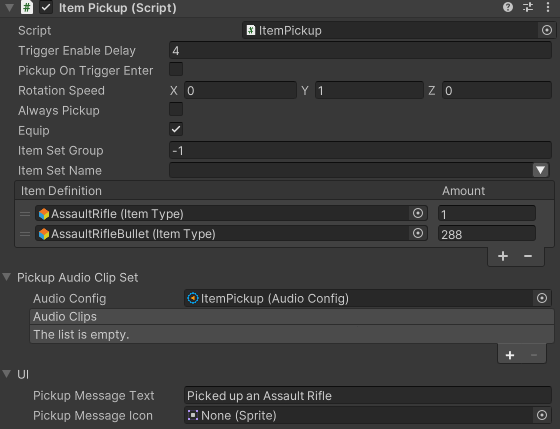
  6. On Item Pickup, add an entry to Item Definition Amounts for every definition and quantity that a scene pickup should grant.
  7. Size the trigger collider around the interaction area. The trigger must be on the same GameObject as Item Pickup.

Item Pickup Inspector used to configure trigger behavior, item amounts, equipping, audio, and pickup messages

Editor checkpoint

A scene pickup should have Item Pickup, one collider with Is Trigger enabled, a solid collider for its physical shape, and Respawner when it should return. A dropped-item prefab should have Trajectory Object and normally leaves Item Definition Amounts for the Drop workflow to fill at runtime.

Configure what the pickup grants

Each Item Definition Amounts row adds that definition up to its Item Type’s configured Capacity.

Iron Sword pickup

  1. Add the Iron Sword Item Definition with an amount of 1.
  2. Enable Equip when the sword should become active immediately after collection.
  3. Leave Item Set Group at -1 to search all groups, or enter the group that owns the sword.
  4. Leave Item Set Name empty to use the first valid set containing the sword. Enter a name only when the pickup must select a specific Item Set State; the text must match that State name exactly.

For automatic contact collection, disable Equip when the sword should enter Inventory without an explicit loadout change. For the Pickup ability’s animation route, also disable the relevant Auto Equip policies on Equip Unequip, or use a custom pickup flow that suppresses pickup-triggered equipping. The ability passes a force-equip request to Inventory before the Item Pickup component checks its own Equip toggle. Test the actual collection route.

Firearm and ammunition pickup

Add the firearm Item Definition with an amount of 1, then add its ammunition Item Definition with the desired quantity. Enable Equip to select a valid firearm Item Set after both definitions are added. The firearm needs a Character Item prefab in the appropriate slot; count-only ammunition does not need a visible Character Item.

The Inventory limits each amount by the Item Type’s Capacity. Test a nearly full Inventory so the object and the accepted amounts match the intended game design.

Choose how collection starts

Collect on contact

Keep Pickup On Trigger Enter enabled for the default no-input workflow. When an eligible character enters the trigger, Item Pickup finds its Inventory, adds the configured definitions, optionally selects an Item Set, and then depletes the world object. The character does not need the Pickup ability for this route.

Use this for ammunition, automatic loot, and other objects where walking through the trigger is the complete interaction.

Play a pickup animation

Disable Pickup On Trigger Enter when the character should press an input and play a reach animation.

  1. Add the Pickup ability to the character.
  2. Keep Allowed Pickups set to Item, and ensure the ability’s Detect Layers includes the pickup layer.
  3. Use Pickup Event to add the item at the contact frame. The included event name is OnAnimatorPickup.
  4. Use Pickup Complete Event to finish the ability. The included completion event is OnAnimatorPickupComplete.

An empty Pickup Item Definitions list lets any detected Item Definition use the animation. If only selected definitions should animate, use a single filter entry and verify the result in Play Mode; see the released-version note under Developer details.

Reuse a Character Item as a world drop

  1. Build the prefab with Object Type > Dropped Item.
  2. Assign it to the Character Item’s Drop Prefab field.
  3. Add a Drop ability to the character.

At runtime, Drop replaces the prefab’s Item Definition Amounts with the unit removed from the Inventory and any additional identifiers supplied by the Character Item’s actions, such as ammunition. If the prefab has a Trajectory Object, Drop also initializes its motion from the character.

Key choices

Choice Starting value Use it when
Trigger Enable Delay 4 seconds A reused or dropped pickup must wait before it can be collected again. On its first scene activation, the trigger is enabled immediately.
Pickup On Trigger Enter Enabled Contact should collect the object. Disable it for the Pickup ability workflow.
Always Pickup Disabled Enable it when the object should be consumed even when the Inventory cannot accept more. The released Version 3.2.0 capacity behavior has a limitation described under Developer details.
Equip Enabled A valid Item Set containing a collected Character Item should become active. Use and Reload can prevent the equip change while they are active.
Item Set Group -1 All Item Set groups should be searched. Enter a group index to constrain selection.
Item Set Name Empty The first valid set containing the item is acceptable. Enter an exact State name to request one set.
Destroy Delay 0 The collected object should be removed immediately. Use a positive value for delayed removal; -1 leaves a depleted object present and does not make it repeatable.

Use Rotation Speed for a simple display rotation. Pickup Audio Clip Set, Pickup Message Text, and Pickup Message Icon provide collection feedback. On Select and On Deselect are useful when the Pickup ability detects the object before the input is pressed.

For a reused pickup with a Rigidbody, Trigger Enable Delay starts after the Rigidbody settles. The Object Manager’s Dropped Item uses Trajectory Object without adding a Rigidbody, so its delay starts when the drop is initialized rather than when the trajectory visibly stops. Set a delay long enough for the flight, or add a project-specific gate when collection must wait for landing.

Verify in Play Mode

  1. Keep the character’s Inventory and the pickup’s Item Pickup component visible.
  2. Enter an automatic pickup trigger. Confirm the configured Item Definition amounts increase once, the world object is removed or deactivated, and Equip selects the intended Item Set when enabled.
  3. Repeat with the Inventory close to the Item Type’s Capacity. Confirm only the allowed amount is added and review the capacity limitation below if the world object is consumed after adding zero.
  4. For an animated pickup, enter the detection trigger and press the configured input. Confirm the object remains until the pickup event, the Inventory changes on OnAnimatorPickup, and the ability stops on OnAnimatorPickupComplete or its configured duration.
  5. Drop an equipped Iron Sword or firearm. Confirm the world object receives the dropped definition and quantity, cannot be recollected during Trigger Enable Delay, and restores the item when collected.
  6. For a scene pickup with Respawner, wait for its configured respawn time and confirm it returns ready to collect again.

Troubleshooting

Symptom Check Fix
Contact does not collect the item. Check for a trigger collider on the Item Pickup GameObject, an enabled character Inventory, the pickup and character layers, and Pickup On Trigger Enter. Restore the trigger and collision-layer interaction. Enable contact pickup, or complete the Pickup ability setup for an input-driven object.
The item is collected before its animation. Pickup On Trigger Enter is still enabled. Disable it and let the Pickup ability perform the transfer at Pickup Event.
The Inventory changes but no held item appears. Check the Character Item prefab, slot, Item Set Rule, Equip, Item Set Group, and Item Set Name. Also check whether Use or Reload is active. Complete the Character Item and Item Set setup, correct the exact State name, and retry when the conflicting ability is inactive.
Pickup starts but the Inventory never changes. Pickup Event may be waiting for a missing OnAnimatorPickup. Add the event to the active clip, or disable event waiting and use a duration.
The Inventory changes but Pickup stays active. Pickup Complete Event may be waiting for a missing OnAnimatorPickupComplete. Add the completion event, or use duration mode.
A dropped item is collected while still moving. Trigger Enable Delay may expire before a Trajectory Object finishes moving. Increase the delay or add a landing-aware project-specific gate.
The model remains but cannot be collected again. Destroy Delay may be -1; the object remains depleted after collection. Use Respawner or explicitly reinitialize the object instead of treating -1 as repeatable mode.
The object is consumed even though capacity prevented an addition. This is a released Version 3.2.0 Item Pickup result-check limitation. Avoid relying on Always Pickup for full-capacity persistence; precheck capacity or use a corrected custom Item Pickup when the world object must remain.

Persistence, pooling, and multiplayer

The Object Manager’s scene Item Pickup includes a Respawner, so a non-pooled object can be reactivated after it is disabled. A pooled pickup returns through the Opsive object pool and resets when reused. Verify the selected lifetime path returns the pickup once with the expected delay.

Item Pickup does not by itself save world depletion or respawn timers. A save integration must persist both the authoritative Inventory and any pickup state that should survive loading; otherwise a saved Inventory can coexist with a newly restored copy of the world item.

The multiplayer hooks are compiled only with a supported UCC multiplayer integration. That integration owns Inventory replication and network object spawning or destruction. Item Pickup alone is not a transport or authority system, so verify collection and dropped-prefab ownership with the chosen integration.

  • Inventory configures capacities, Character Item prefabs, and runtime item ownership.
  • Item Creation builds the Item Definition and Character Item used by an equippable pickup.
  • Item Set Rules determine which collected items form a valid loadout.
  • Character Item explains the held item and its Drop Prefab.
  • Pickup ability configures input, detection, and animation timing.
  • Drop removes an equipped unit and initializes its pickup prefab.
  • Trajectory Object controls motion on a dropped-item prefab.
  • Respawner controls when a scene pickup returns.

Developer details

ItemPickup derives from ItemPickupBase, which derives from ObjectPickup. The public pickup flow wraps the inventory transfer with OnItemPickupStartPickup and OnItemPickupStopPickup; a completed object pickup sends OnObjectPickedUp. Inventory additions send OnInventoryPickupItemIdentifier, and a spawned Character Item also sends OnInventoryPickupItem.

Destroy Delay equal to 0 removes the pickup immediately, a positive value schedules removal, and a negative value leaves it active but depleted. Pooled objects use ObjectPoolBase.Destroy; a supported multiplayer build uses its network object pool. Non-pooled objects are deactivated so a Respawner can restore them.

The released Version 3.2.0 source has two pickup edge cases to account for:

  • Item Pickup treats an Inventory return value of 0 as a successful transfer. Because 0 is also returned when capacity accepts none of a valid definition, the world object can become depleted even while Always Pickup is disabled. Precheck capacity or use a corrected ItemPickupBase implementation when the object must remain.
  • With more than one Pickup Item Definitions filter entry on the Pickup ability, a nonmatching first entry can prevent later entries from selecting the animated path. Prefer one entry per Pickup ability and verify multi-definition filters before shipping.