Final IK
Use the Final IK integration when RootMotion should solve the character’s limbs, aim, look direction, grounding, or object interactions while Ultimate Character Controller continues to decide when those actions occur.
Before you begin
- Start with a working Ultimate Character Controller Version 3 character. Confirm locomotion, animation, the camera or other look source, and one representative item or ability in Play Mode before replacing its IK.
- Install Final IK before importing the Ultimate Character Controller integration. The bridge compiles against RootMotion types and cannot compile without them.
- Commit or back up the project. You will remove Character IK from the animated model and replace it with Final IK Bridge.
- Configure each RootMotion solver with the Final IK documentation. The bridge connects Ultimate Character Controller to those solvers; it does not build or validate the Final IK rig for you.
The Ultimate Character Controller Version 3 integration catalog currently lists Final IK, but it does not declare a minimum or maximum Final IK version. The source snapshot verified for this page uses Ultimate Character Controller 3.2.0, Final IK 2.2, and Unity 2021.3.0f1; the current Asset Store release is newer. Treat those numbers as an audited snapshot, not a compatibility matrix. After upgrading either product, import the current bridge and repeat the isolated Play Mode checks below before updating production scenes.
Install and connect the bridge
- Install Final IK and wait for Unity to compile without errors.
- Open Tools > Opsive > Ultimate Character Controller > Integrations Manager, select Available Integrations, and find Final IK.
- Use the Integration action to follow the current distribution route. If it opens the documentation route, sign in to the Opsive Downloads page and obtain the Ultimate Character Controller Version 3 Final IK integration.
- Import the integration after Final IK, then resolve every Console compile error before changing the character.
- Select the animated character-model GameObject that has the Animator and Animator Monitor components. Do not add the bridge only to the Ultimate Character Controller locomotion root when the Animator is on a child model.
- Remove Character IK from that model. Leave one IK provider on a model so items and abilities do not select competing owners.
- Add Final IK Bridge to the same model GameObject.
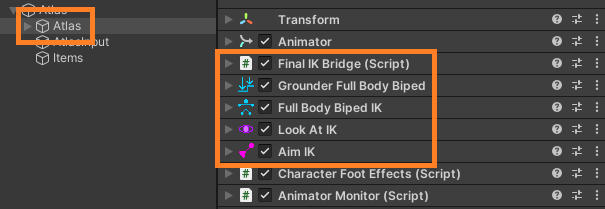
- Add and configure the RootMotion components needed for the scenarios in the next section. Full Body Biped IK, Look At IK, Aim IK, and Interaction System must be on the same GameObject as Final IK Bridge because the bridge discovers them there.
- Repeat the replacement on every animated model that Ultimate Character Controller can activate. Configure only the Final IK solvers supported by that model’s rig.

Choose the Final IK components
Add only the systems the character needs:
| Goal | Components | What the bridge supplies |
|---|---|---|
| Position an off-hand on an equipped item or apply Ultimate Character Controller limb offsets | Full Body Biped IK | Assigns the non-dominant hand and elbow targets, forwards final hand and foot adjustments, and updates the solver after animation. |
| Follow the camera, an AI look source, or a Look At ability target | Look At IK | Moves a runtime target from Ultimate Character Controller’s current look source or explicit look target. |
| Aim an equipped item while Aim or a qualifying Use is active | Aim IK | Supplies the item transform and animated aim axis. Without Full Body Biped IK, only slot 0 or all-slot (-1) Use notifications are accepted; use from another specific slot needs separate active Aim or a corrected bridge. |
| Place feet on uneven surfaces | Full Body Biped IK and Grounder Full Body Biped | The bridge updates the Full Body Biped solver. Grounder remains a Final IK-owned layer that modifies that solver through its callbacks. |
| Reach an ability target | Full Body Biped IK and Interaction System | Maps an Ability IK Target to an Interaction Object. Hand/foot goals map directly; elbow/knee goals map to shoulder/thigh effectors as listed below. |
Interaction System requires Full Body Biped IK. The bridge does not directly adapt unrelated Final IK solvers such as VRIK, Biped IK, or Limb IK; those need their own project-specific ownership and testing.
Configure the bridge
Keep the normal Ultimate Character Controller-owned route simple:
- Configure Set Look At Target and Set Aim Target before Play Mode and leave both enabled for the normal UCC-owned route. The runtime
SetLookAtTargetsetter incorrectly uses the Aim flag when enabling the Look At component and assigning its target; avoid changing that property through code or States until corrected. - Assign Head when using Look At IK or Aim IK without Full Body Biped IK. For an Aim-only rig, Use is recognized only for slot
0or all slots (-1); a slot-specific Use for slot1or higher does not activate aim solving unless Aim is independently active. Full Body Biped IK allows the bridge to determine the dominant slot and obtain its head reference. - Use Look At Offset to adjust where the body looks without changing the camera. Look At Adjustment Speed controls how quickly the generated target follows the requested direction.
- Keep Active Look At State Name set to
LookAtwhen the existing Ultimate Character Controller state should activate for an explicit target, or use the exact name of the project’s replacement state. - Adjust Animated Aim Direction when the weapon animation’s authored forward axis is not the model’s forward axis. Start at
(0, 0, 1)and change it only after observing a consistent aiming offset in Play Mode. - Use Position Spring and Rotation Spring for Ultimate Character Controller secondary forces such as item recoil. Tune the visible response after the base pose and Final IK references are correct.
Turning either target flag off is not a complete update-ownership handoff. Awake leaves that Final IK component enabled, but the bridge still calls the Look At solver every update and the Aim solver while Aim/Use is active. The component or custom system can therefore solve it again. A custom target/update owner needs a coordinated or corrected update path; do not rely on these flags alone to prevent duplicate solver updates.
Configure an interaction target
Use this setup when the Interact ability should place a hand or another limb on an object:
- On the animated character model, add and configure Full Body Biped IK, Interaction System, and Final IK Bridge on the same GameObject.
- On the exact target GameObject that represents the contact point, add Ultimate Character Controller’s Ability IK Target and Final IK’s Interaction Object. The bridge looks for the Interaction Object on the same GameObject as the target transform.
- For direct contact placement, choose a hand or foot Goal and configure the corresponding Interaction Object effector and weight curves. Elbow and knee goals instead address proximal effectors, as shown below; use them only when that shoulder/thigh behavior is intended.
- Add the target beneath the scene object’s Interactable and test the complete Interact workflow: detection, optional Move Towards alignment, limb contact, object response, and release.
The bridge starts an interaction when UCC activates the target and stops the mapped effector when it clears the target. The mappings are:
| Ability IK Target goal | Final IK effector |
|---|---|
| Left Hand / Right Hand | Left Hand / Right Hand |
| Left Foot / Right Foot | Left Foot / Right Foot |
| Left Elbow / Right Elbow | Left Shoulder / Right Shoulder |
| Left Knee / Right Knee | Left Thigh / Right Thigh |
Elbow and knee goals are therefore not direct elbow/knee contact targets in this bridge. UCC owns ability timing and Final IK owns the resulting solve.
How ownership works
Final IK Bridge replaces Ultimate Character Controller’s built-in Character IK component as the model’s IK provider. Ultimate Character Controller continues to own the gameplay intent: the current look source, equipped item, Aim and Use state, ability IK target, secondary forces, death, respawn, and active character model.
The bridge updates supported solvers after animation. With target flags enabled at initialization, it disables the corresponding normal component update and invokes the solver itself. With a flag disabled, that component remains enabled while the bridge still manually updates its solver, so a custom ownership configuration must resolve the duplicate update path. A disabled component checkbox in the normal bridge-owned setup is expected.
RootMotion still owns solver references, weights, constraints, Interaction Object curves, Grounder configuration, and the final bone calculations. This division is why a clean Ultimate Character Controller setup and a separately valid Final IK rig are both required.
Verify in Play Mode
- Enter Play Mode in a small scene containing one character, one configured model, and only the Final IK systems needed for the test.
- Confirm the Console has no missing RootMotion types, missing head error, invalid biped references, or Interaction System warnings.
- Move and rotate the camera, or update the AI look source. With Look At IK configured, confirm the head and body follow smoothly without the camera direction changing.
- Equip an item with a non-dominant hand target. With Full Body Biped IK configured, confirm the second hand reaches the item and releases correctly on unequip.
- Start and stop Aim and Use. On a rig without Full Body Biped IK, test slot
0or all-slot Use and separately active Aim. Do not expect a nonzero slot-specific Use alone to activate its Aim solver. - Trigger an Interact object with matching hand/foot targets and confirm contact and release. If elbow/knee goals are used, verify the mapped shoulder/thigh effector behavior explicitly.
- If Grounder is used, walk over a flat surface, a slope, and stairs. Confirm both feet settle without pulling the pelvis or legs into an unstable pose.
- Test death and respawn, every perspective or model switch used by the project, and one scene reload. The active model should regain the same IK behavior without duplicate targets or solvers.
Troubleshooting
| Symptom | Check | Fix |
|---|---|---|
Unity reports missing RootMotion.FinalIK types after import. |
Final IK is absent, imported after the bridge, or the imported bridge is not for Ultimate Character Controller Version 3. | Install Final IK first, then import the current Ultimate Character Controller Version 3 integration again and resolve the first Console error. |
| The bridge reports that no head is specified or remains inactive. | Look At IK or Aim IK is present without Head or valid Full Body Biped IK head references; the character may also have no attached look source. | Assign Head or repair the biped references, then confirm the player camera or AI look source attaches to the character. |
| The pose jitters or limbs are solved twice. | Check competing IK components and disabled target flags. The bridge still manually updates Look At and active Aim solvers when their own components remain enabled. | Use the normal bridge-owned route with flags configured before Play Mode, or correct/coordinate the custom update path so each solver runs once. |
| The off-hand does not reach the equipped item. | Check the Full Body Biped IK hand references, the active model, and the item’s non-dominant hand and elbow targets. | Repair the biped references and item targets, then retest equip and unequip on the model that is actually active. |
| Aim points consistently away from the reticle. | The weapon animation’s forward axis does not match Animated Aim Direction, or Aim IK is not using the active item transform. | Correct the Aim IK setup, then tune Animated Aim Direction from its (0, 0, 1) starting value. |
| Look At target ownership changes unexpectedly at runtime. | The SetLookAtTarget setter uses the Aim ownership flag for component/target changes. |
Configure the normal flags before Play Mode and avoid runtime/State changes to this property until the setter is corrected. |
| Aim works for slot zero but not another slot’s Use. | An Aim-only rig without Full Body Biped IK retains dominant slot zero. | Use a qualifying slot-zero/all-slot notification or independently active Aim, or correct dominant-slot tracking for the intended rig. |
| An Interact limb does not reach the intended contact. | Check the required Interaction System/Full Body Biped IK components, both target components, and the goal mapping. | Use direct hand/foot goals for hand/foot contact. Elbow/knee goals map to shoulder/thigh effectors, so configure those proximal effects deliberately. |
| Grounder has no effect. | Grounder Full Body Biped may not reference the model’s Full Body Biped IK solver, or its Final IK grounding setup may be incomplete. | Assign the correct Full Body Biped IK component and validate Grounder independently on flat ground before testing it through the bridge. |
| IK works until the character model changes. | Only the original model contains the replacement CharacterIKBase and RootMotion solvers. | Repeat the bridge and solver setup on every model used by Model Manager, then verify each switch in Play Mode. |
Related tasks
- Integrations explains the shared install, isolation, and upgrade workflow.
- Inverse Kinematics covers the built-in Character IK route that this integration replaces.
- Interact configures Interactable objects, Ability IK Targets, and interaction timing.
- Look At supplies an explicit Ultimate Character Controller look target.
- Model Switch explains active character-model changes that require matching IK setup.
- Springs explains the spring response used by secondary IK forces.
Developer and source reference
Opsive.UltimateCharacterController.Integrations.FinalIK.FinalIKBridge derives from CharacterIKBase and reports UseOnAnimatorIK as false. It discovers FullBodyBipedIK, LookAtIK, AimIK, and InteractionSystem with GetComponent on its own GameObject, creates a runtime target for the Ultimate Character Controller-owned look and aim route, and updates supported solvers from LateUpdate.
The bridge listens for look-source, Aim, Use, equip, unequip, secondary-force, death, respawn, and Animator-snap events. It assigns the non-dominant hand, maps Ability IK Target goals to effectors, disables itself on death, and resumes on respawn. Elbow/knee map to shoulder/thigh effectors. Without Full Body Biped IK, dominant-slot determination returns early and Use tracking retains slot zero. Grounder and Interaction System attach to the Full Body Biped solver’s callbacks. Custom update ownership must also account for the bridge’s unconditional Look At and active Aim solver calls, and runtime SetLookAtTarget must not be treated as an independent flag until its Aim-flag reference is corrected.
The released Ultimate Character Controller package inspected for this page is 3.2.0. The separate Opsive bridge sample contains Final IK 2.2 and was saved with Unity 2021.3.0f1; the Final IK Asset Store listing currently reports version 2.5. Neither the current Opsive integration catalog nor the bridge source declares a broader semantic compatibility range. Use the current integration package, keep the tested product pair recorded in the project, and repeat compilation plus the Play Mode checklist after either dependency changes.