Item Type Creation
Use the Item Type Manager to create the shared identities, categories, capacities, and Character Item prefab references used by the built-in UCC Inventory.
Before you begin
This workflow applies when the standard Ultimate Character Controller Version 3 Inventory owns the items. If Ultimate Inventory System owns the inventory, create UIS Item Categories and Item Definitions instead, then connect their Character Item prefabs through that integration. Do not maintain a duplicate UCC Item Type for the same UIS-owned item.
Save the collection in a project-owned folder outside the Opsive package. Standard UCC characters that exchange items should use the same Item Collection so their Item Type and Category IDs resolve consistently.
Create an Item Collection
- Open Tools > Opsive > Ultimate Character Controller > Item Type Manager.
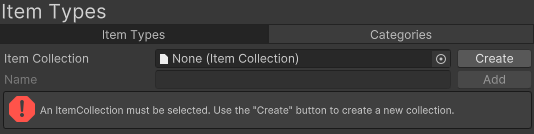
- In Item Collection, select an existing project collection or select Create.
- Save the new asset as
ItemCollection.assetin a project-owned folder. - Keep that collection selected while creating Categories and Item Types.

The new collection contains an Items Category. The manager also creates an Individual Item Set Rule asset beside the collection as a starting rule. Item Types and Categories are stored as sub-assets of the collection, so create and edit them through this manager rather than as unrelated assets in the Project window.
Create Categories
Categories group Item Types for Item Set groups and category-based Item Set Rules.
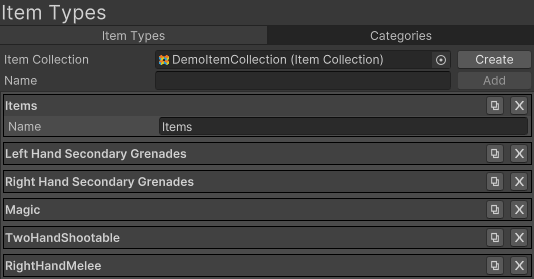
- Select the Categories tab.
- Enter
Weaponsin Name, then select Add. - Add
Ammofor inventory-only ammunition. - Add another Category only when a rule or equipment group needs that distinction.
- Select a Category row to rename it. Names must be nonempty and unique within the collection.

Each Category row provides Duplicate and Remove controls. Duplicating creates a new Category with a newly generated ID and a numbered name. Removing is blocked while any Item Type still selects that Category.

The Version 3 manager presents a flat Category list; it does not provide an editor-authored parent hierarchy. An Item Type may select multiple Categories. At runtime UCC represents those selections through a temporary composite Category so category membership checks can match each selected Category.
Create Item Types
Create one Item Type for each distinct built-in inventory identity.
- Select the Item Types tab.
- Enter
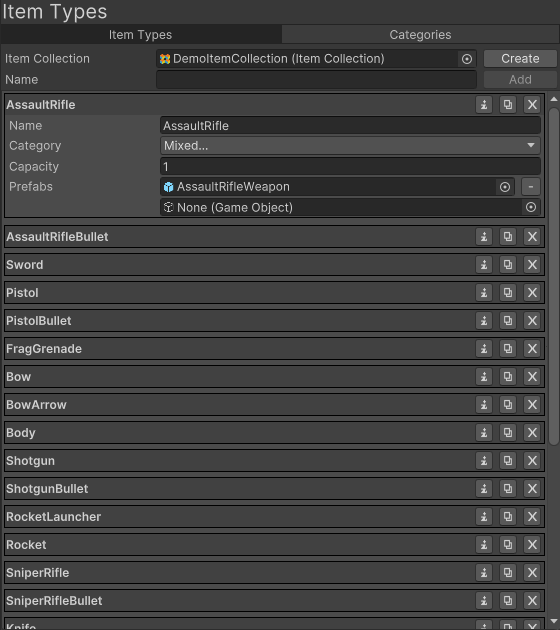
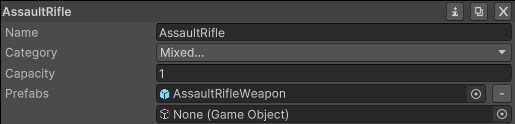
Riflein Name, then select Add. - Select the Rifle row to expand Name, Category, Capacity, and Prefabs.
- Set Category to Weapons.
- Set Capacity to
1when the character may own only one Rifle. - Leave Prefabs empty until the Character Item prefab exists. Return after completing Item creation and assign the Rifle Character Item prefab.
- Repeat the workflow for
Iron Swordwith Category Weapons and Capacity1. - Create
Rifle Ammo, select Category Ammo, set an appropriate reserve Capacity such as120, and leave Prefabs empty when ammunition never appears on the character.
A new Item Type selects the collection’s first Category, defaults Capacity to 2,147,483,647, and starts without Prefabs. Review all three defaults for every new type.

An Item Type row provides three controls: Identify selects and pings the sub-asset, Duplicate copies its configuration under a unique numbered name, and Remove deletes it.


Choose the important Item Type settings
Name
The name must be nonempty and unique within the collection. The manager compares names without regard to case, while runtime name lookup is exact. Use serialized asset references inside Unity. If external data must use IDs, keep the collection stable and migrate changes; reserve names for readable editor workflows.
Category
Category is a multi-select field. A Rifle can belong to Weapons and another project Category when both memberships have a real rule purpose.
Assign a Category even to count-only resources such as Rifle Ammo. In the current runtime, an Item Definition with no resolved Category is treated as a member of every Item Set group by ItemSetManagerBase.IsCategoryMember, which is broader than most projects intend.
Capacity
Capacity is the maximum amount the standard Inventory accepts for that Item Type. New Item Types default to 2,147,483,647. Replace that default with a deliberate nonnegative value:
- use
1for one unique Rifle or Iron Sword; - use at least
2when one Item Type represents two identical equipped pistols; and - use the intended reserve limit for Rifle Ammo.
The Inventory clamps additions to Capacity. Capacity belongs to the built-in Item Type model; an integrated inventory can enforce its own amount rules instead.
Prefabs
Prefabs contains optional Character Item prefabs. Add one tested prefab for a normal visible or equippable item. Add separate prefabs when the same Item Type needs different slot-specific Character Items, such as right- and left-hand pistol prefabs. Leave the list empty for an identity that exists only as an Inventory amount, such as reserve ammunition.
The prefab is not the Item Type. Its Character Item > Item Definition must point back to this Item Type, and its slot, perspective objects, actions, Animator values, and drop settings remain part of the Character Item.
Editor checkpoint
Before entering Play Mode, confirm that:
- the manager shows the intended project-owned Item Collection;
- Rifle and Iron Sword select Weapons, while Rifle Ammo selects Ammo;
- every Item Type has a deliberate Capacity;
- each visible or equippable Item Type references the correct Character Item prefab;
- each prefab’s Item Definition points back to the same Item Type; and
- the character’s Item Set Manager > Item Collection uses this collection.
Understand how Item Types are used
An Item Type is both UCC’s built-in Item Definition and its Item Identifier. Calling CreateItemIdentifier() on an Item Type returns the Item Type itself. The standard Inventory therefore stores one amount for Rifle Ammo, not one runtime identifier per round.
The surrounding systems use that identity in different ways:
- Inventory stores amounts, enforces Capacity, and can spawn the Character Item prefabs.
- Character Items use Item Definition to connect visible objects and Item Actions to the identity.
- Item Set Rules match exact Item Types, Categories, slots, or supported combinations to generate valid equipment sets.
- Item Pickups grant Item Definition Amounts.
- Loadouts store an Item Definition and amount.
- Action modules may consume another definition. For example, Item Ammo > Ammo Item Definition can point to Rifle Ammo while the Rifle Character Item owns the Shootable Action.
The Item Type does not decide whether an item is shootable, melee-capable, throwable, or magic. That behavior belongs to the Character Item’s actions and modules.
Know the Version 3 manager limits
The released Version 3 Item Type Manager does not provide search, filtering, folders within a collection, Item Type parent inheritance, or arbitrary attributes. ItemType.GetParent() returns null, and exact Item Type matching compares an identifier’s definition directly with the Item Type.
Use clear, unique names and deliberate Categories to keep a larger flat collection understandable. Use Character Item components, Item Actions, states, and modules for controller behavior. Use Ultimate Inventory System when definitions need inherited categories, attributes, mutable per-item data, inventory UI, shops, crafting, or richer persistence.
Verify in Play Mode
- Give the character one Rifle, one Iron Sword, and Rifle Ammo through Inventory > Default Loadout or scene pickups.
- Expand Inventory > Current Inventory. Confirm each Item Type appears with the expected amount.
- Collect enough Rifle Ammo to exceed its Capacity. Confirm only the amount up to Capacity is accepted.
- Equip Rifle, then Iron Sword. Confirm the correct Character Item prefab appears and the intended Item Set becomes active.
- Fire and reload Rifle. Confirm Rifle Ammo decreases while the Rifle amount remains unchanged.
- Test any Item Type with multiple Categories against each intended category-based rule and confirm it does not create an invalid equipment combination.
Troubleshooting
| Symptom | Check | Fix |
|---|---|---|
| Add is disabled | Item Collection, Name, and duplicate names | Select a collection and enter a nonempty name that is unique without regard to case. |
| A character cannot resolve an Item Type | The manager and character may use different Item Collections | Assign the same project collection to the character’s Item Set Manager and rebuild any mismatched loadout or rule references. |
| The character owns an item but no object appears | Item Type Prefabs, Character Item Item Definition, slot, and Inventory Auto Spawn Destroy Runtime Character Items | Assign the correct prefab and make its definition and slot agree with the Item Type and Item Set Rule. |
| The amount stops increasing | Item Type Capacity and current Inventory amount | Raise the intended Capacity or reduce the granted amount. Do not create a duplicate Item Type to bypass the limit. |
| An item matches an unrelated Item Set group | Item Type Category, group Category, and rule | Assign a deliberate Category and narrow the rule to the required Category, Item Type, or slot combination. |
| A Category cannot be removed | One or more Item Types still select it | Move those Item Types to valid Categories before removing it. |
| Rifle will not reload | Shootable Action’s Ammo Item Definition and Rifle Ammo amount | Assign the exact Rifle Ammo Item Type and confirm the Inventory owns a positive amount. |
| A duplicated Item Type behaves like the original | Duplicate copies Category, Capacity, and Prefabs | Give it the intended name and review every copied field before using it as a distinct identity. |
Protect saved and networked identities
Item Type IDs are unique only within their Item Collection. A new Item Type receives the next array index as its ID. Removing an Item Type causes the manager to reassign the remaining Item Type IDs from their current indexes. Do not remove a shipped Item Type without migrating saved or networked IDs.
The standard Inventory does not provide a complete general-purpose save file. A save integration should record the Item Type ID and amount, restore them against the same Item Collection, and then restore the intended Item Set. Category IDs are generated independently, but recreating a Category creates a different identity.
UCC’s conditional multiplayer inventory hooks pass Item Identifiers, and ItemIdentifierTracker maps built-in Item Type IDs through an Item Collection. Every peer must use matching collection data, and mutations should occur on the authoritative instance. These hooks do not supply a networking transport or a complete replication layer.
When UIS owns the inventory, save and replicate UIS Items and collections through the UIS integration, then let its bridge create the UCC Character Item representation.
Related tasks
- Item Type, Definition, and Category explains the complete data-model relationship.
- Create a Character Item builds the prefab referenced by Prefabs.
- Configure Character Items covers slots, perspective objects, actions, and runtime behavior.
- Configure Item Slots maps slot-specific Character Item prefabs.
- Configure Inventory controls owned amounts and loadouts.
- Configure Item Set Rules uses Item Types and Categories to generate valid equipment.
- Configure Item Pickups grants Item Definitions and amounts from world objects.
- Connect Ultimate Inventory System replaces built-in identity and inventory ownership with UIS.
Developer reference
ItemCollection exposes GetItemType(uint), GetItemType(string), GetCategory(uint), and GetCategory(string). The built-in ItemType derives from ItemDefinitionBase, implements IItemIdentifier, and returns itself from both CreateItemIdentifier() and GetItemDefinition().
using Opsive.Shared.Inventory;
using Opsive.UltimateCharacterController.Inventory;
public static class ItemTypeExample
{
public static int AddRifleAmmo(
ItemCollection itemCollection,
InventoryBase inventory,
int amount)
{
if (itemCollection == null || inventory == null) {
return 0;
}
var ammoType = itemCollection.GetItemType("Rifle Ammo");
if (ammoType == null) {
return 0;
}
IItemIdentifier ammoIdentifier = ammoType.CreateItemIdentifier();
return inventory.AddItemIdentifierAmount(ammoIdentifier, amount);
}
}
AddItemIdentifierAmount returns the amount actually accepted after Capacity is applied. Query the current amount with GetItemIdentifierAmount, remove it with RemoveItemIdentifierAmount, or use PickupItem when the operation should also send pickup notifications and participate in Character Item spawning.
Amount changes send OnInventoryAdjustItemIdentifierAmount with (IItemIdentifier, int previousAmount, int newAmount). Pickups send OnInventoryPickupItemIdentifier with (IItemIdentifier, int amount, bool immediatePickup, bool forceEquip). Spawning a Character Item also participates in the Character Item add, pickup, equip, unequip, and remove events. Editing Item Type or Category asset data does not itself send an Inventory runtime event.