Use the Character Manager to turn a scene model into a playable Ultimate Character Controller character, or to create a bodyless first-person character. It builds the controller hierarchy, movement, animation, input or AI bridge, and the optional item, health, IK, foot-effect, and ragdoll systems selected for that character.

Video walkthroughs


Before you begin

  • Complete the project and scene steps in Quick Setup. The Character Manager does not create the scene managers or camera.
  • Import the first-person, third-person, or combined controller required by the intended Perspective.
  • For a visible character, place a model instance in the scene. The manager cannot build or update a prefab asset directly and cannot run in Play Mode.
  • Configure the model’s Avatar before building. A humanoid needs a valid Humanoid Avatar with a Head bone; a generic character needs its own Animator Controller.
  • If Items will remain enabled, create or select an Item Collection and Item Set Rule before building.

For representative first-person, third-person, combined, and multi-model layouts, start with Common Setups.

Build a new character

  1. Open Tools > Opsive > Ultimate Character Controller > Character Manager.
  2. Drag the scene model into Character. For a bodyless first-person character, leave Character empty and disable Animator.
  3. Choose Perspective: First, Third, or Both.
  4. Choose First Person Movement and/or Third Person Movement for the selected perspective. Additional movement types can be added later; see Movement Types.
  5. For a visible model, confirm Animator, Character Model 1, Model Type, and Animator Controller.
  6. Configure first-person objects, item slots, and optional additional models as described below.
  7. Review the functionality toggles. Turn off systems the character does not need; a movement-only prototype can turn off Items, for example.
  8. Resolve every error shown by the manager, then select Build Character.

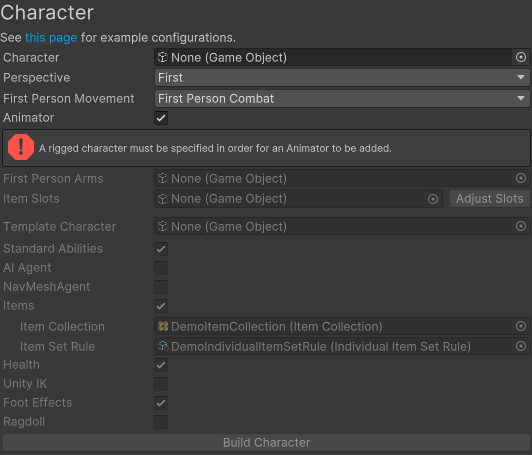
The initial manager view below shows a bodyless first-person configuration while Animator is still enabled. Either assign a rigged model or disable Animator to clear that error.

Character Manager with First perspective selected and a validation error requesting a rigged character for the enabled Animator

Choose the perspective and rig

Choice Use it when Manager result
First The game uses a first-person View Type. A model is optional. Shows First Person Movement, first-person object fields, and allows a bodyless setup when Character is empty and Animator is disabled.
Third The player or AI is seen through a third-person View Type. Requires a scene model and Animator, and shows Third Person Movement.
Both The character can switch between installed first- and third-person controllers. Adds both movement types and a Perspective Monitor. The released Version 3 Character Manager does not show a Start Perspective field; a new character is built with its first-person movement type as the initial default. Verify the camera’s separately configured start perspective in Play Mode.

The Character Manager does not create or configure a Camera Controller. Use Setup Manager > Scene > Camera Setup, choose the same perspective, and follow Camera. A player character receives the Player tag, so a camera with Init Character On Awake can find it automatically.

Model choice What to configure
Humanoid The manager detects a valid Humanoid Avatar and can supply the included Animator Controller when the model has none. Humanoid models support Unity IK, automatic hand slots, and Ragdoll.
Generic Select Generic, assign the model’s project-specific Animator Controller, and leave Unity IK and Ragdoll off. Unity’s humanoid retargeting, IK, and ragdoll builder do not apply.
Multiple models Add Character Model 2 and later rows. Configure Model Type, Animator Controller, first-person objects, and item slots for every model. The build adds a Model Manager so the character can switch models at runtime.

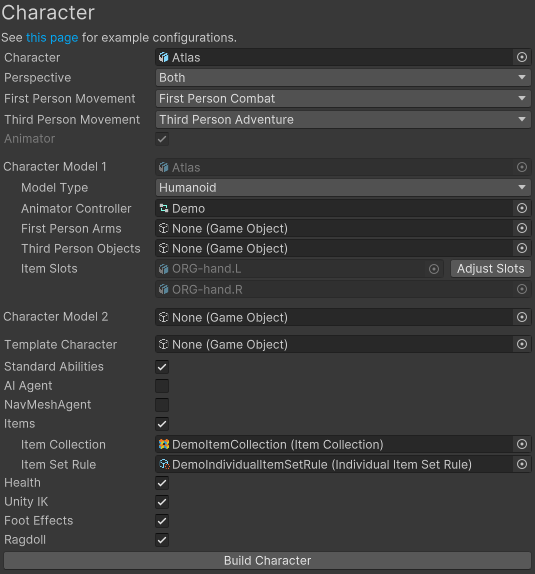
The selected scene model is automatically inspected. Humanoid models default to Humanoid and an available included controller; other models default to Generic and retain their existing controller when one is assigned.

Character Manager configured for the Atlas humanoid with Both perspectives, first- and third-person movement types, item data, and the default optional systems

Configure first-person visibility and item slots

For First or Both, use these model-specific fields:

  1. Add optional separate arm rigs to First Person Arms and assign the corresponding Animator Controller in the field beside each arm object.
  2. Add the full-body renderers that should be hidden in first person to Third Person Objects. Head and body-arm renderers are common choices.
  3. When Items is enabled, select Adjust Slots beside Item Slots.
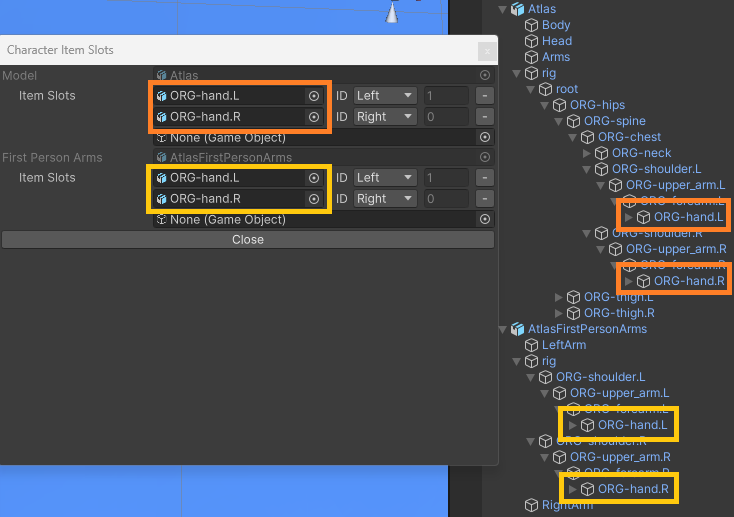
  4. Assign each full-body and first-person-arm parent, then give matching locations the same slot ID in every perspective. The humanoid defaults are right hand ID 0 and left hand ID 1.
  5. Close Character Item Slots only after it reports a valid configuration.

The first-person View Type handles the separate arms and hidden full-body objects. See the first-person View Type for the rendering behavior.

Character Item Slots window mapping left and right hand IDs across the Atlas model and its first-person arms

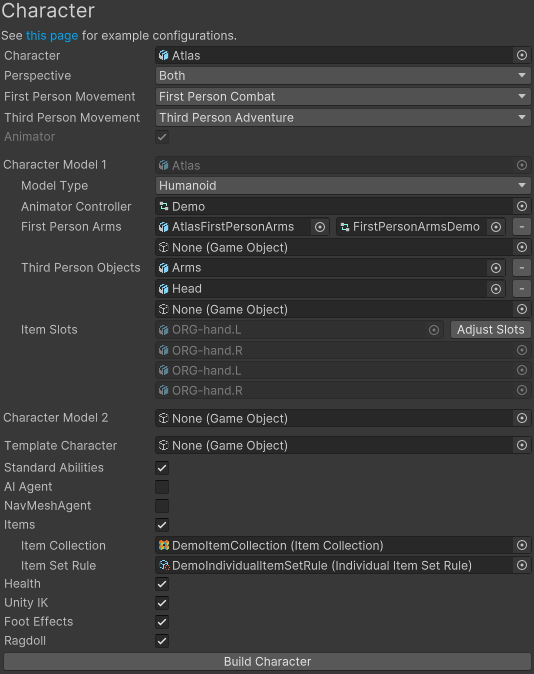
The completed combined-perspective example assigns an arm rig and controller, hides the full-body arms and head, and lists the matching slots for both rigs.

Character Manager completed for Atlas with first-person arms, hidden third-person objects, matching hand slots, and all optional systems enabled

For the complete item component, ability, and slot flow, continue with Item Support.

Choose the optional systems

The following are the initial values for a new valid humanoid character. Selecting a generic model automatically turns off Unity IK and Ragdoll.

Option Initial value What Build Character adds
Standard Abilities On Jump, Fall, Move Towards, Speed Change, and Height Change. Item Equip Verifier comes from Items, not this toggle.
AI Agent Off When on, adds a Local Look Source and omits player input, Ultimate Character Locomotion Handler, and Item Handler. It prepares the controller for AI but does not add decision-making behavior.
NavMeshAgent Off Adds NavMeshAgent Movement with a Unity NavMeshAgent and a stopping distance of 0.1. It does not build or bake a NavMesh.
Input System On when the Input System is installed Uses the project’s Input Actions for a player character. Turn it off to use the legacy Input Manager implementation. The field is hidden for an AI agent.
Items On Requires Item Collection and Item Set Rule. Adds inventory, item-set, placement, handler, standard item abilities, and Item Equip Verifier support.
Health On Adds Character Attribute Manager, Character Health, and Character Respawner.
Unity IK On for a valid humanoid Adds Character IK to each humanoid model.
Foot Effects On Adds Character Foot Effects to animated models and initializes humanoid feet when available.
Ragdoll On for a valid humanoid Adds the Ragdoll ability and automatically creates the humanoid ragdoll colliders.

Use Artificial Intelligence after enabling AI Agent, Inverse Kinematics for IK choices, and Surface System for foot effects.

Use a template character

Assign an existing Ultimate Character Controller character to Template Character when the new character should reuse an established setup. The template must be different from the target and cannot be a legacy controller character.

With a template selected, the normal functionality toggles are replaced by Copy Components, Copy Abilities, Copy Item Abilities, Copy Effects, and Copy Items. They initially appear enabled. Model-specific fields such as First Person Arms, Third Person Objects, and Item Slots still belong to the new character and must be configured separately.

After the build, the Reference Resolver maps copied object references to the new hierarchy and opens a resolution window for ambiguous references. Follow Templates for that workflow.

Released Version 3 limitation: Copy Items is wired to the Copy Abilities value in the current Character Manager, while the internal item-copy setting remains enabled. Do not rely on that toggle to exclude Character Items. Use a template without those items or remove the copied items from the new character after resolving references.

What Build Character creates

When a scene model is assigned, the manager creates a new controller root at the model’s position and rotation, then reparents the model beneath it. With no model, it creates a root named FirstPersonCharacter.

The core build adds the Character and SubCharacter layer assignments, a Character Layer Manager, a kinematic Rigidbody, Ultimate Character Locomotion, the selected movement types, and a Colliders/CapsuleCollider hierarchy. A player build also adds its input object, Player Input Proxy, and Ultimate Character Locomotion Handler. Animated models receive Animator Monitor, and their Animator Controllers receive the required UCC parameters. Both-perspective and multi-model choices add their corresponding monitor or manager components.

The optional systems add scene components and hierarchy objects; they do not create a Camera Controller, Item Collection, Item Set Rule, or other project data asset. The manager references the assets selected in its fields and may modify an assigned Animator Controller by adding required parameters.

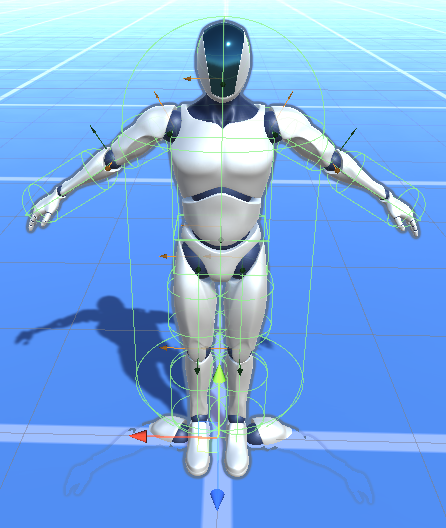
Built Atlas character selected in the Scene view with the generated capsule and humanoid ragdoll colliders visible

Update an existing character

  1. Save the scene and any prefab changes before an update that removes models, arms, item support, slots, IK, or ragdoll colliders.
  2. Open Tools > Opsive > Ultimate Character Controller > Character Manager.
  3. Assign the existing controller root to Character. The manager recognizes it by the Ultimate Character Locomotion component and loads the detected setup.
  4. Change the supported perspective, movement, Animator Controller, model, first-person, slot, input/AI, NavMeshAgent, item, health, IK, foot-effect, or ragdoll options.
  5. Select Update Character and inspect the hierarchy and components before saving.

The update path can add and remove generated components and objects. Removing a model or first-person arm can destroy that scene object; removing item support deletes the generated Items hierarchy, slots, inventory components, item abilities, and Item Equip Verifier. Keep a recoverable scene or prefab version before subtractive changes.

Released Version 3 update boundaries

  • Standard Abilities is read and displayed for an existing character, but Update Character does not add or remove that set. Edit the Abilities list directly when changing it after the initial build.
  • If item support already exists, changing Item Collection clears the Item Set groups and assigns the new collection. Changing only Item Set Rule is not applied by Update Character; edit Item Set Manager > Item Set Groups > Item Set Rules on the character instead.
  • The Character Manager updates the character only. Create or update its camera separately and retest the connection after changing Perspective.

Verify in Play Mode

Before entering Play Mode, confirm that the selected root has Ultimate Character Locomotion, the generated collider hierarchy exists, each visible model has the expected Animator Controller, the scene has its managers, and a Camera Controller is configured for a player character.

  1. Enter Play Mode and move the player with the configured input. The selected movement type should become active and the camera should follow the character.
  2. For Both, switch perspectives in both directions. The camera View Type and character movement type should agree, separate arms should appear only in first person, and the configured full-body objects should hide correctly.
  3. Equip one item in every configured slot. First- and third-person objects should use matching hands or attachment points.
  4. Exercise each enabled optional system: apply damage for Health, inspect foot contacts for Foot Effects, and test IK or Ragdoll only on the intended humanoid models.
  5. For an AI Agent, confirm player input does not drive the character. If NavMeshAgent is enabled, test it on a baked NavMesh through the project’s AI logic.

Troubleshooting

Symptom Check Fix
Build Character or Update Character is disabled. Look for a prefab asset instead of a scene instance, Play Mode, an unavailable perspective package, an invalid Humanoid Avatar or Head bone, missing item assets, or an error in Character Item Slots. Use a scene instance, exit Play Mode, import the required controller, correct the rig, assign the required item assets, and resolve every displayed error.
The model remains in a T-pose or does not animate. Check Model Type, Avatar validity, and Animator Controller for every model. Use the included controller with a valid humanoid or assign the project-specific controller required by a generic rig.
The camera does not follow the new player. The Character Manager does not create a camera; also check the Player tag and Camera Controller Character assignment. Complete Setup Manager > Scene > Camera Setup, then assign the character or enable automatic Player-tag lookup.
The head or body arms appear in first person. Check Third Person Objects and the selected first-person View Type. Add the unwanted renderers to Third Person Objects, update the character, and test the view again.
First-person items appear in the wrong hand. Compare slot parents and IDs across the full-body model and every arm rig. Use Adjust Slots for parent changes. For an ID-only correction on an existing character, edit ID on each affected Character Item Slot component directly before Play Mode; Update Character ignores ID-only changes when the parents stay the same.
Items do not equip after the build. Check Item Collection, Item Set Rule, Item Set Manager groups, and slot IDs. Follow Item Support and correct the data or slot mapping before creating more items.
An AI character does not respond to player input. AI Agent intentionally removes the player input and locomotion-handler path. Drive it through the AI integration, or turn off AI Agent and select Update Character to restore the player input path.

Developer details

The editor workflow delegates the core build to CharacterBuilder.BuildCharacter and the optional systems to CharacterBuilder.BuildCharacterComponents. The builder also exposes focused operations such as AddMovementType, AddItemSupport, AddHealth, AddUnityIK, AddFootEffects, and AddAIAgent for controlled setup code. These methods build character-side objects and components; camera creation remains a Setup Manager or Camera Controller responsibility.

When a template is used, the manager copies Opsive components and serializable ability, item-ability, and effect objects, then resolves hierarchy references. Review unresolved references instead of assuming a copied component still points to the intended model, collider, arm rig, or item on the new character.