A Usable Action turns the character’s Use input into an item result. Use the base action for a switch, flashlight, scanner, or another custom interaction; use a specialized action when the item needs firearm, melee, throwable, or spell systems. Every Usable Action shares the same input selection, Trigger timing, animation events, and reusable module lifecycle.
Choose the action that matches the result
| Goal | Action | What it adds |
|---|---|---|
| Toggle a flashlight, play an effect, change a State, or spend an Attribute | Usable Action | The shared Trigger and Usable module groups without a weapon-specific pipeline. |
| Fire a firearm or other ranged weapon | Shootable | Shooters, ammunition, clips, projectiles or hitscan, fire effects, impacts, and reloading. |
| Swing an Iron Sword or perform an unarmed attack | Melee | Attacks, hitbox collision, impacts, and recoil. |
| Throw a grenade or another inventory-backed object | Throwable | Throwing, projectile spawning, ammunition, impacts, trajectory preview, and re-equipping. |
| Cast a spell | Magic | Casters and modular spell start, repeat, stop, and impact behavior. |
These four specialized actions inherit the shared Usable Action flow. Configure their action-specific groups on the linked pages, but use the Trigger and common fields on this page to decide when each cycle starts and completes.
Build or update the item
- Open Tools > Opsive > Ultimate Character Controller > Item Manager.
- Assign the Item Definition, perspectives, visible objects, Animator Item ID, and Character Item slot described in Item Creation.
- In the action list, select the plus button and choose Usable, Shootable, Melee, Throwable, or Magic. Give the row a name that describes its result.
- Select Build Item for a new Character Item or Update Item for an existing one.
- Select the generated Character Item and inspect every Character Item Action. Each action on the same item needs a unique ID.
- On the character, add or select the Use item ability. Set its Action ID to the action’s ID, and use Slot ID -1 for all equipped slots or a specific Inventory slot.
- Confirm that the action has at least one enabled Trigger module. A Usable Action without an enabled Trigger is invalid and cannot produce a result.
In released Version 3, choosing the base Usable type in the Item Manager creates the demo flashlight pattern: an item Attribute Manager with a Battery Attribute, a Simple Trigger, a Use Attribute Modifier Toggle, and Light children for the supplied perspective objects. It also changes Use Event and Use Complete Event to immediate timed triggers. Keep those generated parts for a flashlight, or replace them with the modules required by your interaction.
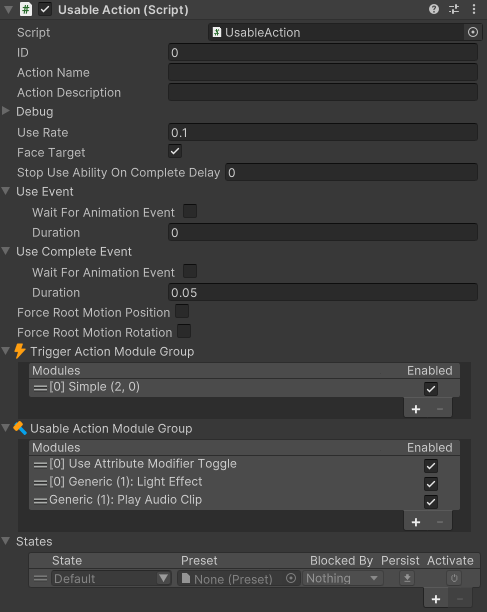
The following configured flashlight shows the two shared groups. Its values are an example, not the raw component defaults.

Configure the shared action fields
Adding UsableAction directly as a component starts with empty Trigger and Usable groups. Its released Version 3 field defaults are:
| Inspector field | Default | Choose this based on |
|---|---|---|
| ID | 0 |
The Action ID used by the character’s Use ability. IDs must be unique on one Character Item. |
| Use Rate | 0.1 seconds |
The minimum delay after completion before another cycle may start. A Repeat or combo Trigger still respects this delay. |
| Face Target | Enabled | Whether a non-independent-look Movement Type turns toward the Look Source while using the item. The Use ability’s Rotate Towards Look Source Target must also allow rotation. |
| Stop Use Ability On Complete Delay | 1 second |
0 permits an immediate stop, a positive value holds the Use ability for that delay, and a negative value does not release it on completion. |
| Use Event | Wait for OnAnimatorItemUse; stored duration 0.2 seconds |
The exact point when the main Trigger is allowed to perform the action. Disable event waiting to use the duration. |
| Use Complete Event | Timed; duration 0.05 seconds |
The point when the cycle becomes complete. Enable event waiting to use OnAnimatorItemUseComplete. |
| Force Root Motion Position | Disabled | Whether the use animation must temporarily own positional root motion. |
| Force Root Motion Rotation | Disabled | Whether the use animation must temporarily own rotational root motion. |
Both event fields use an Animation Event Trigger. The Item Manager and action templates can replace component defaults, so inspect the generated values before editing Animator events.
Choose one main Trigger
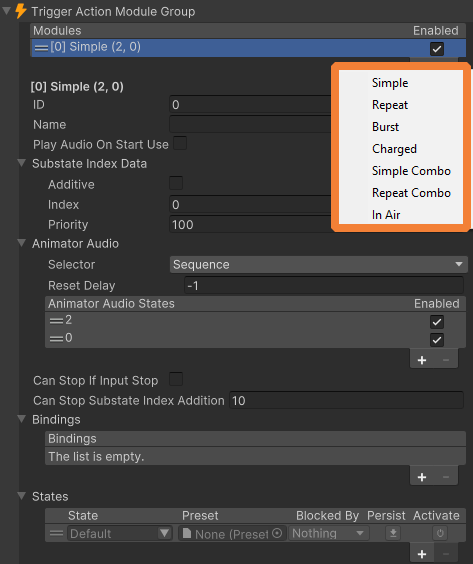
Only the first enabled module in Trigger Action Module Group is active. Reordering or disabling Trigger modules therefore changes the action’s timing; adding several does not combine their behavior.

| Trigger | Use it when |
|---|---|
| Simple | One press should produce one complete cycle. |
| Repeat | Holding input should start another cycle whenever the previous cycle and Use Rate allow it. |
| Burst | One press should perform a fixed group. Burst Size defaults to 5, Cancel Burst On Stop is disabled, and Burst Repeat Delay -1 prevents another burst. |
| Charged | Holding input should build a TriggerData.Force value and releasing should perform the action. Force defaults from 0.1 to 1 over a normalizer of 1 second; auto-fire and repeat-fire are disabled. |
| Simple Combo | Separate presses should move through Animator Audio States and may chain between use and completion. Add at least two states for an actual sequence. |
| Repeat Combo | Holding input should continue through the combo states. |
| In Air | A Simple-style action needs a separate airborne path. With Require In Air Ability In Air enabled by default, normal Use still works while grounded but airborne use must come from In Air Melee Use. |
Simple, Repeat, Burst, Charged, and both combo triggers use an Animator Audio State Set to supply audio and Item Substate Index data. The Trigger’s Substate Index Data starts at index 0 with priority 100; the selected Animator Audio State contributes its own state index.
Add common Usable modules
The Usable Action Module Group can contain several enabled modules. Each module participates only in the lifecycle stages represented by its implemented interfaces, so one module can block the start while another supplies effects or animation data.
| Module | User-facing purpose |
|---|---|
| Generic Item Effects | Run an Item Effect group on start, use, update, or completion. Only On Use is enabled by default. |
| Use Attribute | Spend an Attribute on the item GameObject per use. The current drop option responds to the automatic destination event, which direct per-use depletion does not send; see the limitation below. |
| Character Use Attribute | Spend an Attribute from the character per use. |
| Aim Substate | Add Item Substate Index data while Aim is active and optionally run effects when input-driven aiming starts or stops. Its default index is 100, priority 150, and additive mode is enabled. |
| Use Attribute Modifier Toggle | Toggle perspective GameObjects and an Attribute modifier each time the action is used. By default it prevents use when the configured Attribute is invalid and targets the Battery Attribute. |
| Module State Switcher | Select one named option and activate its State on both the character and Character Item. Loop is enabled and Index starts at 0. |
| Activate States | Activate character States while equipped, between start and use, or between use and completion. All three phases are enabled by default. |
| Enable Can Start Use | Expose a Can Start Use boolean, enabled by default, that a State preset or project code can turn off. |
| Debug Use | Write a configured message when the action reaches Use. This is intended for diagnosis rather than final gameplay. |
Use Attribute reads the item’s Attribute Manager; Character Use Attribute reads the character’s Attribute Manager. Reversing those two is a common reason an action remains unavailable even though an Attribute with the same name exists elsewhere.
Use Attribute depletion: per-use spending assigns the Attribute’s value directly and sends OnAttributeUpdateValue, not OnAttributeReachedDestinationValue. Consequently Drop When Use Depleted does not drop an item solely because a use consumes its last value. Automatic Attribute updates send the destination event at both minimum and maximum, so automatic regeneration can also trigger that drop option. For exact depletion behavior, leave the built-in drop option off and have project code check for the minimum after value updates before requesting inventory removal/drop.
See Action Module Groups for enabling, ordering, State presets, and custom modules.
How it runs

- The Use ability finds the equipped Character Item by Slot ID and its component by Action ID. It also requires a Look Source and, by default, rejects a new input while the pointer is over UI.
- The action checks Use Rate, pending Use or completion events, and every enabled module that can veto the ability or item start.
- Start Use registers
OnAnimatorItemUseandOnAnimatorItemUseComplete, applies the root-motion and facing choices, starts the main Trigger, and invokes start-stage modules. - Use Event releases the cycle at the selected animation event or duration. The first enabled Trigger performs its pattern, then all enabled modules that participate in Use receive the call.
- Use Update runs while the ability is active. Repeat, Burst, Charged, combo, condition, and effect modules can use this stage to continue or delay the cycle.
- Use Complete Event marks the cycle complete, calculates the next allowed time from Use Rate, invokes completion modules, and releases the ability according to Stop Use Ability On Complete Delay.
- Stop Use cancels outstanding waits, stops participating modules, removes forced root motion, and unregisters the animation events.
Aim can remain active and feed aiming state to the action’s modules. Use has priority over Reload for the same Character Item, and beginning Use can stop that item’s reload. An Equip Unequip ability with Prevent Start Use Reload Active can keep Use from interrupting an equipment transition; otherwise a requested Use may stop the active equip change.
Verify the result
Editor checkpoint
Before Play Mode, confirm:
- the Character Item Action ID matches the Use ability’s Action ID;
- every action on the Character Item has a unique ID;
- the intended Trigger is the first enabled module;
- Use Event and Use Complete Event match the animation clips or tested durations;
- the Trigger’s Animator Audio States map to valid Item Substate Index transitions; and
- item and character Attributes exist on the GameObject read by their respective modules.
The Usable Character Item Action Inspector also exposes Interfaces info labels beside lifecycle interfaces. The label shows the matching module count. Hover it to list the matching modules. Right-click and choose an action such as Log modules with interface ‘IModuleUseItem’. to print each matching module and its active/inactive and enabled/disabled state to the Console. This is a diagnostic command: it does not enable, reorder, or invoke a module. Use it together with the action’s Debug foldout when one module is blocking or supplying a lifecycle stage.
Play Mode checks
- Equip the item, select its Usable Action, expand Debug, and press the configured Use input.
- Confirm the expected action becomes active and the Debug section advances through start, use, completion, and stop.
- Confirm the result occurs at Use Event, not merely when input begins, and that it does not repeat sooner than Use Rate.
- Hold and release input. Compare the result with the chosen Simple, Repeat, Burst, Charged, or combo behavior.
- Watch the Animator’s Item State and Item Substate Index. Aim once and confirm an Aim Substate changes only the intended animation.
- For a firearm, verify a shot and reload handoff; for an Iron Sword, verify the hitbox window; for a throwable, verify release and re-equip; for magic, verify the caster’s start-to-stop sequence.
- For a plain Usable Action, confirm each State, Attribute, GameObject toggle, audio clip, or other Item Effect changes once at the configured lifecycle stage.
- Unequip and re-equip the item, then repeat the test to confirm toggles, States, pending events, and module conditions reset as intended.
Troubleshoot a Usable Action
| Symptom | Check | Fix |
|---|---|---|
| Use becomes active but nothing happens | Trigger Action Module Group | Enable at least one Trigger and move the intended Trigger to the first enabled position. |
| The wrong action runs | Character Item Action ID, Use Action ID, and Use Slot ID | Give every action a unique ID and match the correct Use row to that ID and slot. Module IDs do not select the action. |
| The action waits forever before its result | Use Event and OnAnimatorItemUse |
Add the event to the correct animation and slot, or disable event waiting and use a tested duration. |
| The animation finishes but Use remains active | Use Complete Event, OnAnimatorItemUseComplete, stop delay, and modules that prevent stopping |
Supply the event or duration, then use 0 for an immediate post-completion release or a tested positive delay. |
| Repeat, Burst, or combo timing is wrong | First enabled Trigger, Use Rate, Animator Audio States, and event timing | Test one Trigger at a time. Confirm each state reaches Use and completion before tuning the next cycle. |
| An Attribute module blocks use | Attribute owner and name | Put Use Attribute targets on the item and Character Use Attribute targets on the character; make the exact Attribute name and available value valid. |
| The character does not face the target | Use ability rotation, action Face Target, and Movement Type | Enable both rotation choices. An independent-look Movement Type keeps control of facing. |
| Aim plays the wrong use animation | Aim Substate index/priority and ability order | Verify the substate data and keep Use above Aim when Use’s Item State should have priority. |
| Reload or Equip Unequip behaves unexpectedly | The interacting ability’s target item and priority | Use stops Reload for the same item. Check Prevent Start Use Reload Active on Equip Unequip when equipment transitions must finish first. |
| A Magic action conflicts with another action ID | IDs after an Item Manager build | Released Version 3’s Magic builder path leaves a new Magic Action at the default ID 0. Assign a unique ID before Play Mode. |
| Replacing Activate States > State Names from code disables the wrong State or throws | Runtime array replacement | Released Version 3’s runtime setter uses incorrect values while replacing an active array. Author the fixed list in the Inspector before Play Mode; if runtime replacement is unavoidable, first deactivate the module and its States, then manage the transition in project code. |
Saving and multiplayer
Action fields and module configuration are serialized with the Character Item or prefab. The current use cycle, cooldown time, pending animation waits, charge progress, and active Trigger data are runtime state and are reinitialized; persist an Attribute or another gameplay value explicitly when it must survive a save and load.
The multiplayer integration supplies network ownership to Character Item Actions, and some built-in modules send explicit network calls, including the Generic Item Effects start stage and Use Attribute Modifier Toggle GameObject changes. Do not assume a custom module or every lifecycle stage is replicated automatically. Keep authoritative results in the networking integration and test start, repeated use, completion, perspective toggles, and interruption on owner and remote clients.
Related tasks
- Use item ability configures input, Slot ID, Action ID, and ability interactions.
- Character Item Actions explains action ownership and unique IDs.
- Action Module Groups explains module ordering, States, and extension points.
- Item Effects lists reusable effects for a plain Usable Action.
- Animator Audio State Set configures Trigger animation, audio, and substate selection.
- Animator Parameters explains Item State Index and Item Substate Index.
- Attributes explains the item and character values consumed by Attribute modules.
Developer reference
UsableAction implements IUsableItem and exposes the shared values through UseRate, FaceTarget, UseEvent, UseCompleteEvent, ForceRootMotionPosition, ForceRootMotionRotation, TriggerActionModuleGroup, and UsableActionModuleGroup. MainTriggerModule returns the first enabled Trigger, and TriggerData carries Force, Index, and the use count into specialized action modules.
Custom common modules inherit UsableActionModule and implement only the lifecycle interfaces they need. Common choices include IModuleCanStartUseItem, IModuleStartItemUse, IModuleUseItem, IModuleUseItemUpdate, IModuleItemUseComplete, IModuleTryStopItemUse, IModuleCanStopItemUse, IModuleStopItemUse, IModuleGetUseItemSubstateIndex, and IModuleOnAim. Use the Inspector’s Play Mode Debug foldout to see which module vetoed a stage before adding logs.
The Event System publishes OnItemStartUse(IUsableItem, bool), OnItemUse(IUsableItem), OnUseAbilityUsedItem(IUsableItem), and OnItemUseComplete(IUsableItem) during the shared lifecycle. OnAnimatorItemUse and OnAnimatorItemUseComplete are the matching animation event names.