Align To Ground
Align To Ground rotates the character’s up direction toward the detected ground normal. Use it when a character should follow slopes with its whole body, especially for long generic characters such as horses whose front and rear may stand at different heights.
Before you begin
- The character must have an Ultimate Character Locomotion component and correctly sized locomotion Colliders.
- The surfaces that should control alignment must be included in Solid Object Layers. Ground sampling ignores triggers.
- Use Align To Gravity Zone instead when a trigger volume, planet, or other custom gravity source should define the direction.
Add Align To Ground
- Select the character GameObject.
- In the Ultimate Character Locomotion component, expand Abilities.
- Select the plus button and add Align To Ground.
- Keep Enabled selected, Start Type set to Automatic, and Stop Type set to Manual.
- Set Distance long enough to find the intended ground without reaching an unrelated surface below it.
- Use a positive Depth Offset for the two-ray sampling mode and configure Normalize Direction as described below. The zero-offset branch currently inverts the ground normal.
- Set Align Smoothing, Align Gravity Direction, Stop Direction, and Airborne Stop Time for the desired transition on slopes and in the air.
- Enter Play Mode and test flat ground, the steepest supported slope, a ridge, and an airborne transition.
Align To Ground is concurrent and has no special list-order requirement. Avoid deliberately combining it with another active ability that also writes the character’s up direction.
Choose how the ground is sampled
Zero-offset collider cast limitation
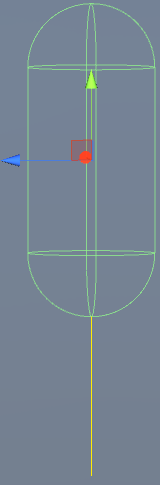
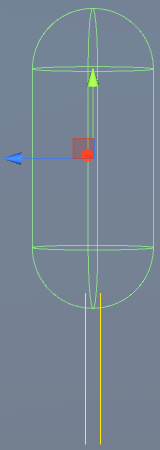
At Depth Offset 0, the ability casts the character’s locomotion Colliders downward by Distance. The cast uses each Collider’s shape, even when its debug visualization is a yellow line. This branch currently negates the hit normal before using it as character up, so it can align the character into the surface. Use a positive Depth Offset until that source calculation is corrected, including for compact characters.

The ability accepts a hit only when its point is below the tested Collider. Keep Distance short enough that a floor on a lower level does not influence the character through a ledge or opening.
Two rays for a long character
Set Depth Offset above 0 to sample with two downward rays separated along the character’s local depth. The current forward input determines which side is treated as the front. At zero forward input, the rays remain at positive and negative Depth Offset because Mathf.Sign(0) returns 1; reverse input swaps which side is treated as the front. Check the spacing both at rest and while moving. When both rays hit, the default behavior averages their surface normals; when only one hits, that hit supplies the normal.

Increase Depth Offset until the rays represent the front and rear support points without extending beyond the character. This helps a horse or another long body bridge a crest or transition between slopes without reacting to only one point.
Enable Normalize Direction when the direction between the two hit points should define the aligned plane instead of averaging their normals. This is particularly useful for a long generic character. Keep it disabled when the average of the actual surface normals produces the more natural result.
Choose alignment and airborne behavior
Align Smoothing is the smoothing time used to change the up direction. Its default is 0.2.
- Reduce it for faster response on sharp slope changes.
- Increase it to reduce abrupt body rotation on gradual terrain.
- Test the value at full movement speed; excessive smoothing can leave the body behind the surface angle.
Keep Align Gravity Direction enabled when gravity should remain opposite the aligned up direction. Disable it only when another system intentionally owns Gravity Direction.
Stop Direction and Airborne Stop Time control what happens after leaving the ground:
- Leave Stop Direction at
(0, 0, 0)when the character should retain its last orientation until another surface or system changes it. - Set a normalized Stop Direction, such as
(0, 1, 0), when an airborne character should turn back toward world-up. The ability begins aligning to this direction while airborne. - Leave Airborne Stop Time at its default
-1to disable the scheduled airborne stop. - Set Airborne Stop Time to
0or greater when the ability should try to stop after that many seconds in the air. Landing before the delay finishes cancels the scheduled stop.
With Start Type set to Automatic, a stopped Align To Ground ability is eligible to start again on the next ability update. If it must remain stopped after Airborne Stop Time, use Manual activation or a state/gameplay system that disables or controls the ability until it should resume.
How Align To Ground runs
Because Start Type is Automatic, an enabled Align To Ground ability starts without player input. Starting enables the locomotion system’s up-direction alignment.
While grounded, or while no nonzero Stop Direction is taking over in the air, the ability samples below the character using the selected cast mode. In the recommended nonzero-offset mode, the sampled result is smoothed into the character’s Up value. The zero-offset branch has the inverted-normal limitation described above. When Align Gravity Direction is enabled, Gravity Direction is updated to the opposite direction at the same time.
After the character becomes airborne, a nonzero Stop Direction takes priority over further ground sampling. A nonnegative Airborne Stop Time schedules the ability to stop; landing cancels that request. When the ability stops, it releases up-direction alignment unless another Align Up Direction ability is still active.
Align To Gravity Zone force-stops an active Align To Ground ability when zone alignment begins so the zone can take control.
Verify in Play Mode
- Keep the Ultimate Character Locomotion Inspector visible and confirm (Active) appears beside Align To Ground.
- Walk from flat ground onto a slope and confirm the character’s up direction follows the surface without visible snapping.
- Keep Depth Offset positive and verify that the separated rays detect the intended ground both at rest and while moving, without reaching a lower level through an edge.
- On a long character, set a nonzero Depth Offset and cross a ridge. Confirm the front and rear samples create a steadier body orientation.
- Compare Normalize Direction enabled and disabled on the most difficult terrain, then keep the mode that produces the expected body plane.
- Jump with Align Gravity Direction enabled and confirm gravity remains opposite the current up direction.
- Set a nonzero Stop Direction, jump, and confirm the character begins turning toward it while airborne.
- To test a persistent airborne stop, use Manual or state-controlled activation, set Airborne Stop Time to a nonnegative value, and remain airborne longer than that delay. Confirm the ability stops. Repeat with a short jump and confirm landing cancels the scheduled stop.
Troubleshoot Align To Ground
- The ability never becomes active: check Enabled and Start Type. Automatic activation does not require an input binding.
- The character turns into the ground: the zero-Depth-Offset branch currently negates the ground normal. Use a positive Depth Offset or correct that calculation before using collider-cast alignment.
- The character remains upright on a slope: confirm the surface is included in Solid Object Layers, increase Distance enough to reach it, and verify the cast is not hitting a trigger.
- A lower floor changes the character near a ledge: reduce Distance so the cast cannot reach an unrelated surface below the intended ground.
- The character rocks or reacts to only one end of a long body: use a nonzero Depth Offset, position the two samples within the support length, and compare Normalize Direction with averaged normals.
- The character jitters as it crosses a ridge: increase Align Smoothing slightly, use the two-ray mode, and check that both sampled surfaces have stable Collider normals.
- The body lags behind steep terrain: reduce Align Smoothing or lower movement speed until alignment can keep pace.
- The character aligns visually but gravity still pulls in the old direction: enable Align Gravity Direction and confirm Use Gravity is enabled on Ultimate Character Locomotion.
- The character stays tilted in the air: set Stop Direction to the required airborne up direction. Set Airborne Stop Time only if the ability should also stop after a delay.
- The ability stops during a long jump: set Airborne Stop Time to
-1or increase the delay. Landing cancels a pending stop. - The ability immediately restarts after Airborne Stop Time: Start Type is still Automatic. Use manual or state-controlled activation when the airborne stop must persist.
- Gravity Zone alignment replaces the ground normal: this is expected when Align To Gravity Zone begins. Use one up-direction owner for each part of the scene.
Related topics
- Align To Gravity Zone uses trigger-defined, weighted directions instead of ground casts.
- Abilities explains automatic activation, concurrent abilities, and runtime state.
- Layer Manager documents the solid layers used by collision and ground checks.
- Generic Character covers non-humanoid character setup where dual ground samples are especially useful.
- Moving Platforms explains synchronized moving surfaces that should also be included in terrain testing.
Developer reference
The current runtime surface includes:
- Distance: controls the downward cast distance.
- DepthOffset: selects the currently inverted-normal Collider cast at
0, or the recommended two-ray sampling at a positive value. - NormalizeDirection: derives the aligned plane from the two hit positions instead of averaging both normals.
- AirborneStopTime: schedules a stop after the character becomes airborne; a negative value disables it.
- AlignSmoothing, AlignGravityDirection, and StopDirection: expose the shared Align Up Direction settings.
- IsConcurrent: returns
true. - CanStayActivatedOnDeath: returns
true. - OnCharacterGrounded: schedules the airborne stop when the character leaves the ground and cancels it after landing.
Align To Ground does not send a feature-specific event. It listens to the shared grounded event and writes the character locomotion system’s up and gravity directions during its normal ability update.