Minimum Component Setup
Build the smallest Ultimate Character Controller character that can move and collide correctly, then add input, animation, items, health, and presentation systems only when the game needs them.
Before you begin
- Complete the project layers and scene services in Quick Setup. Those services are not character components, but the generated layer assignments and supported scene setup prevent avoidable collisions and missing-manager errors.
- Import the first-person or third-person controller that supplies the intended Movement Type.
- Decide whether this is a player, an AI agent, or a character controlled by a networking integration. That choice determines the input and look-source route; it does not change the collision core.
- Use a scene instance. The Character Manager does not build directly onto a prefab asset and does not run in Play Mode.
Build the practical minimum with Character Manager
The Character Manager is the safest way to create a minimal character because it builds the layers, collider hierarchy, Movement Type, input or AI route, and initialization dependencies together.
- Open Tools > Opsive > Ultimate Character Controller > Character Manager.
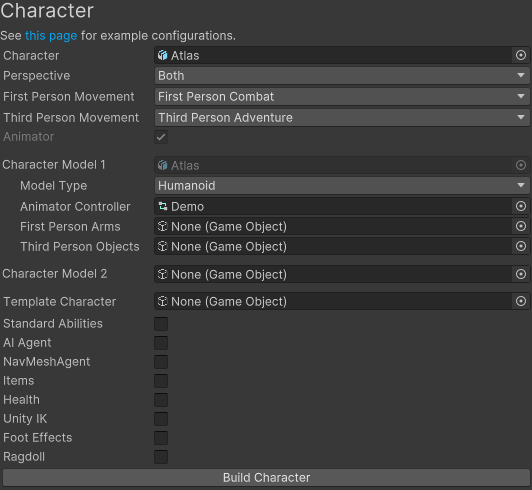
- Assign a scene model to Character. For a bodyless first-person character, leave Character empty and disable Animator.
- Choose Perspective and select the corresponding First Person Movement and/or Third Person Movement.
- Keep Animator enabled only when a visible model needs animation or root motion. Assign the model and Animator Controller when it is enabled.
- For a minimal player, leave AI Agent off and choose the project’s input route. For an AI character, enable AI Agent instead.
- Disable optional systems that are not needed: Standard Abilities, NavMeshAgent, Items, Health, Unity IK, Foot Effects, and Ragdoll.
- Resolve every validation error and select Build Character.
- For a player, configure the separate Camera Controller through Setup Manager > Scene > Camera Setup. The Character Manager does not create the camera.
The example below keeps both perspectives and animation but disables every optional gameplay and presentation group. A bodyless first-person character can be smaller by also disabling Animator.

Understand the runtime minimum
The collision core is small, but a Movement Type is also required for a character that updates successfully. Character Manager creates the following arrangement:
| Location | Required part | Why it is required |
|---|---|---|
| Character root | Ultimate Character Locomotion | Owns movement, collision queries, Movement Types, Abilities, Item Abilities, and Effects. |
| Character root | Rigidbody | Supplies the position and rotation used by the locomotion motor. Character Manager sets Use Gravity off, Is Kinematic on, damping to 0, interpolation to None, and mass to 80. |
| Character root | Character Layer Manager | Supplies the character, solid-object, and invisible-object layer masks used by locomotion. |
| Character root or descendant | One enabled, non-trigger Capsule Collider, Sphere Collider, or Box Collider on a layer included by Collider Layer Mask | Defines the character shape used by the controller’s casts and overlap checks. Character Manager creates Colliders/CapsuleCollider on the Character layer. |
| Inside Ultimate Character Locomotion | At least one configured and active Movement Type | Converts the control route into movement and rotation. The runtime update expects an active Movement Type even when no optional Abilities are present. |
Keep the root on the Character layer. Character Manager places normal model children on the SubCharacter layer and keeps the generated collision objects on the Character layer, preventing model colliders from accidentally becoming locomotion colliders.
After a build, check that the root contains the three core components, Colliders/CapsuleCollider exists beneath the model or root, and the intended Movement Type is active in Ultimate Character Locomotion.
Add the control route
The core can simulate with zero input, but a useful character needs one control route.
| Character | Add or keep | Keep separate or omit |
|---|---|---|
| Player | Ultimate Character Locomotion Handler, a root Player Input Proxy, and the matching child input provider. With the Input System, the child also has Unity’s Player Input with the selected Input Actions and the Gameplay default action map. |
Configure a Camera Controller separately. It supplies the player’s look source when attached to the character. |
| AI | Local Look Source plus the AI or navigation integration that drives movement and abilities. Character Manager removes the player input route when AI Agent is enabled. | Do not keep Ultimate Character Locomotion Handler or player input unless the design deliberately switches between player and AI control. |
| Networked | The handler, look source, and synchronization components required by the selected networking integration. | Do not add the local player route merely to satisfy the minimum list. Remote and locally owned characters have different responsibilities. |
A look source is not needed to construct the Rigidbody-and-collider core, but normal player cameras, AI aiming, perspective selection, and several Movement Types or Abilities depend on one. Test the chosen route rather than treating a bare ILookSource implementation as a substitute for the integration setup.
Choose what remains optional
| System | Add it when |
|---|---|
| Animator and Animator Monitor | A visible model must animate or provide root motion. Animator Monitor bridges UCC runtime values and root-motion deltas to the Animator. They are not required for a bodyless or deliberately non-animated motor. Character Manager requires animation for its normal third-person model workflow. |
| Abilities, Item Abilities, and Effects | The character needs behaviors beyond its Movement Type. Standard Abilities is a convenience set, not part of the collision minimum. |
| Character Attribute Manager, Character Health, and Character Respawner | The character needs attributes, damage, death, or respawning. Add the complete Health group when those behaviors are required. |
| Inventory, Item Set, item-handler, placement, and item-ability components | The character can own or use items. Enable Items in Character Manager instead of adding only part of the item-support group. |
| Character IK, Character Foot Effects, and Ragdoll | The intended rig and presentation need them. Humanoid-only features do not belong on a generic model. |
| Camera Controller | A player needs a view and look source. It belongs to the scene camera rather than the character’s minimum hierarchy. |
| Scene managers | The scene uses the corresponding services. Add them through Setup Manager; do not place them on the character root. |
For a deeper explanation of each group, see Component Overview.
Build the core manually
Manual setup is useful for a generated or runtime-created character, but it bypasses Character Manager validation.
- Create the character root on the Character layer.
- Add Character Layer Manager, a Rigidbody, and Ultimate Character Locomotion to that same root. Configure the Rigidbody as kinematic with Unity gravity disabled.
- Add an enabled, non-trigger Capsule, Sphere, or Box Collider on the root or a child included by Collider Layer Mask. Use the Character layer for locomotion colliders and the SubCharacter layer for normal model children.
- Add at least one Movement Type to Ultimate Character Locomotion and make it active. Follow Movement Types for the perspective-specific choices.
- Add exactly one player, AI, or network control route as described above.
- Add Animator and Animator Monitor to each animated model, then assign an appropriate Animator Controller. A generic model requires its own animation setup; see Generic Character.
- Create and attach the camera separately when this is a player character.
- Finish all dependencies before enabling or initializing the character.
Leave Character Initializer > Auto Initialization enabled for an ordinary scene character. At scene load, locomotion caches its Rigidbody, Character Layer Manager, colliders, Movement Types, and handlers before simulation begins. When intentionally using delayed initialization, create the full hierarchy first and invoke the initializer’s OnAwake, OnEnable, and OnStart phases in that order.
Verify in Play Mode
- Select the character root and enter Play Mode. Ultimate Character Locomotion should show the intended active Movement Type, and the Console should remain free of null-reference, missing-collider, and missing-look-source messages.
- Move the character through the selected player, AI, or networking route. The Rigidbody should remain kinematic and be moved by Ultimate Character Locomotion rather than Unity gravity or another motor.
- Walk into a wall, across a slope, and off a ledge. The configured locomotion collider should define the contacts without colliding with the model’s SubCharacter-layer colliders.
- For an animated character, watch the Animator parameters and root motion while moving. Animator Monitor should update the model without a second script moving the root.
- For a player, rotate the camera and move in several directions. The camera should remain attached as the look source and the Movement Type should respond consistently.
- Exercise one enabled optional group. If all optional groups were disabled, confirm that no health, item, IK, foot-effect, or ragdoll components were generated.
Troubleshooting
| Symptom | Check | Fix |
|---|---|---|
| Play Mode reports a null reference immediately | Check the character root for both Rigidbody and Character Layer Manager. Ultimate Character Locomotion does not declare Unity RequireComponent attributes for these dependencies in released Version 3. |
Add both components before locomotion initializes, or rebuild the character through Character Manager. |
| The character does not move and the active Movement Type is empty | Check the Movement Types list and the active movement selection in Ultimate Character Locomotion. | Add the perspective-appropriate Movement Type and make it active before entering Play Mode. |
| A collider is visible but locomotion reports that the character has no collider | Check that it is an enabled, non-trigger Capsule, Sphere, or Box Collider and that its layer is included by Collider Layer Mask. | Use a supported collider and correct its layer. Keep decorative, hitbox, and model colliders on an excluded layer such as SubCharacter. |
| Player input has no effect | Check Player Input Proxy, its referenced input provider, and Ultimate Character Locomotion Handler. The handler caches the input route during initialization. | Configure the complete route before initialization, or rebuild/update through Character Manager instead of adding the input provider afterward. |
| An AI character without an Animator throws an exception in Local Look Source | In released Version 3, an empty Look Transform makes Local Look Source search for an Animation Monitor before falling back to the root. | Assign Look Transform explicitly to the root, head, or intended aim transform on an animationless AI character. |
| The camera does not follow a minimal player | Check for a Camera Controller and its Character assignment. The Character Manager builds only the character. | Use Setup Manager > Scene > Camera Setup, then assign the character or enable the supported automatic player lookup. |
| The character jitters or moves twice | Check for a dynamic Rigidbody, Unity gravity, a Character Controller, NavMesh movement outside the UCC integration, or another script moving the root. | Keep the Rigidbody kinematic, disable Unity gravity, and let one UCC control route own movement. |
Related tasks
- Character Creation covers every Character Manager choice and the generated hierarchy.
- Movement Types configures the movement model required by the core.
- Input selects and configures the player’s input implementation.
- Camera creates the player’s Camera Controller and look-source route.
- Artificial Intelligence connects an AI solution without adding player input.
- Items and Inventory adds the complete item-support group.
- Attributes adds attributes, health, damage, death, and respawning.
Developer details
CharacterLocomotion.AwakeInternal caches the same-root Rigidbody and Character Layer Manager, forces the Rigidbody to kinematic with zero damping and no interpolation, and scans descendants for supported colliders. UltimateCharacterLocomotion.InitializeMovementTypes initializes the serialized Movement Types and selects the configured type before simulation uses ActiveMovementType.
Colliders added after locomotion has initialized are not discovered by another hierarchy scan. Call CharacterLocomotion.AddCollider after creating a runtime collider and RemoveCollider before removing one. Likewise, construct the Player Input Proxy and its provider before UltimateCharacterLocomotionHandler initializes, because the handler caches that input reference in its awake phase.
CharacterBuilder.AddEssentials is the supported source-level equivalent of the minimal Character Manager build. It assigns the layers, creates the Rigidbody and core components, adds a generated capsule hierarchy, configures input or Local Look Source, and coordinates delayed initialization when called during Play Mode.