Templates
Use a template character to transfer a working Ultimate Character Controller configuration to a new or existing character. A template is an ordinary configured character, not a separate asset type.
Before you begin
- Finish and test the source character before using it as a template.
- Save the scene or prefab containing an existing target. Applying a template changes matching component, ability, item ability, and effect settings in place.
- Decide the target’s Perspective, movement types, models, Animator Controllers, First Person Arms, Third Person Objects, and Item Slots. Those target-specific choices are not taken from the template.
- Configure the camera separately. Character templates do not create or copy a camera.
Apply a template
- Open Tools > Opsive > Ultimate Character Controller > Character Manager.
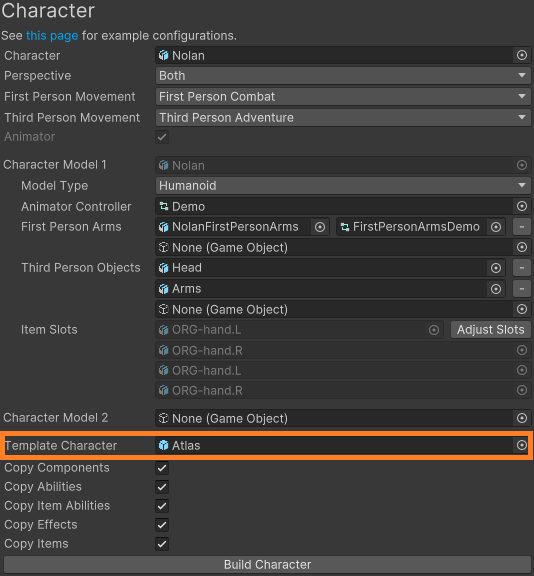
- For a new character, assign its model and complete the perspective, movement, Animator, arms, third-person-object, and item-slot fields. For an existing character, assign its controller root to Character.
- Assign the configured source character to Template Character. It must already contain Ultimate Character Locomotion, cannot be the target itself, and cannot be a legacy character.
- Choose the copy options described below.
- Select Build Character for a new target or Update Character for an existing target.
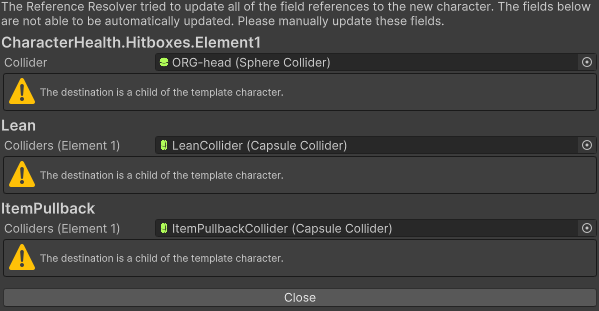
- If Reference Resolver opens, replace or clear every field that still points into the template hierarchy before selecting Close.
The screenshot shows Nolan remaining as the target model while Atlas supplies the reusable controller configuration.

Choose what to copy
All five options are enabled initially. Their merge behavior is different:
| Option | Result on the target |
|---|---|
| Copy Components | Copies settings from Opsive components on the template root. A component of the same type is reused; otherwise it is added. Unity components, custom components, child components, and Model Manager are not copied. |
| Copy Abilities | Reconfigures matching ability types and adds missing types. Additional target abilities remain, and existing entries are not reordered to match the template. |
| Copy Item Abilities | Reconfigures matching item-ability types and adds missing types. Extra occurrences of a type used by the template are removed, unrelated types remain, and existing entries are not reordered. |
| Copy Effects | Reconfigures matching effect types and adds missing types. Additional target effects remain, and existing entries are not reordered. |
| Copy Items | Clones each active Character Item beneath the template into the target’s Item Placement hierarchy. It does not merge or deduplicate items. |
Released Version 3 limitation: the visible Copy Items toggle reads and changes the Copy Abilities setting instead of the stored item-copy setting. The item-copy setting normally remains at its enabled default, so selecting a template can still copy items when Copy Items appears disabled. Changing that toggle can also change whether abilities copy. If the target must not receive items, use a temporary template with no Character Item beneath an active GameObject, then verify Copy Abilities before building or updating.
When a template is selected, Character Manager replaces its normal functionality choices with these copy options. For a new target, it does not run the normal component-support or ragdoll-builder steps. Copy Components transfers only root-level Opsive components, so create any required child hierarchy, ragdoll colliders, or other model-specific setup separately.
Keep target-specific setup on the target
The target keeps the model rows configured above Template Character, including its model type, Animator Controller, first-person arms, third-person objects, and item-slot transforms. Model Manager is deliberately excluded from component copying. This lets two characters share controller behavior without replacing their visual hierarchy.
| Target | What happens |
|---|---|
| New character | Character Manager builds the target’s core locomotion and model setup first, then applies the selected template data. |
| Existing character | Character Manager updates the target’s core setup first, then overwrites matching copied settings and adds missing copied entries. |
Applying the same template repeatedly is not idempotent for items: each run clones the active template Character Items again. Inspect the target hierarchy after every application and remove unintended duplicates before entering Play Mode.
Resolve object references
The copy operation tries to replace references into the template with equivalent objects on the target. It can match the target root, corresponding Animator hierarchies, relative child paths, and Humanoid bones. When a corresponding object is missing or ambiguous, Reference Resolver lists the unresolved field.

For each warning:
- Select the corresponding object on the target, or set the field to None when the target does not use that object.
- Confirm that the warning stating that the destination is a child of the template character disappears.
- Select Close, then inspect the affected component on the target.
The Close button does not require every warning to be resolved. Leaving a template object selected creates an unwanted cross-character reference. Also inspect cloned Character Items manually: their fields are not included in the Reference Resolver pass.
Check the generated result
Before Play Mode, select the target and confirm:
- Ultimate Character Locomotion contains the intended ability, item-ability, and effect order;
- each copied root component refers to the target’s models, colliders, item slots, and child objects rather than the template;
- model-specific arms and third-person objects are still the ones selected for the target;
- Item Placement contains the intended Character Items exactly once; and
- any required child components or ragdoll colliders that were not copied have been created separately.
Verify in Play Mode
- Move the target with its selected movement type and switch perspective when the character supports both views.
- Start one copied ability and one copied effect. Confirm that they use the target’s Animator, colliders, and child objects.
- If items were copied, equip and use one item in every supported perspective. Confirm that the expected Character Item and Item Set are selected and that no duplicate item appears.
- Exercise any model switch or alternate-model flow. Confirm that references resolve within the active target model and never activate or move an object on the template character.
- Check the Console for missing references or exceptions before saving the result as a prefab.
Troubleshooting
| Symptom | Check | Fix |
|---|---|---|
| Build Character or Update Character is disabled after choosing a template. | Check whether the template has Ultimate Character Locomotion, is the same object as the target, or contains Legacy Character Locomotion. | Choose a different, already configured Version 3 character. |
| Items copy even though Copy Items appears disabled. | Check whether a released Version 3 template build was used. | Use a temporary template with no Character Item beneath an active GameObject and remove any unwanted target clones. Recheck Copy Abilities, because the two visible controls are miswired. |
| Applying the template a second time creates duplicate items. | Inspect the target’s Item Placement children. | Remove unintended Character Item clones, or reapply from a template with no Character Item beneath an active GameObject. |
| A warning remains in Reference Resolver. | Check whether the field still selects an object beneath the template character. | Assign the corresponding target object, set the field to None when it is not needed, and then inspect the component again after closing. |
| References for a second model cannot be resolved. | Check whether that model and its equivalent child hierarchy exist on the target. | Add and configure the target model first, or clear references that are not valid for the target. |
| A new character is missing health, item, ragdoll, or other supporting objects. | Check whether those dependencies existed only as child objects on the template. | Build the missing target-specific hierarchy with the appropriate setup workflow; template component copying covers only root-level Opsive components. |
| The target camera does not follow or switch perspective correctly. | Check whether a camera was configured for the target. | Set up the camera separately; it is outside the Character Manager template copy. |
Related tasks
- Character Creation
- Common Setups
- Item Support
- Movement Types
- Model Switching
- Abilities
- Camera
- Items and Inventory
Developer details
CharacterManager.CopyTemplateCharacter copies root Opsive components unless their type uses IgnoreTemplateCopy; ModelManager is excluded this way. It matches abilities, item abilities, and effects by exact type and occurrence before ReferenceResolverWindow.ResolveFields copies their values and maps compatible hierarchy references.
The released Version 3 item path calls GetComponentsInChildren<CharacterItem>() without including inactive objects and instantiates every returned item beneath Item Placement. Those clones are not added to the resolver’s component, ability, or effect pairs. The visible Copy Items control is wired to m_CopyAbilities, while the actual clone path reads m_CopyItems.