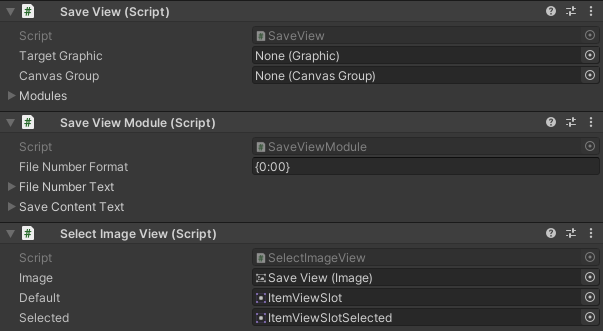
Save View
A Save View presents one numbered save slot and its lightweight metadata in the Save Menu. Use it to distinguish an empty slot from an occupied one without loading the full saved Inventory first.
The Save View is presentation only. The Save Grid owns selection and the Save, Load, and Delete actions; the Save System Manager owns the local files; and Saver components decide whether Bag, Equipment, Gold, mutable Item values, or other runtime state is included.
Before you begin
Set up the Save System before customizing its slot presentation:
- Open Tools > Opsive > Ultimate Inventory System > Main Manager.
- Select Setup, then open Save Setup.
- Assign the player under Object to save and select Add Components.
- Confirm that the Inventory System Manager has Save System Manager and Inventory System Manager Item Saver.
- Confirm that the player has Inventory Saver. Add Currency Owner Saver when Gold must persist.
- Open Tools > Opsive > Ultimate Inventory System > UI Designer, select Save, and create a Basic or Main Menu Save Menu.
For the first test, keep the four automatic load and save options disabled. The released Version 1 manager defaults to Max Saves 5, Save File Name SaveFile, Save File Extension save, and Save Meta Data File Extension metadata. Leaving Save Meta Data Creator unassigned uses the built-in date-and-time metadata.
Understand the slot data flow
| Part | Responsibility |
|---|---|
| Save System Manager | Scans metadata, maintains numbered slots, asks Savers for data, and reads or writes local files. |
| SaveDataInfo | Carries the slot Index, lightweight MetaData, and full Data when that data has been loaded. |
| Save Menu | Refreshes its Save Grid when the panel opens and selects the first slot. |
| Save Grid | Draws slots, opens the Action Panel, confirms destructive actions, and calls Save, Load, or Delete. |
| Save View Drawer | Assigns the absolute slot index and sends each SaveDataInfo to a Save View. |
| Save View | Holds the current slot value and forwards it to Save View Modules. |
| Save View Module | Draws the formatted slot number plus Empty, a basic timestamp, or a fallback save-file label. |
The manager stores metadata separately from the full save data so the grid can list slots without deserializing every Inventory. Keep each slot’s .save and .metadata files together.
Configure the Save View prefab
The UI Designer schema includes a Save View prefab. Duplicate the project-owned schema or prefab before making visual changes rather than editing a package or demo asset in place.
- Select the Save Grid and locate its Save View Drawer.
- Assign the intended prefab to Save Box Prefab. The field keeps the older
boxlabel but expects a Save View prefab. - On Save View, assign Target Graphic when the slot’s Button should use a Graphic from the view. Assign Canvas Group when the whole slot should fade or be hidden together.
- Keep the Modules list synchronized with the Save View Module components attached to the prefab.
- On Save View Module, keep File Number Format as
{0:00}to display indexes00,01, and so on, or choose another valid composite format. - Assign File Number Text and Save Content Text to the visible text controls.

The drawer supplies a zero-based slot index before the module draws. With the default format, the first file is therefore shown as 00, matching Save System Manager index 0.
Choose the metadata presentation
The shipped Save View Module has three display states:
- Empty when metadata is null or
MetaData.IsEmptyis true; - the saved date and time when metadata is
BasicSaveMetaData; and - Save File N for another metadata type, where
NisSaveDataInfo.Index.
Use a custom Save Meta Data Creator and custom Save View Module when the slot must show a character name, location, play time, difficulty, thumbnail reference, or application save version. The creator must return an empty metadata object whose IsEmpty is true and saved metadata whose IsEmpty is false. The module must clear every custom text or image so a reused slot cannot retain the previous save’s details.
Do not read the full SaveData merely to draw the list. Put only the small, stable summary needed by the menu in metadata.
Configure the Save Grid actions
Confirm these generated references and Version 1 defaults:
| Save Grid field | Default | Purpose |
|---|---|---|
| Action Panel | Generated reference | Presents Save, Load, and Delete for the selected slot. |
| Confirmation Pop Up | Generated reference | Confirms overwrite, load, and delete. |
| Optional Save Event > Use Optional Event | Disabled | Replaces the built-in Save call when enabled. |
| Optional Load Event > Use Optional Event | Disabled | Replaces the built-in Load call when enabled. |
| Optional Delete Event > Use Optional Event | Disabled | Replaces the built-in Delete call when enabled. |
Enabling an optional event cancels the corresponding built-in operation. Its callback must perform the complete replacement action; an event that only plays audio or shows feedback leaves the slot unchanged.
Keep the visible grid and navigation within indexes 0 through Max Saves – 1. Extra selectable layout cells are not usable save slots.
How slot actions run
- Opening the Save Menu refreshes the grid from
SaveSystemManager.GetSaves()and selects its first button. - Clicking or submitting a slot opens the Action Panel.
- Save collects every registered Saver, creates new metadata, and writes both slot files. A metadata-null entry saves without confirmation; an entry with metadata asks to overwrite.
- Load asks for confirmation, reads the selected
.savefile, and applies every registered Saver in load-priority order. - Delete asks for confirmation and removes the selected data and metadata files.
- The Save Grid refreshes after each action so the Save View reflects the manager’s latest metadata.
Released Version 1 creates a non-null empty metadata object for every unused slot. The Save View correctly displays Empty, but the built-in Save Grid tests only whether metadata is null when it enables Load/Delete or decides whether Save needs overwrite confirmation. An Empty slot can therefore still offer Load and Delete and can ask for overwrite confirmation. Use Save on that entry and avoid Load/Delete, or customize Save Grid to check MetaData.IsEmpty as well.
Handle incomplete or damaged slots
The default Save View reports metadata state; it does not validate the matching data file.
- A valid metadata file with a missing data file can look occupied, but Load logs that the slot cannot be loaded.
- A corrupt metadata or data file can fail during Version 1 deserialization; there is no built-in damaged-slot presentation or migration screen.
- The built-in delete path is not transactional. If one file in the pair is already missing, it can return before removing the remaining file or clearing the in-memory entry.
For a shipped game, validate file pairs in a project-owned persistence layer before exposing them to the grid. Back up the save folder before repairing an orphaned pair, then remove or migrate both files for that index together. Use PrintSaveFolderPath from the Save System Manager component menu to identify the current platform’s folder.
Editor checkpoint
Before entering Play Mode, confirm that:
- one Save System Manager exists and Max Saves matches the intended slot count;
- the required Inventory, Item, and Currency Saver components are active and use unique full keys;
- Save Menu references the generated Save Grid;
- Save Grid references its Action Panel, Confirmation Pop Up, and Save View Drawer;
- the drawer’s Save Box Prefab contains Save View and Save View Module;
- File Number Text and Save Content Text reference visible controls;
- the number of reachable slot buttons does not exceed Max Saves;
- optional action events remain disabled unless their replacement callbacks are complete; and
- every supported input method can reach the grid, Action Panel, and confirmation popup.
The visible checkpoint is five slots labeled 00 through 04 with the default manager settings. Unused slots show Empty.
Verify in Play Mode
- Start with three Health Potions in Bag, an Iron Sword in Equipment, and a known Gold balance.
- Open the Save Menu and confirm that unused slots display Empty with the expected zero-based numbers.
- Select slot
00, choose Save, and accept the overwrite prompt if Version 1 shows one. Confirm that the content changes from Empty to a date and time. - Remove two Health Potions, unequip the Iron Sword, and spend some Gold.
- Choose Load on slot
00and accept the prompt. Confirm that Bag, Equipment, and Gold return to their saved values. - Change the state again, save to
00, and confirm the overwrite. Load it and verify that the newer state replaced the earlier state. - Save a different state to
01. Switch between00and01and confirm that each Save View retains its own number and timestamp. - Delete slot
01and confirm that its Save View returns to Empty. Do not use Load or Delete on it even if the Version 1 action panel still exposes those choices. - Save slot
00again, stop and restart Play Mode, reopen the menu, and confirm that the dated entry is reconstructed from disk. Load it and verify the Inventory and Gold one more time.
Troubleshooting
| Symptom | Check | Fix |
|---|---|---|
| The slot number or content is blank | File Number Text and Save Content Text on Save View Module. | Assign both visible text controls. |
| Every slot shows the same number | Save Grid uses the wrong drawer or a custom drawer does not call SaveView.SetIndex. |
Use Save View Drawer or forward the absolute element index before drawing. |
| A reused slot keeps another save’s custom image or text | The custom Save View Module’s Clear implementation. |
Reset every visual value that the module sets. |
| An Empty slot offers Load/Delete or asks to overwrite | Version 1 action conditions check whether metadata exists, while the view checks MetaData.IsEmpty. |
Use Save only, or customize Save Grid so its action conditions also reject empty metadata. |
| Save, Load, or Delete only invokes feedback | The corresponding Optional … Event is enabled. | Disable it, or make its callback call the complete replacement operation. |
| A blank cell beyond the final slot can be selected | Grid size or navigation exposes an index at or above Max Saves. | Restrict visible and navigable cells to 0 through Max Saves – 1. |
| A dated slot will not load | Its .metadata exists but its .save file is missing, unreadable, or corrupt. |
Back up the folder, repair or remove the pair, and create a fresh slot. |
| Delete does not clear an orphaned slot | One file in the pair was already missing. | Repair the pair outside the default menu after a backup; Version 1 deletion is not transactional. |
| Bag, Equipment, or Gold does not return | The matching Saver is missing, inactive, duplicated by key, or bound to the wrong owner. | Correct the Saver setup and repeat a save/restart/load round trip. |
| Custom metadata still shows Save File N | The default Save View Module does not know the custom metadata type. | Add a custom Save View Module that reads that type and clears its own presentation. |
Related pages
- Views
- Save Menu runtime workflow
- Save UI Designer
- Save System and Saver components
- Main Menu
- Scene Transitions
- Events
Developer, event, cloud, and network boundaries
SaveView is a View<SaveDataInfo>. SaveViewDrawer.BeforeDrawingBox calls SetIndex, and SaveViewModule.SetValue formats that index and reads only MetaData. Subclass SaveViewModule to present a custom metadata type, and override both SetValue and Clear so pooled views remain deterministic.
SaveGrid.Save, Load, and Delete forward to SaveSystemManager.Save, Load, and DeleteSave. Its virtual methods are the safer integration points for a replacement backend. The manager publishes slot-index events before and after save, load, and delete: c_WillStartSaving_Index, c_SavingComplete_Index, c_WillStartLoadingSave_Index, c_LoadingSaveComplete_Index, c_WillDeleteSave_Index, and c_DeleteSaveComplete_Index.
The built-in manager writes local files under Application.persistentDataPath. It does not provide cloud synchronization, conflict resolution, encryption, automatic backups, schema migration, or network authority. It also uses one global manager rather than per-player Save View ownership. Add those policies in a project-owned persistence layer, keep authoritative multiplayer saves server-side, and use an overridden Save Grid or complete optional-event handlers to connect that layer to the UI.