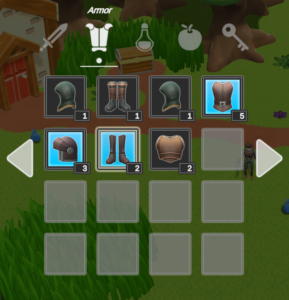
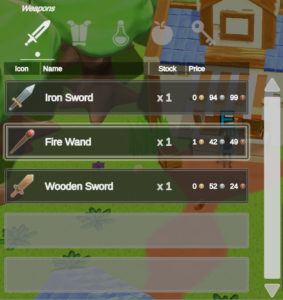
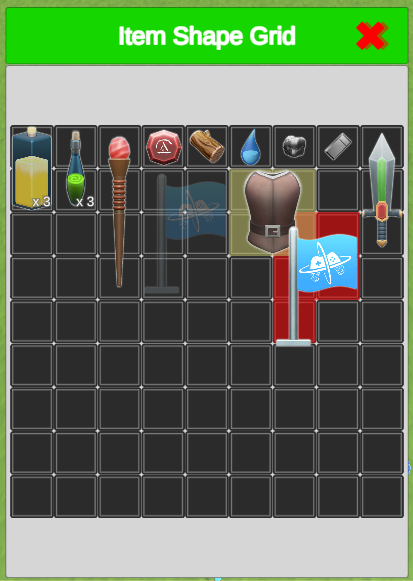
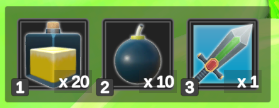
The Classic schema is a minimalist UI with large buttons, clear Item icons, and conventional grid or list layouts. Use it when the project needs a readable general-purpose Inventory UI that can be generated quickly and restyled after the core interactions work. The UIS demo uses Classic as its baseline.

Choose Classic when

Classic is a good starting point when:

  • Bag should use a conventional Inventory Grid or List;
  • controller, keyboard, or pointer navigation should remain visually clear;
  • Shop, Crafting, Save, hotbar, description, and Currency panels should share one restrained style; and
  • spatial Item placement is optional rather than the main visual identity.

Choose the RPG schema instead when floating panels and Item Shape Grids are the primary direction. Both schemas are starting points and can be customized after generation.

Create UI from the Classic schema

  1. In Main Manager > Setup, confirm that the intended Inventory System Database is selected.
  2. Open Tools > Opsive > Ultimate Inventory System > UI Designer.
  3. In Setup, find Create Canvas Managers and select Setup.
  4. In UI Designer Schema, select Classic and choose Duplicate.
  5. Save the duplicate and its assets in a project-owned folder, then confirm that the duplicate is selected.
  6. Select Spawn In Scene.
  7. Confirm that the scene contains the generated canvas, Display Panel Manager, Main Menu, and Classic starting panels.

Duplicate the schema before changing its prefabs. This keeps project styling separate from package assets and makes future panels use the project-owned templates.

Build the Bag and Equipment example

  1. In Inventory Grid, set Parent Transform to the Main Menu content transform and choose Main Menu under Panel Option.
  2. Set Panel Name and Inventory Grid Name to Bag, assign the player Inventory, and choose Grid or List under Grid Options.
  3. Add an Item Info Item Collection Filter for the Bag collection when the Inventory also contains Equipment.
  4. In Equipment, assign the Item Slot Set used by the player’s Equipment Item Collection and create the Item Slot Collection View.
  5. Set Item Collection ID to Equipment and confirm that the weapon slot accepts Weapon.
  6. In the shared Item View Slots Container options, confirm that the Item View Drawer and grid use the same Content transform.
  7. Map Consumable and Weapon in the Category Item View Set, then connect the Category Item Action Set and Item Description bindings.

At this checkpoint, Health Potion, Iron Sword, and Fire Wand should appear in Bag. Iron Sword and Fire Wand should have a valid Equipment destination, while Health Potion should be rejected by the weapon slot.

Inventory layouts

Inventory Grid

Use the grid when Item icons and spatial scanning are more important than long text rows.

The Classic Inventory Grid displaying Item icons in evenly spaced square slots.

Inventory List

Use the list when Item names or row-based details need more horizontal space.

The Classic Inventory List displaying Items as vertically arranged rows.

Item Shape Grid

Classic includes an Item Shape Grid template for Items that occupy several cells. The RPG schema remains the more focused starting point for a UI designed around this interaction.

The Classic Item Shape Grid displaying differently sized Items across multiple cells.

Item Hotbar

Use the hotbar for direct Item Actions through input or drag-and-drop assignment.

The Classic Item Hotbar displaying a row of quick-access Item slots.

Shop Menu

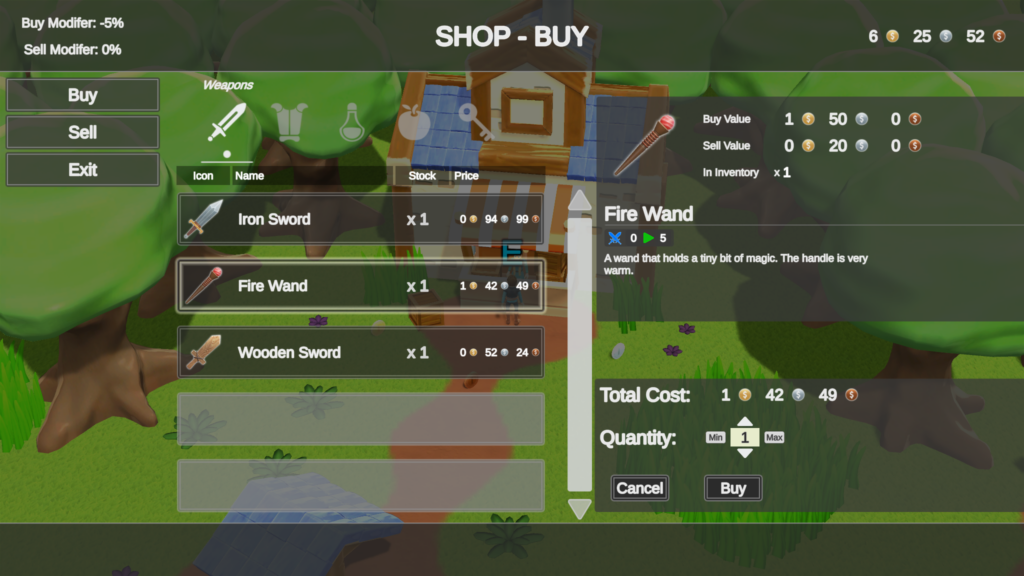
The Shop template combines Item selection, prices, Currency display, and buying or selling controls. For the standard sample, its price views should read Health Potion, Iron Sword, and Fire Wand BuyPrice values in Gold.

The Classic Shop Menu displaying the shop Inventory, selected Item, price, and transaction controls.

Crafting Menu

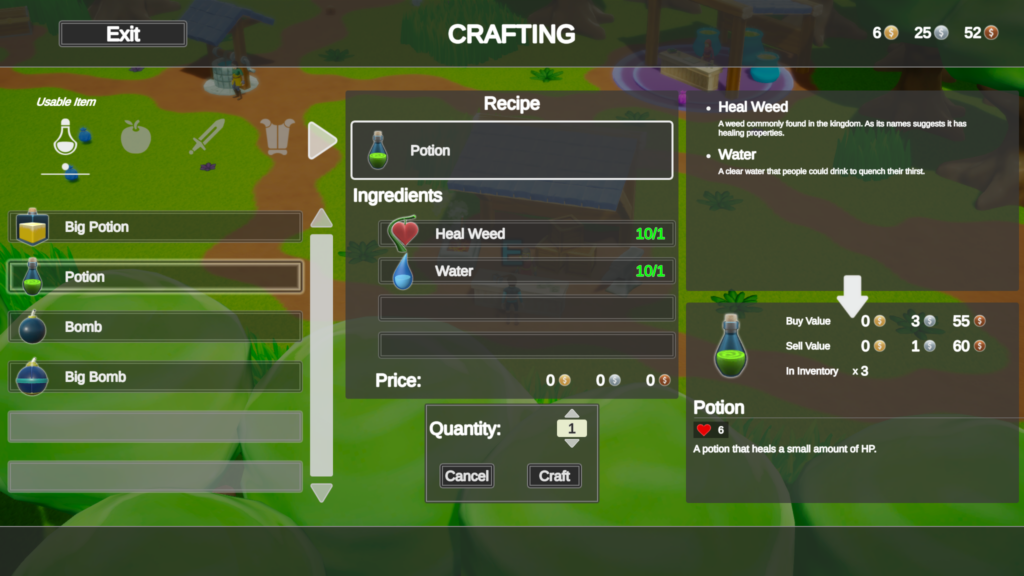
The Crafting template presents the Crafter’s recipe list and selected recipe. Use it to show the ingredients and Health Potion output for the standard recipe.

The Classic Crafting Menu displaying a recipe list and the selected recipe's ingredients and output.

Save Menu

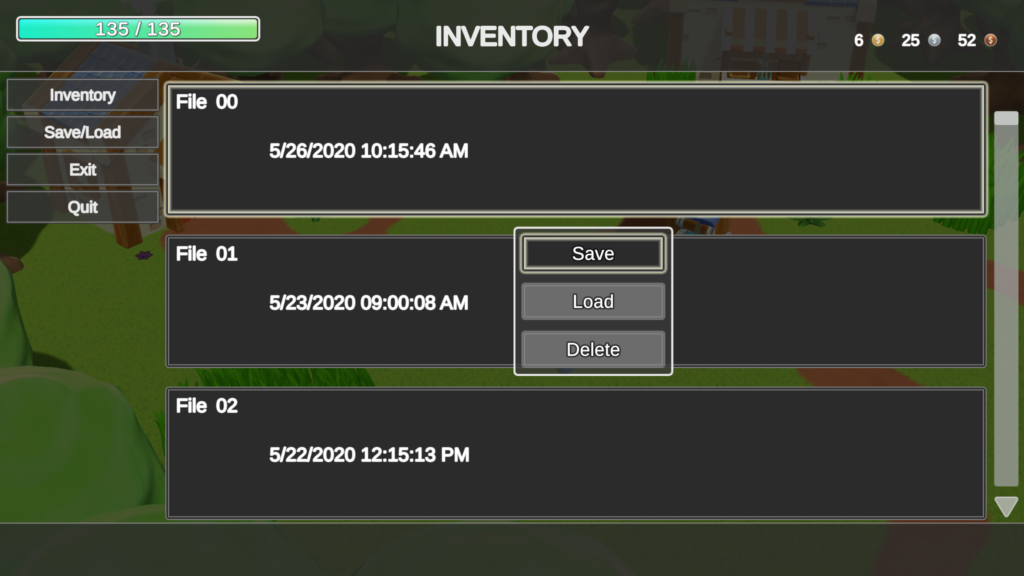
The provided Save Menu is a simple baseline for projects using the UIS save workflow. Projects with another save system can omit it or replace it.

The Classic Save Menu displaying selectable save and load entries.

Item and Currency views

Item Description

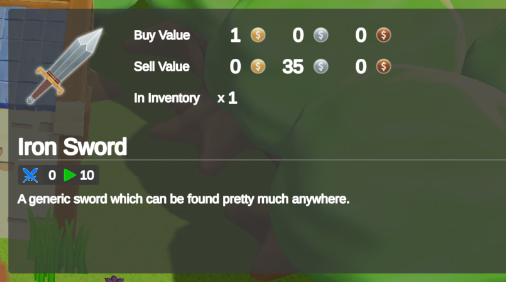
Bind Item Description to the Bag Item View Slots Container so selecting Health Potion or Iron Sword updates the larger detail panel.

The Classic Item Description panel displaying the selected Item's icon and descriptive details.

Multi Currency View

Map Gold to a Currency View and bind a Currency Owner Monitor when the panel should show the player’s current balance.

The Classic Multi Currency View displaying Currency icons and their current amounts.

Customize the duplicated schema

Edit a scene instance when only one generated panel should change. Edit the corresponding prefab in the duplicated Classic schema when every future generated instance should share the change.

Keep related prefabs consistent when changing slot size, typography, selection visuals, or navigation. After changing a shared Item View prefab, recheck Inventory Grid, Equipment, hotbar, Shop, and Crafting panels that use it.

Generating a new panel uses the currently selected duplicated schema. Scene-only overrides from an earlier panel are not automatically copied into a new generated instance.

Editor checkpoints

Before entering Play Mode, confirm that:

  • The selected Classic schema is the project-owned duplicate.
  • Spawn In Scene completed without Unity errors.
  • The Display Panel Manager references the generated Main Menu and panels.
  • Bag resolves the player Inventory, collection filter, Item View Drawer, and matching Content transforms.
  • Equipment uses the runtime collection’s Item Slot Set and Item Collection ID.
  • Category Item View and Item Action mappings use objects from the active database.
  • Shop, Crafting, Save, Item Description, and Currency panels are included only when their runtime data or systems are configured.

Verify in Play Mode

  1. Open the Classic Main Menu and confirm that every included subpanel opens and closes correctly.
  2. Confirm that Health Potion, Iron Sword, and Fire Wand appear in Bag with readable icons, selection state, and descriptions.
  3. Equip Iron Sword and confirm that Bag and Equipment refresh and the selected Item remains understandable.
  4. Buy Health Potion and confirm that Gold and Inventory contents update.
  5. Craft Health Potion and confirm that the recipe panel and Inventory refresh after processing.
  6. Navigate the grid, list, hotbar, and included menus with every supported input method.
  7. Check customized prefabs at the smallest supported resolution and confirm that labels, slots, and focus visuals are not clipped.

Troubleshooting

  • Classic cannot be selected or generated: Check that Canvas Managers were created and a duplicated Classic schema is selected.
  • A panel uses package styling after customization: Check that the active schema and prefab references point to the project-owned duplicate.
  • Bag is empty: Check the Inventory or panel binding, Bag collection filter, Item View Drawer, and matching Content transforms.
  • An Item uses the wrong appearance: Check its Categories and the Category Item View Set used by the drawer.
  • Equipment has the wrong slots: Check the Item Slot Set, Item Collection ID, and generated Item View Slot restrictions.
  • A shared visual change is inconsistent: Apply it to the duplicated schema prefab rather than only one scene instance, then retest every panel that consumes it.
  • Navigation skips or leaves the panel: Check the grid size, Unity layout group, and Layout Group Navigation settings after changing the layout.