
Save
Export
The UI Designer > Save tab creates a slot-based menu and lists the scene’s Saver components. Save System Manager owns files; registered Savers supply and restore the runtime data. See Save System for the persistence contract and Save Menu for runtime/custom UI behavior.
Set up the data owners
- Open Tools > Opsive > Ultimate Inventory System > Main Manager > Setup > Save Setup.
- Assign the player’s Inventory GameObject to Object to save, then select Add Components.
- Confirm the manager GameObject has Save System Manager and Inventory System Manager Item Saver. Confirm the player has Inventory Saver and, when it owns Currency, Currency Owner Saver.
- For a UCC-integrated character, use Inventory Bridge Saver in place of standard Inventory Saver.
| Saver | Responsibility |
|---|---|
| Inventory Saver | Item IDs/amounts by Item Collection, including Bag and Equipment |
| Inventory System Manager Item Saver | Referenced Item data, including mutable/unique attributes; loads before collection restoration |
| Currency Owner Saver | Player Currency such as Gold |
| Inventory Grid Saver | Explicit grid positions when needed |
Assign Inventory Saver’s Inventory. Keep Additive disabled for a normal replacement load; enable it only when intentionally adding saved contents to current contents. Keep collection order and slot definitions compatible with saved data because collections restore by index.
Give every Saver a unique full key; set a distinct Key when repeated GameObject names/types would conflict. Required Savers must be active and registered. Enable Load On Start on required Savers when automatic manager loading happens before they register.
Configure manager settings
| Setting | Initial manual-test configuration |
|---|---|
| Max Saves | Number of allowed slots; size/navigation can show them across pages |
| Save File Name, file/metadata extensions | Stable values for the maintained save format |
| Debug Json Copy | Disabled unless a readable diagnostic copy is needed |
| Automatic initialize/scene load and scene unload/quit save options | Disabled while isolating manual actions |
| Save Meta Data Creator | Unassigned uses basic metadata with save time |
| Inventory System Manager Item Saver | Reference the manager’s Item Saver component |
Files live under Application.persistentDataPath, which varies by platform/build identity. Use the manager’s context menu to print/open the current folder when inspecting files.
Create and configure the menu
- Open Tools > Opsive > Ultimate Inventory System > UI Designer > Save > Create.
- Choose Parent Transform and Panel Option. Basic creates a standalone menu; Main Menu adds a Save/Load inner panel and requires that menu’s Main Content transform as parent.
- Select Create, then select the generated menu under Edit. Use Find Available Targets in Scene if needed.
Open Save System Manager and Savers to inspect components found in the scene. Select an entry to locate it. Add missing components through Save Setup or the Inspector, then refresh this audit list.
Under Grid Size & Layout Group, choose visible slot capacity and check the Save View’s file-number/metadata text references. Add Layout Group Navigation for keyboard/controller and configure Grid Navigation for buttons/scrolling when allowed slots exceed visible capacity.
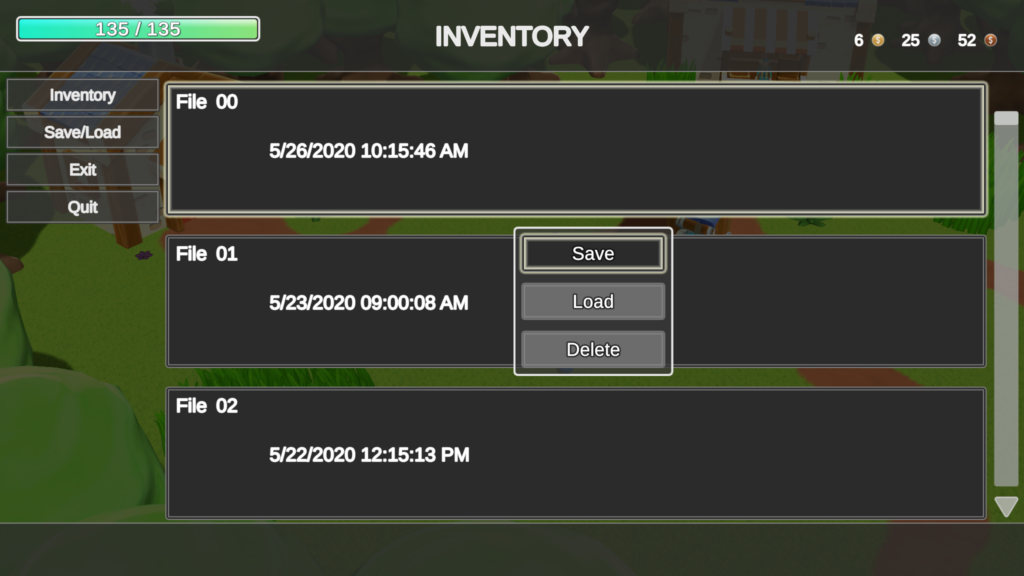
On Save Menu, assign Save Grid. On the grid, confirm Action Panel, Confirmation Pop Up and parent Display Panel references. Opening the menu refreshes metadata and selects the first slot.
Inspect the native Saver setup
The native Inventory Save Menu below lists three Savers: Inventory System Manager Item Saver on the manager, and Inventory Saver plus Currency Owner Saver on Player Inventory. Its grid has one column and five rows.

The manager references its Item Saver and keeps automatic loading, automatic saving and Debug Json Copy off. This example uses a dedicated filename namespace beneath its persistent-data folder.

The matching runtime example verifies replacement loading, mutable Item data and Currency across separate Editor processes.
Choose action ownership
Leave Optional Save Event, Optional Load Event and Optional Delete Event disabled for built-in persistence. Enabling an optional event replaces that default operation: connect a complete backend callback or wrapper that calls the relevant Save Grid Save/Load/Delete method. The selected index is passed to the callback.
Use Save to populate an entry labeled Empty; use Load and Delete only on an existing save. Confirm prompts when presented, including an initial Save prompt. For a custom action panel, gate Load/Delete and overwrite confirmation on the slot’s actual empty/occupied state.
Saving asks registered Savers for state, creates metadata and writes data/metadata files. Loading restores Savers in priority order; Item data loads before Inventory contents. Deletion removes that slot’s files and refreshes its display. Review the affected slot before confirming overwrite or deletion.
Verify a complete round trip
- Start with three Health Potions in Bag and Iron Sword in Equipment. Record a mutable attribute such as sword Durability.
- Open the menu, select an Empty slot and choose Save. Confirm any prompt and verify a dated entry replaces Empty.
- Remove two potions, move the sword and change Durability. Load the saved entry and confirm three potions, the saved Equipment slot and saved attribute value return.
- Change Inventory again, overwrite the occupied slot and reload. Verify the latest saved state.
- Delete it and confirm Empty. Save again, restart Play Mode, reopen the menu and manually load to verify disk persistence.
- Navigate every allowed slot with each supported input method, including pages beyond the visible grid.
For missing contents inspect Saver registration/Inventory assignment and Additive; for missing mutable attributes inspect the manager’s Item Saver; for missing Currency inspect Currency Owner Saver. For inactive actions inspect optional-event ownership, Action Panel and popup references. Keep automatic saves/loads disabled until this manual sequence passes.