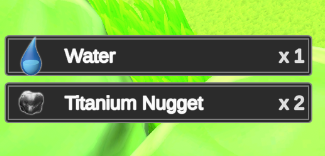
Inventory Monitor
Use an Inventory Monitor to show temporary Item View notifications when Items are added to an Inventory. It is player feedback only: it does not add, remove, or move the Items that it displays.
The standard example monitors Bag so collecting Health Potion or Iron Sword produces a notification, while moving Iron Sword from Bag to Equipment does not look like a new pickup.
Before you begin
Confirm that:
- the intended Inventory System Database is selected in Main Manager > Setup;
- UI Designer Canvas Managers and a duplicated schema have been created;
- Spawn In Scene has created the starting UI;
- the player has an Inventory Identifier beside the Inventory;
- Bag and Equipment have stable Item Collection names or IDs; and
- Health Potion, Iron Sword, and Fire Wand have the Icon and other values required by the notification Item View.
Test Inventory additions independently of the monitor first. A notification cannot appear for an Item that was rejected before reaching the Inventory.
Create the Inventory Monitor
- Open Tools > Opsive > Ultimate Inventory System > UI Designer and select Inventory Monitor.
- Create the Inventory Monitor from the duplicated project schema.
- Select the generated Inventory Monitor in the scene hierarchy.
- Set Inventory Identifier ID to the ID used by the player Inventory.
- Choose Bag in the monitored Item Collections and exclude Equipment.
- Keep the schema-provided Item View presentation until the monitor resolves the correct Inventory and collection changes.
- Position the generated notification area inside the canvas safe area, away from menus and controls that must remain interactive.
- Add Health Potion to Bag in Play Mode and confirm that one notification appears.
UI Designer creates the Inventory Monitor component and its schema presentation. Most project-specific work happens on the generated component and Item View prefab: choosing the Inventory, collections, grouping behavior, placement, and visual content.

Choose what should create a notification
Monitor only the collections that represent the player-facing acquisition event.
| Inventory change | Recommended result | Configuration check |
|---|---|---|
| Add Health Potion from a world pickup to Bag | Show the Item and added amount | Bag is monitored and the addition retains its origin information. |
| Add Iron Sword from a Shop or pickup to Bag | Show a Weapon notification | Weapon resolves a valid monitor Item View. |
| Move Iron Sword from Bag to Equipment | Do not present it as newly acquired | Equipment is excluded and the same-Inventory move keeps its origin ItemInfo. |
| Load existing Bag contents | Usually suppress acquisition popups | Temporarily mute the monitor during bulk restoration when the load workflow would otherwise emit additions. |
ItemInfo can preserve the source collection or stack for an addition. That origin lets the Inventory and monitor distinguish an external acquisition from a move between collections in the same Inventory.
Combine matching additions when useful
Enable the monitor’s option to combine similar Items within one active notification when several matching additions should read as one result. For example, adding three matching Health Potion Items in quick succession can display one Health Potion view with the combined amount.
Keep additions separate when order or source matters. Iron Sword and Fire Wand should remain distinct even though both use Weapon, because they are different Item Definitions.
Test grouping with additions separated by both short and long intervals. The result should match the notification lifetime and animation used by the selected schema prefab.
Customize the notification Item View
Start with a compact Item View containing:
- Icon Item View for the Item’s
Icon; - Name Item View when the Icon alone is ambiguous; and
- Amount Item View when matching additions can be combined or stacked.
Edit the project-owned monitor Item View prefab when every notification should change. Keep text readable for Health Potion, Iron Sword, and Fire Wand, and verify that a large amount does not overlap the Icon.
The monitor is not an Inventory Grid. Do not add selection, Item Actions, or drag-and-drop unless the project intentionally turns the notification into an interactive feature with its own tested input behavior.
Temporarily mute the monitor
Disable the Inventory Monitor GameObject when no notifications should be processed. Runtime logic can also use the Inventory Monitor listen Boolean event to stop and resume listening without replacing the component.
Mute only for a deliberate interval, such as loading an existing Inventory. Re-enable the monitor before new pickups resume, then verify that it does not replay additions that occurred while listening was disabled.
Support more than one player
Each local player should have a unique Inventory Identifier ID, and each monitor or canvas should use the matching ID. Duplicate IDs can cause one monitor to resolve the wrong player Inventory or show the same pickup in more than one UI.
Keep each player’s notification area inside that player’s canvas or viewport and test simultaneous additions.
Editor checkpoints
Before entering Play Mode, confirm that:
- the generated Inventory Monitor belongs to the project or duplicated schema rather than package assets;
- Inventory Identifier ID matches the intended player Inventory;
- Bag is monitored and Equipment is excluded for the acquisition-only workflow;
- the notification Item View can resolve Consumable and Weapon Items;
- Health Potion, Iron Sword, and Fire Wand have valid Icons;
- the grouping choice matches the intended notification behavior;
- the notification area and its largest expected message fit inside the canvas;
- only one active monitor targets this Inventory and collection combination; and
- any load or bulk-add workflow deliberately mutes and restores the monitor when needed.
Verify in Play Mode
- Add one Health Potion from a pickup to Bag and confirm that one notification shows its Icon, name, and amount.
- Add several matching Health Potion Items within the grouping window and confirm that they combine or remain separate according to the configured option.
- Add Iron Sword and Fire Wand and confirm that each uses its own Item View content.
- Move Iron Sword from Bag to Equipment and confirm that the monitor does not present it as a new acquisition.
- Remove an Item and confirm that an add-only monitor does not show a pickup notification.
- Mute the monitor, add an Item, restore listening, and confirm that later additions appear without replaying the muted change.
- At the smallest supported resolution, add enough Items to overlap notification lifetimes and confirm that the views remain readable and inside the canvas.
- In a multi-player setup, add an Item to each player and confirm that only the matching monitor responds.
Troubleshooting
- The Inventory Monitor tab is unavailable: Check that a database is selected, Canvas Managers were created, a schema was duplicated, and Spawn In Scene completed.
- No notification appears: Check that the monitor GameObject is active, listening is enabled, Inventory Identifier ID resolves the player, and Bag is monitored.
- The wrong player’s Items appear: Check for duplicate or mismatched Inventory Identifier IDs on the players, canvases, and monitors.
- Equipping Iron Sword shows a pickup notification: Exclude Equipment and confirm that the move preserves origin ItemInfo instead of creating an unrelated external addition.
- Matching Health Potion additions create too many views: Enable or adjust the similar-Item combining behavior and retest within the active notification lifetime.
- Different Items combine incorrectly: Confirm that grouping compares the intended Item identity rather than only the shared Weapon or Consumable category.
- The notification has no Icon or name: Check the Item View modules, their UI references, and the selected definition’s
Iconand name. - Notifications overlap or leave the canvas: Reposition the parent, adjust the project-owned view layout or lifetime, and retest the largest expected burst.
- Notifications never resume after loading: Re-enable the GameObject or restore the Inventory Monitor listening state at the end of the load workflow.
- Every addition appears twice: Check for duplicate active Inventory Monitor components targeting the same Inventory and collections.