Item Object Visualizer
Use Item Object Visualizer when one reusable GameObject should show the model or sprite for whichever Item is currently assigned to its Item Object. It is particularly useful for pooled pickups: the interaction components remain the same while a Health Potion, Iron Sword, or Fire Wand supplies a different visual prefab.
The visualizer is a presentation component. It does not add the Item to an Inventory, equip it, save it, or synchronize it over a network.
Before you begin
Prepare the Item data and one safe place for the generated visual:
- The scene has an initialized Inventory System Manager and the intended database.
- The reusable GameObject has an Item Object component.
- The relevant Item Category declares a
GameObjectItem Definition Attribute namedPickupPrefab, and each Definition assigns its own prefab. A custom attribute name is also supported. - The prefab has an empty child Transform reserved for the generated model or sprite. Keeping this parent empty prevents the visualizer from removing an unrelated child when it refreshes.
Use an Item Definition Attribute for a visual shared by every copy of Iron Sword or Fire Wand. Use an Item Attribute only when an individual runtime Item can have a different visual; that Item should be mutable, and usually unique, when different copies must keep independent values.
Configure the Item Object Visualizer
- Select the reusable world object or pickup prefab.
- Add Item Object Visualizer on the same GameObject as Item Object.
- Leave Prefab Attribute Name empty to use
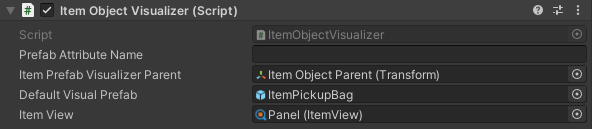
PickupPrefab, or enter the exact name of anotherGameObjectattribute. - Assign the reserved empty child Transform to Item Prefab Visualizer Parent. If this field is empty, the component uses its own Transform, but a dedicated parent is safer.
- Assign Default Visual Prefab when Items without the named attribute should still have a visible model.
- Optionally assign an Item View to update a world-space label or icon from the same Item Info.
- From the component’s context menu, choose Update Item Visuals to preview the currently assigned Item in Edit Mode.
| Inspector field | Released Version 1 default |
|---|---|
| Prefab Attribute Name | Empty in serialized data; initialization changes it to PickupPrefab. |
| Item Prefab Visualizer Parent | None; initialization uses the visualizer’s own Transform. |
| Default Visual Prefab | None. A missing attribute then produces no visual and reports an error. |
| Item View | None; the visualizer works without world-space UI. |
The legacy Inspector below leaves Prefab Attribute Name empty, so the runtime convention is PickupPrefab. It uses a dedicated Item Object Parent, an ItemPickupBag fallback, and a Panel Item View.

Editor checkpoint: the Item Object contains the intended Item, the visualizer is beside it, the visual parent is empty before previewing, and every Definition-specific prefab reference is non-null.
Choose the prefab source
When the visualizer resolves its GameObject attribute, released Version 1 searches in this order:
| Source | Good use | Result |
|---|---|---|
| Item Attribute | A visual override for one mutable, usually unique Item | Overrides Definition and Category values. |
| Item Definition Attribute | The normal Iron Sword, Fire Wand, or Health Potion model | Shared by every Item created from that Definition. |
| Item Category Attribute | One visual shared by an entire Category | Used only when neither the Item nor Definition provides the value. |
| Default Visual Prefab | A generic bag, crate, or placeholder | Used only when no matching typed attribute exists. |
An existing attribute with a null prefab value does not use Default Visual Prefab. The component reports an error and displays no generated visual. This distinction makes a missing value easy to find, but every declared visual attribute must have a valid prefab.
Keep the selected prefab focused on presentation. Do not point the visualizer at a prefab that contains the same visualizer and resolves the same attribute, because each generated child could create another copy of itself.
How visual replacement runs
On Awake, Item Object Visualizer finds the Item Object on the same GameObject and validates its Item. On enable it listens for EventNames.c_ItemObject_OnItemChanged and immediately redraws the current Item.
Each redraw follows the same sequence:
- Clear the optional Item View and remove the last child beneath Item Prefab Visualizer Parent.
- Pass the current Item Info to the optional Item View.
- Resolve the configured
GameObjectattribute, using Default Visual Prefab only when the attribute is absent. - In Play Mode, instantiate the prefab through the Opsive Object Pool beneath the visual parent. In Edit Mode, instantiate a normal preview object.
When the Item Object is rebound from Iron Sword to Fire Wand, the old visual is therefore returned to its pool when it is a pooled object, or destroyed when it is not, before the wand visual is created. Assigning ItemInfo.None removes the generated visual and clears the Item View.
Disabling the visualizer unregisters its listener but does not remove the current child. Re-enabling it refreshes the visual. Changing only an attribute value on the same Item does not send the Item Object change event; call UpdateVisual() after that change when the model must update immediately.
Use one world object for several Items
For a shared pickup shell, give Health Potion, Iron Sword, and Fire Wand their own PickupPrefab Definition values. Assign any one of those Items to the shell’s Item Object. The same Interactable and Item Pickup configuration can then remain pooled while Item Object Visualizer swaps only the child model.
The Equipper already creates objects from its EquipmentPrefab and UsableItemPrefab attributes. Item Object Visualizer is not a replacement for that workflow. Add it to an equipped reusable shell only when that shell needs to swap an additional child visual, and point it at a separate attribute intended for that child rather than back at the shell prefab itself.
Common, immutable Items work for shared Definition or Category visuals because the visualizer only reads the prefab reference. Use a mutable, unique Item Attribute when two otherwise identical Iron Swords must show different runtime appearances. After changing such an override, refresh the visualizer explicitly.
Add a world-space Item View
The Item View field is optional. When assigned, it receives the current Item Info on every redraw and receives ItemInfo.None when the visual is removed. This is suitable for a pickup name, icon, or amount displayed above the world object; it is not a replacement for the Item Views used by an inventory grid.
The Version 1 Setup Manager’s Item Pickup template can create most of this arrangement. Default Pickup Model Prefab supplies the fallback visual, and the optional Item View Prefab must have an Item View component at its root. The template creates a Model Parent, adds Item Object Visualizer, places the Item View in a Canvas above the pickup, and adds that Canvas to the pickup’s selection indicators. Confirm that the Canvas uses World Space when the panel should follow the pickup in the scene. Select and Unselect can then show and hide it as the player enters or leaves interaction range.
For a manual setup, create the world-space Canvas yourself, assign its Item View to the visualizer, and connect the Canvas visibility to the pickup’s Select and Unselect behavior.
Show a representative Inventory Item
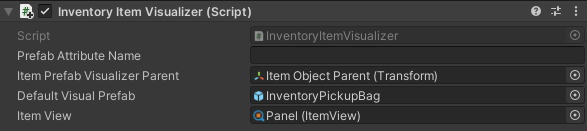
Inventory Item Visualizer uses the same four Inspector fields, but it reads an Inventory on the same GameObject rather than an Item Object.

On enable and whenever the Inventory sends EventNames.c_Inventory_OnUpdate, the component scans Inventory.AllItemInfos. It selects the first non-null Item that declares the configured GameObject attribute; if none does, it falls back to the first non-null Item and then applies the normal lookup and default rules.
Use this component when a chest, loot bag, or Inventory Pickup needs one representative model. It does not combine several models or provide a designer-selectable priority. If several Items qualify, their current Inventory order decides which one is shown. Keep only one eligible Item when the result must be deterministic, or use an Item Object Visualizer and explicitly assign the representative Item.
Verify in Play Mode
- Assign an Iron Sword to the Item Object. Confirm that exactly one sword visual appears beneath the reserved parent and that the Item View shows the sword’s Item Info.
- Rebind the same Item Object to a Fire Wand. Confirm that the sword child is removed or returned to its pool before one wand child appears.
- Bind an Item with no
PickupPrefab. Confirm that Default Visual Prefab appears. - Set a declared
PickupPrefabvalue to null. Confirm that no generated model appears and that the Console identifies the null visual attribute. - Change a mutable, unique Item’s visual override, call
UpdateVisual(), and confirm that only that Item Object changes. - For Inventory Item Visualizer, add one Item with the configured visual attribute and confirm that it becomes the representative model after the Inventory update.
- Disable and re-enable the visualizer. Confirm that it refreshes to one child rather than accumulating duplicate visuals.
Saving and multiplayer boundaries
The visualizer has no dedicated saver. Save the authoritative Item identity, amount, and mutable or unique Item data through the appropriate Inventory and Item save workflow, then restore or rebind that Item. The visualizer rebuilds the child from the restored data when it enables or receives an Item Object or Inventory update. The spawned child, current pool instance, and active listener are not separate save records.
Released Version 1 does not replicate Item Object Visualizer or Inventory Item Visualizer state. In multiplayer, synchronize the Item identity and any visual-driving attribute value through the project’s networking layer, then bind or refresh the local visualizer. Do not synchronize a generated child object’s transient pool identity as the source of truth.
Troubleshooting
| Symptom | Check | Fix |
|---|---|---|
| No model appears | Attribute spelling and type, the Item’s initialization, the Definition value, and Default Visual Prefab | Use the exact GameObject attribute name, assign a non-null value, and bind a valid Item. |
| The default is ignored | Whether the named attribute exists but contains a null prefab | Assign the attribute value or remove that declaration so the fallback can be used. |
| An unrelated child disappears | Item Prefab Visualizer Parent and its child list | Assign an empty Transform used only by the visualizer; it removes the last child on refresh. |
| Old and new models overlap | Whether other code adds children to the visual parent or bypasses UpdateVisual |
Reserve the parent for the visualizer and rebind through ItemObject.SetItem or call UpdateVisual(). |
| A runtime attribute changes but the model does not | Whether the Item itself was rebound | Call UpdateVisual() after changing the visual-driving attribute on the same Item. |
| Disabling the component leaves the model visible | Released V1 unregisters on disable but does not clear the current child | Hide or clear the parent explicitly, or assign ItemInfo.None before disabling when the visual must disappear. |
| Inventory Item Visualizer chooses the wrong Item | Several Inventory entries declare the configured attribute | Keep one eligible representative, control Inventory order, or use an Item Object Visualizer with an explicit Item. |
| A world-space label is empty | Item View, its modules, and the current Item Info | Assign a configured Item View and confirm that the bound Item and amount are valid. |
Related pages
- Item Objects
- Item Pickups
- Equipping Items
- Common Attributes
- Defining Attributes
- Item Views
- Inventory
- Save System
- Events
Developer details
ItemVisualizerBase provides the shared serialized fields and lifecycle. Its public ItemView property assigns the optional view, UpdateVisual(ItemInfo) displays a supplied Item Info, and each concrete component implements parameterless UpdateVisual() to reread its own source.
ItemObjectVisualizer resolves its sibling Item Object, registers the parameterless Item Object change event while enabled, and redraws from ItemObject.ItemInfo. InventoryItemVisualizer resolves and initializes its sibling Inventory, registers the Inventory update event, and redraws from its selected entry in AllItemInfos.
SetVisualInternal and RemoveVisualInternal are protected extension points for a custom visualizer. The base implementation uses Item.TryGetAttributeValue<GameObject>, which checks Item, Definition, and Category attributes in that order. A custom component can override these methods when it needs several child visuals, a different selection policy, or lifecycle behavior beyond replacing the last child.