Use the UI Designer Inventory Grid to present an Inventory as a fixed set of reusable Item slots. It can create a conventional icon grid or a one-column list, then connect that view to navigation, filtering, sorting, Item Actions, and Item Description.

This workflow creates a Bag panel that displays Health Potion, Iron Sword, and Fire Wand without also showing Items in the Equipment collection.

Before you begin

Confirm that:

  • the intended Inventory System Database is selected in Main Manager > Setup;
  • UI Designer Canvas Managers and a duplicated schema have been created;
  • Spawn In Scene has created the schema’s canvas and managers;
  • the player has an Inventory with Bag and Equipment Item Collections; and
  • Health Potion, Iron Sword, and Fire Wand have the Icon and Description values required by the chosen Item Views.

Create the UI Designer foundation first if the Inventory Grid tab is unavailable.

Create the Bag Inventory Grid

  1. Open Tools > Opsive > Ultimate Inventory System > UI Designer and select Inventory Grid.
  2. In Create, set Parent Transform to the Rect Transform that should contain the new panel. For a main-menu Bag, use the generated Main Menu content transform.
  3. Set Panel Option to Main Menu, then set Panel Name and Inventory Grid Name to Bag.
  4. Assign the player’s Inventory.
  5. Under Grid Options, choose Grid for equal-sized icon slots or List for one scrollable column.
  6. Set the grid size and Unity layout group for the intended number and direction of visible slots.
  7. Create the Inventory Grid, then confirm that the Bag panel and its Item View Slots appear under the selected parent in the scene hierarchy.

The Inventory Grid Name identifies this Item View Slots Container to bindings and move conditions. Use a stable, descriptive name rather than leaving several grids with indistinguishable defaults.

Show only the Bag collection

  1. In Edit, use Find Available Targets in Scene or drag the generated Bag Inventory Grid into the target field.
  2. In the filter and sorter options, add an Item Info Item Collection Filter to the grid’s default filter configuration.
  3. Configure the filter to show Bag and exclude Equipment.
  4. Confirm that the Item View Drawer has Use View Slots enabled.
  5. Set the Item View Drawer’s Content to the transform that contains the generated Item View Slots. The drawer and grid must use the same content hierarchy.
  6. Assign a Category Item View Set that can resolve both Consumable and Weapon Items.
  7. Add the shared Item Action and Item Description bindings only after the basic Item display works.

At this editor checkpoint, the hierarchy should contain a named Bag panel, the generated slots, and an Inventory Grid bound to the player Inventory. Its default collection filter should target Bag, and its Item View Drawer should have a valid view for Health Potion, Iron Sword, and Fire Wand.

Choose a grid or list layout

Grid

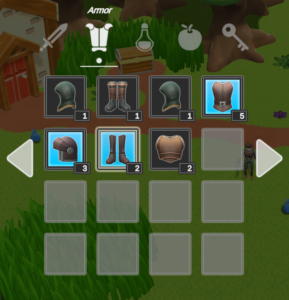
Choose Grid when players should scan recognizable Item icons or move between rows and columns. The fixed slot count remains efficient even when the Inventory contains more Items than are currently visible.

The Classic Inventory Grid displaying Item icons in evenly spaced square slots.

List

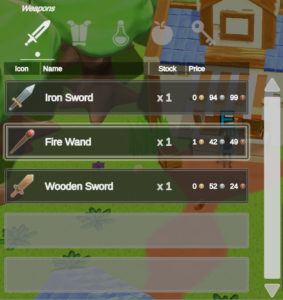
Choose List when Item names, amounts, or other row details need more horizontal space. The generated layout uses one column and a scrollbar while retaining the same Inventory Grid and Item View Slots Container behavior.

The Classic Inventory List displaying Item icons and details in one scrollable column.

Use an Item Shape Grid, not an Inventory Grid, when Items such as Iron Sword must occupy several cells.

Configure size and navigation

Set the visible Grid Size in UI Designer so the correct number of Item View Slots is generated and previewed. The runtime Item Info Grid uses a fixed number of visible elements and redraws them for the current range of Items.

The Unity layout group controls slot spacing and order. Layout Group Navigation uses that order to connect neighboring selectable slots, so confirm its directional axis after changing rows, columns, or spacing.

Add a Grid Navigator when the Inventory can contain more Items than the visible slots. Choose the navigation that matches the interface: scrolling for a list, paging for a compact grid, or tab navigation when each tab represents a different filtered view.

Enable Use Grid Index on the runtime Inventory Grid only when Items should remember explicit positions and empty spaces within the grid. Leave it disabled when the view should simply draw the current filtered and sorted sequence.

Add filtering, sorting, and tabs

  • Use the default filter configuration for rules that should always apply, such as showing only the Bag collection.
  • Add a search bar when players need to filter Items by typed text.
  • Add a sort dropdown when players should choose the runtime order, such as Item name or amount.
  • Use an Item Info Multi Filter Sorter when several rules must apply together. Order matters when filters and sorters are combined.
  • Use a Tab Controller and Tab Toggles when one grid should switch between views. Each Inventory Tab Data entry can supply the filter or sorter applied by its tab.

For the standard example, one tab can show all Bag Items and another can filter to Consumable. Equipment should remain in its own Item Slot Collection View rather than being presented as another unfiltered Bag row.

Connect selection and Item interactions

The generated Inventory Grid is an Item View Slots Container, so the same bindings can supply display and interaction behavior:

  • The Item View Drawer chooses an Item View prefab through a Category Item View Set.
  • An Item View Slots Container Category Item Action Set Binding can offer Consume for Health Potion and Equip for Iron Sword.
  • An Item View Slots Container Description Binding can send the selected Item to an Item Description panel.
  • Drag and drop requires the Cursor Manager, drag handler, drop handler, and compatible move or drop actions.

Configure these shared behaviors on the Item View Slots Container after confirming that the grid shows the correct Items. This keeps display problems separate from action or movement problems.

Editor checkpoints

Before entering Play Mode, confirm that:

  • Parent Transform and Panel Option place Bag under the intended menu.
  • Panel Name and Inventory Grid Name both identify the panel clearly.
  • The Inventory Grid resolves the player Inventory directly or through its panel binding.
  • The Item Info Item Collection Filter shows Bag and excludes Equipment.
  • The generated slot count, Unity layout group, and Layout Group Navigation agree on the intended row or column direction.
  • The Item View Drawer uses the slot content transform and a Category Item View Set that resolves Consumable and Weapon.
  • A Grid Navigator exists when the filtered Item count can exceed the visible slots.
  • Optional search, sort, tabs, Item Actions, Item Description, and drag-and-drop components reference the Bag grid.

Verify in Play Mode

  1. Open Bag and confirm that Health Potion, Iron Sword, and Fire Wand appear with the intended Item Views.
  2. Confirm that Items already in Equipment do not appear in Bag.
  3. Navigate every visible slot with each supported pointer, keyboard, or controller input and confirm that selection remains visible.
  4. Add enough Items to exceed the visible slot count, then confirm that scrolling or paging reaches every Item without creating extra visible slots.
  5. Search, sort, or change tabs and confirm that the displayed Items update without changing the underlying Inventory contents.
  6. If Item Description and Item Actions are configured, select Health Potion and Iron Sword and confirm that both views update.
  7. Equip Iron Sword and confirm that it leaves the Bag view and appears in Equipment.
  8. If drag and drop is enabled, move an Item between valid destinations and confirm that an incompatible Equipment slot rejects Health Potion.

Troubleshooting

  • The Inventory Grid tab is unavailable: Check that a database is selected, Canvas Managers were created, a schema was duplicated, and Spawn In Scene completed.
  • The grid appears under the wrong object: Check Parent Transform and Panel Option. A Main Menu panel must use the Main Menu content transform.
  • Edit cannot find the grid: Confirm that the generated object is active in the current scene, then use Find Available Targets in Scene or drag the Inventory Grid into the target field.
  • Bag is empty: Check the direct Inventory or panel binding, confirm that the runtime Inventory contains Bag Items, and inspect the Item Collection filter.
  • Equipment Items appear in Bag: Check that the Item Info Item Collection Filter shows Bag and excludes Equipment.
  • Slots appear but Item visuals do not: Check Use View Slots, the Item View Drawer Content, and the Category Item View Set mappings.
  • The grid clips or navigates in the wrong direction: Check Grid Size, the Unity layout group, and Layout Group Navigation after changing the layout.
  • Items beyond the visible slots cannot be reached: Add or correct the Grid Navigator and confirm that its scrolling or paging controls target this grid.
  • Search, sorting, or tabs do not update: Check the bound filter or sorter and confirm that the Tab Controller references the intended Inventory Tab Data.
  • Drag and drop uses the wrong destination: Check the Inventory Grid Name, source and destination slot restrictions, and the configured drop action set.