Variables
Share values between tasks
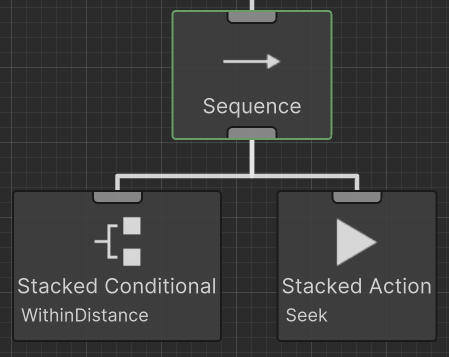
Behavior tree tasks are loosely coupled: one task does not need a direct reference to another task in order to run. A Shared Variable lets those tasks intentionally exchange a value. For example, a Within Sight task can store the GameObject that it detected and a later Seek task can move toward that same object.

Declare and create a Shared Variable
To share a value, the tasks declare a SharedVariable of the specified type:
public SharedVariable<GameObject> m_Target;
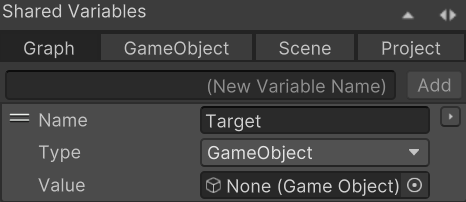
With the field declared, create the matching variable in Behavior Designer. This example uses the Graph tab of the Shared Variables panel; see Scope for the other tabs.

Use Add Variable to create a value or Add Group to organize related rows. Drag variables and groups to reorder them. A group changes only the editor organization; it is not an additional runtime scope.
Add a custom Shared Variable type
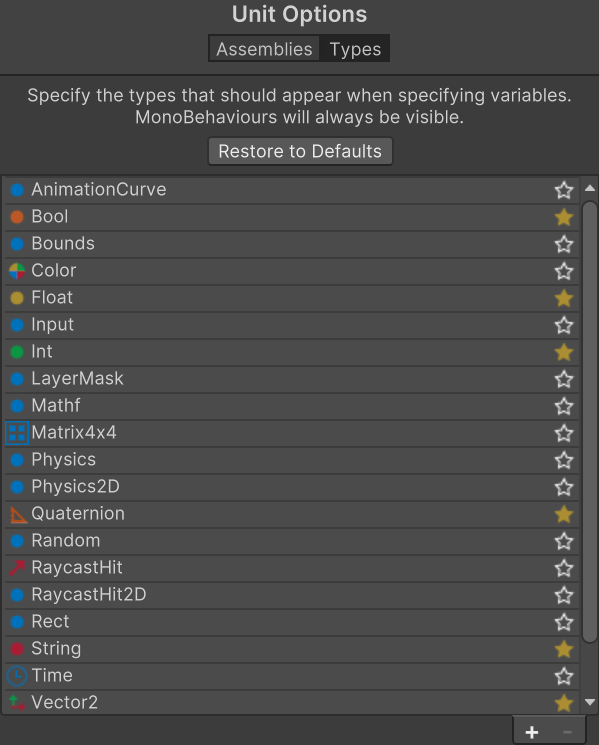
The Shared Variables panel can use a project-specific serializable value type or an explicit class derived from SharedVariable<T>. Add either custom type to Tools > Opsive > Unit Options after it compiles so it appears in the Add Variable type list.
C# rectangular arrays such as int[,] and jagged arrays such as int[][] are different types. The Behavior Designer editor does not automatically present either one as a two-dimensional grid. Use a flat serializable value when the existing array control should edit the values, or use a derived Shared Variable when the project needs a named, specialized variable type that will be populated from code or drawn by a custom Control Type.
Wrap a grid in a serializable value
Store the cells in a one-dimensional array and translate each row and column into a flat index. Behavior Designer can draw the integer and array fields with its existing controls:
using System;
using Opsive.GraphDesigner.Runtime.Variables;
using UnityEngine;
[Serializable]
public class IntGrid
{
[Min(1)]
[SerializeField] private int m_Columns = 1;
[SerializeField] private int[] m_Values = Array.Empty<int>();
public int Columns => m_Columns;
public int Rows => m_Columns > 0 ? m_Values.Length / m_Columns : 0;
public int this[int row, int column]
{
get => m_Values[(row * m_Columns) + column];
set => m_Values[(row * m_Columns) + column] = value;
}
}
public class UseIntGrid : Opsive.BehaviorDesigner.Runtime.Tasks.Actions.Action
{
[SerializeField] protected SharedVariable<IntGrid> m_Grid;
}
Add IntGrid to Unit Options, then create an Int Grid Shared Variable. Keep the Values array length equal to the intended row count multiplied by Columns. Tasks can declare SharedVariable<IntGrid> fields and read a cell with m_Grid.Value[row, column].
Derive a named Shared Variable
An explicit Shared Variable class is useful when the variable itself should have a project-specific name or behavior. This valid declaration stores a jagged integer array:
using Opsive.GraphDesigner.Runtime.Variables;
[System.Serializable]
public class IntGridVariable : SharedVariable<int[][]>
{
public static implicit operator IntGridVariable(int[][] value)
{
return new IntGridVariable { Value = value };
}
}
Add IntGridVariable to Unit Options, create an Int Grid Variable, and declare IntGridVariable fields on the tasks that use it. The inherited Value property contains the int[][] value:
m_Grid.Value = new[] {
new[] { 1, 2 },
new[] { 3, 4 }
};
int cell = m_Grid.Value[row][column];
Because each row in a jagged array can have a different length, validate the row and column before indexing data supplied at runtime. The derived class makes the type available to the Shared Variable system; it does not add a nested-array editor. Prefer the flat IntGrid wrapper for the built-in UI, or create a Control Type when authors need a purpose-built grid.
Manage a variable from its row menu
Right-click a variable row in the Shared Variables panel to open its complete management menu.
| Command | When to use it |
|---|---|
| Enable Property Binding / Disable Property Binding | Connect the variable to a compatible C# property, or remove that connection. A bound variable cannot be moved to Project scope. |
| Change Type | Change the value type. Reassign task fields that are no longer compatible with the new type. |
| Move To > Graph / GameObject / Scene / Project | Move the value to another scope. Behavior Designer updates graph references, removes the row from its current group, and blocks a move that would create a destination name/type conflict. |
| Internal | Keep a Graph variable available to tasks in this graph while hiding it from the Behavior Tree component’s configurable variables and from Subtree override lists. Runtime override lookup also ignores it. Select Internal again to make the variable externally configurable. |
| Rename | Rename the variable and update its references in this graph. |
| Duplicate | Create an independent copy that can be renamed or given a different value. |
| Delete | Remove the variable. Resolve any task fields that referred to the deleted row. |
Internal appears only on the Graph tab. It is useful for temporary counters, cached targets, and other implementation details that a Behavior Tree component or parent Subtree Reference should not override. It is not a security boundary and does not prevent tasks in the graph from reading or writing the value.
Right-click a group for Rename, Duplicate, or Delete. Duplicate creates a new empty group with a unique name; it does not duplicate the member variables. Delete removes only the group, and its variables remain available as ungrouped rows.
Assign the variable to tasks
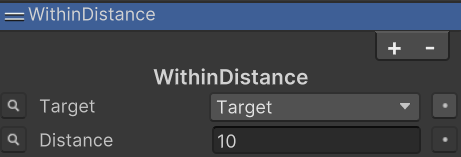
After the variable is created, assign it to a Task field. Select the Task and use the selector to the right of the field value.

Reuse and expose variable types
Repeat the assignment on the Seek Task so both Tasks read the same value. Accessing Variables covers getting and setting the value from inside and outside a Task, and Property Binding connects the same value to a property on a project component.
The Add Variable type list includes MonoBehaviours and common value types such as Int and Float. Register a project-specific type through Tools > Opsive > Unit Options to add it to that list.

Graph navigation and layout controls are documented in the Overview. Task row menus, watched fields, and the Task Palette are documented with Tasks.
Use ECS Variables when a Shared Variable must be registered and accessed from an ECS task.
See Shared Variables in complete trees
Choose the Highest-Priority Need uses values that change at runtime to choose a branch. Patrol and Chase an Enemy passes the detected enemy to the Chase task through a Shared Variable.