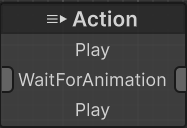
Use a custom Node View when important information should be visible directly on a State Designer graph node without first selecting it. A Node View can show a compact configuration summary or runtime status while leaving the full editable controls in the Element Inspector.

What appears in the editor

The built-in Action State view demonstrates this pattern by listing its contained Actions inside the node. The additional content helps identify the state’s behavior while the whole graph remains visible.

An Action State node lists its contained Actions directly in the State Designer graph.

Use a Control Type instead when a value needs a custom editable field in an inspector. A Node View is most useful for information that should remain visible on the graph.

Add a custom Node View

  1. Choose the state type that needs additional graph content.
  2. Create the view script in an editor-only assembly or an Editor folder.
  3. Apply ControlType for the state type and derive the view from StateNodeView so the standard State Designer node content and runtime highlighting remain available.
  4. Override AddNodeView, call the base implementation, and add the required UIElements to parent.

This example adds the configured repeat behavior to a Repeater node:

using Opsive.GraphDesigner.Editor;
using Opsive.Shared.Editor.UIElements.Controls;
using Opsive.StateDesigner.Editor.Controls.NodeViews;
using Opsive.StateDesigner.Runtime.States;
using UnityEngine.UIElements;

[ControlType(typeof(Repeater))]
public class RepeaterNodeView : StateNodeView
{
    public override void AddNodeView(GraphWindow graphWindow, VisualElement parent, object node)
    {
        base.AddNodeView(graphWindow, parent, node);

        var repeater = node as Repeater;
        if (repeater == null) {
            return;
        }

        var repeatsForever = repeater.RepeatForever != null && repeater.RepeatForever.Value;
        var repeatCount = repeater.RepeatCount != null ? repeater.RepeatCount.Value : 0;
        parent.Add(new Label(repeatsForever ? "Repeats forever" : $"Repeats: {repeatCount}"));
    }
}

AddNodeView receives the runtime node represented by the editor node. Casting it to the registered state type gives the view access to that state’s configuration without searching by index.

Keep runtime information current

The example reads configuration when the view is created. If a view displays information that changes during Play Mode, register an update callback when the element receives AttachToPanelEvent and unregister it on DetachFromPanelEvent. State Designer’s built-in view uses GraphEventType.WindowUpdate for this purpose.

When reading State Designer runtime buffers, use the node’s RuntimeIndex rather than its editor Index. Runtime ordering can differ when a graph contains injected or referenced subgraphs.

Verify the result

After Unity compiles the editor script, add a Repeater state to a graph. Confirm that the node still shows its normal State Designer content and now also displays either Repeats forever or the configured repeat count.

Enter Play Mode and confirm that the normal active-state highlighting still works. If the additional label does not appear, check that the script is in an editor-only assembly, ControlType targets the intended state class, and AddNodeView adds the element to parent.