States
A State is one of the core pieces of a state machine, but in practice it is easiest to think of it as a container. A state represents a behavior “mode” your object is currently in, like Patrol, Chase, or Attack. It gives that mode a place to organize what should happen and when it should change.
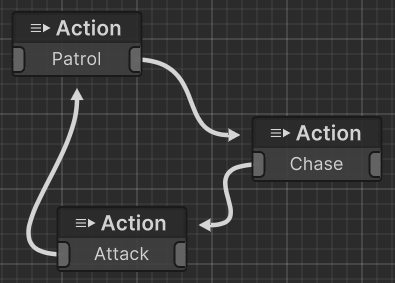
The important thing to understand is that a state usually is not where the custom behavior lives. Instead, the state mainly holds the parts that define the behavior for that moment: the Actions and the Conditions.
Actions are the part that actually do things. They are the behavior. For example, an action might play an animation, move toward a target, trigger an effect, or update a value. Conditions are the part that check rules and make decisions. They answer questions like “Should this state keep running?” or “Is it time to transition to another state?”
So when a state becomes active, it is basically saying: “Run these actions, and keep checking these conditions.”
That relationship is the key idea behind states:
- The state organizes behavior.
- Actions do the work.
- Conditions decide when to stay or switch.
Why States Matter (Even Though They’re Mostly Containers)
Calling states a container can make them sound less important than they are, but they are still a big part of what makes a state machine readable and easy to manage.
States give structure to your logic. Instead of having one large block of behavior, you break things into clear modes. That makes it much easier to understand what your object is doing at any given time, and it also makes your graph easier to maintain as it grows.
For example, you might have separate states for Patrol, Chase, and Attack. Each one can contain its own actions and conditions, which keeps those behaviors cleanly separated. Even if some actions are similar between states, the state provides the context for when and why they run.
States and Actions: Where You Usually Extend the System
This is worth calling out clearly because it saves a lot of confusion early on: most of the time, you do not need to create new state types. If you want to add new behavior, you will usually create a new Action and add it to a state. That is the normal workflow.
In other words, states are usually just the place where behavior is grouped, while actions are where the real customization happens. If you are trying to make something new happen in your game logic, the first question is usually not “Do I need a new state?” It is “Do I need a new action?”
Conditions are similar in that they are also common extension points. If your behavior should switch based on a new rule, you usually add or customize a condition rather than changing the state itself.
A Simple Mental Model
A helpful way to think about it is:
A state is like a folder for a behavior mode. Inside that folder, you put the things that make the mode work (actions) and the checks that decide when to leave it (conditions). That is why states feel simple on purpose. They are meant to organize behavior, not replace actions and conditions.
Example
Imagine an Attack state. While that state is active, its actions might handle things like playing the attack animation, facing the target, or applying damage at the right time. At the same time, its conditions might check if the target is still in range or if the attack can continue. If those conditions are no longer true, the state machine can transition to another state, such as Chase or Idle. The state itself is what ties those pieces together, but the actions and conditions are doing most of the actual behavior and decision-making.
Designing with States
A good way to build a state machine is to first think in terms of broad behavior modes. Ask yourself what major “modes” your character or object can be in, then create states for those modes. Once the states exist, fill each one with the actions that should run there and the conditions that decide when it should transition. This approach keeps your graph clean and helps avoid overloading a single state with too many responsibilities.
When You Might Need a Custom State
Most users will never need this, but there are advanced cases where a custom state implementation makes sense. That is usually when you are changing deeper system behavior rather than just adding gameplay logic. For normal gameplay workflows, actions and conditions are the intended extension points, and they are usually all you need.