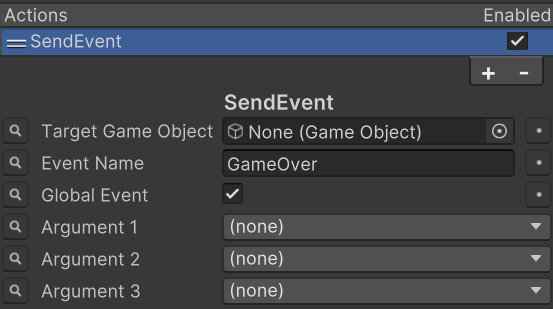
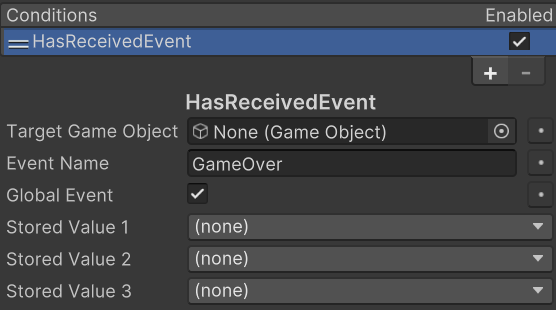
Use an event when something outside the current state should notify a state machine that an action occurred. A Send Event Action publishes a named event, and a Has Received Event Condition can use that event to allow a transition without creating a direct reference between the sender and the receiving state.
Events can be sent by an Action in a graph or by your own code. They can target one GameObject or be global, and they can carry up to three optional values.
Set up an event in the editor
- Add a Send Event Action to the state that should publish the event.
- Enter a nonempty Event Name.
- Choose targeted or global delivery. For a targeted event, select the receiving GameObject.
- Assign up to three optional argument values when the receiver needs data from the sender.

- Select the transition that should react to the event and add a Has Received Event Condition. Remove the default State Finished Condition if the event should interrupt a Running state.
- Use the same Event Name and global-event choice as the sender. Select Receive Mode: Latest for a single pending notification, or Queued to retain multiple events.
- Assign optional stored-value Shared Variables when the transition or destination state needs the sent arguments.
- Use Continuous evaluation when the transition should respond as soon as the event arrives.

Has Received Event settings
| Setting | Default | Description |
|---|---|---|
| Event Name | Default | The name of the event that should be registered. |
| Global Event | Default | Is the event a global event? |
| Receive Mode | Latest | Specifies whether pending events are coalesced to the latest event or queued across condition activations. |
| Max Queue Size | 0 | The maximum number of pending events. Set to 0 for an unlimited queue. Constraint: Min(0). |
| Queue Overflow Policy | DropOldest | Specifies which event should be discarded when the queue is full. |
| Stored Value1 | Default | Optionally store the first sent argument. |
| Stored Value2 | Default | Optionally store the second sent argument. |
| Stored Value3 | Default | Optionally store the third sent argument. |
Receive Mode values: Latest, Queued.
Queue Overflow Policy values: DropOldest, DropNewest.
Example: pass a value to a responding state
Suppose a state machine is in a Waiting state. A graph Action or script sends MyEvent with the integer value 5 to that state machine’s GameObject. The Waiting-to-Respond transition uses Has Received Event with the same name and stores the first argument in a Shared Variable.
When MyEvent arrives, the transition becomes valid, the state machine enters Respond, and the stored value is 5. This keeps the notification separate from the behavior that Respond performs.
How it runs
The receiving Condition registers for its configured event when the state machine starts. When a matching event arrives, it records the optional argument values and reports valid when the transition checks it.
With Receive Mode: Latest, the Condition keeps one received flag and the latest arguments. A valid evaluation consumes that flag; activation and deactivation also clear it. Multiple sends before an evaluation therefore coalesce into one notification.
With Receive Mode: Queued, each received event stores its own arguments. Each valid evaluation consumes the oldest queued event and restores its arguments to the stored-value variables. Remaining events survive Condition deactivation and can be consumed after re-entry without another send. Max Queue Size is unlimited at 0; a positive limit uses Queue Overflow Policy to drop either the oldest or newest event when full.
Consumption happens when the Condition is evaluated as valid, even if another Condition prevents that transition from being selected. Stopping the State Machine, including pausing it, unregisters the listener and clears pending events in both modes. Changing the event name, target, or global-event setting also clears pending events.
Important choices
- Use a targeted event when one known GameObject should receive the notification. The sender and receiver must refer to the same target.
- Use a global event when the notification is not tied to one GameObject. Both the sender and receiver must enable the global option.
- Keep the Event Name nonempty and identical on both sides. An empty name logs an error and cannot produce a useful event.
- Match the number and types of sent arguments with the receiver’s stored-value fields.
- Use Shared Variables for stored arguments when later Actions or Conditions need those values.
Verify in Play Mode
Trigger the sender while the receiving state machine is in Waiting. Confirm that the editor highlights Respond after the event arrives. If the event carries an argument, inspect the assigned Shared Variable and confirm that it contains the sent value.
If the transition does not run, first compare the Event Name, targeted/global choice, target GameObject, and argument setup on both sides.
Send an event from code
Use EventHandler.ExecuteEvent to send the same targeted event from a script:
using Opsive.Shared.Events;
using Opsive.StateDesigner.Runtime;
var stateMachine = GetComponent<StateMachine>();
EventHandler.ExecuteEvent<int>(stateMachine.gameObject, "MyEvent", 5);
This sends MyEvent to the state machine’s GameObject with one integer argument whose value is 5. A global event omits the target object and requires the receiving Condition to use the global option.
Receive an event from code
Code outside the graph can subscribe to the same targeted event:
using Opsive.Shared.Events;
using Opsive.StateDesigner.Runtime;
using UnityEngine;
public class EventListenerExample : MonoBehaviour
{
private StateMachine m_StateMachine;
private void OnEnable()
{
m_StateMachine = GetComponent<StateMachine>();
EventHandler.RegisterEvent<int>(m_StateMachine.gameObject, "MyEvent", ReceivedEvent);
}
private void ReceivedEvent(int arg1)
{
Debug.Log($"Received MyEvent with arg: {arg1}");
}
private void OnDisable()
{
EventHandler.UnregisterEvent<int>(m_StateMachine.gameObject, "MyEvent", ReceivedEvent);
}
}
Register and unregister with the same target, event name, and argument signature.
Related pages
- Actions explains how graph Actions perform work.
- Conditions explains how Conditions allow transitions.
- States explains how the destination state runs its behavior.
- Variables introduces Shared Variables used to store event arguments.
- Accessing Variables shows how scripts read and update Shared Variables.