Getting Started
Import the base character controller first, add the Agility Pack animation states to the character’s Animator Controller, and verify one ability before configuring the rest of the pack.
Import order
Import the packages in this order:
- A supported Opsive Character Controller.
- The controller’s
Opsive/UltimateCharacterController/Demofolder if you intend to use the Agility Pack demo. - The Agility Pack.
Missing controller scripts cause compiler errors; missing base demo assets affect only the add-on demo scene.
Add the animations
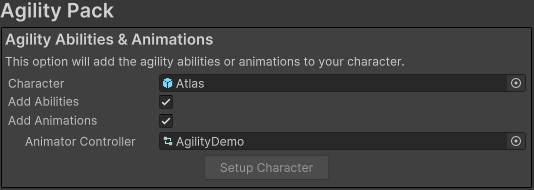
- Open Tools > Opsive > Ultimate Character Controller > Add-Ons Manager.
- Select the Agility Pack and choose the character whose Animator Controller should be updated.
- Enable Add Animations and choose whether Add Abilities should also add the pack’s abilities.
- Click Setup Character to build the selected Animator Controller and apply the chosen setup options.

Setup Character adds the states used by all Agility Pack abilities when Add Animations is enabled. Commit or back up the controller before repeating the operation on a customized animator.
The generated states cover the pack’s entry, active, and exit animations and consume the standard ability Animator parameters. On a customized controller, preserve the animation events and transition conditions when relocating or blending these states. If an ability detects its object but remains stuck in a transition, compare that state’s parameters and events with the generated controller before changing the detection settings.
Establish ability priority
Add only the first ability that you intend to calibrate. Place geometry-driven traversal high enough to take control from normal locomotion, then resolve specific overlaps:
- Keep Hang above Fall and below Jump when using the standard airborne handoff.
- Keep Roll above Fall when landing rolls should continue while airborne.
- Choose the preferred order for Vault and Climbing Pack abilities on shared obstacles.
- Keep Crawl coordinated with any other height-changing posture ability.
After the individual abilities work, re-enable the complete list and revisit any geometry that can start more than one traversal.
Verify an ability
Add one ability from the Agility Pack overview to the character, complete its scene setup, and enter Play Mode. Confirm that the ability starts, plays the expected animation, and returns control to normal locomotion before adding the remaining abilities.
For a geometry-driven ability, verify detection first with debug drawing, then alignment, active movement, and exit. For Dodge or Roll, verify the input direction and available clearance before tuning animation timing. This order prevents an animation adjustment from hiding an incorrect cast or root pose.
Demo lighting
In order to reduce the download size the demo scene does not contain any lightmapping. When the scene first opens it will appear dark and this can be corrected by baking the scene. If the lights are not baked before hitting play they will automatically be disabled.